Voice Typing for Mac: Replace Apple Dictation | Oravo AI
How to Use Voice Typing on Mac in 2026
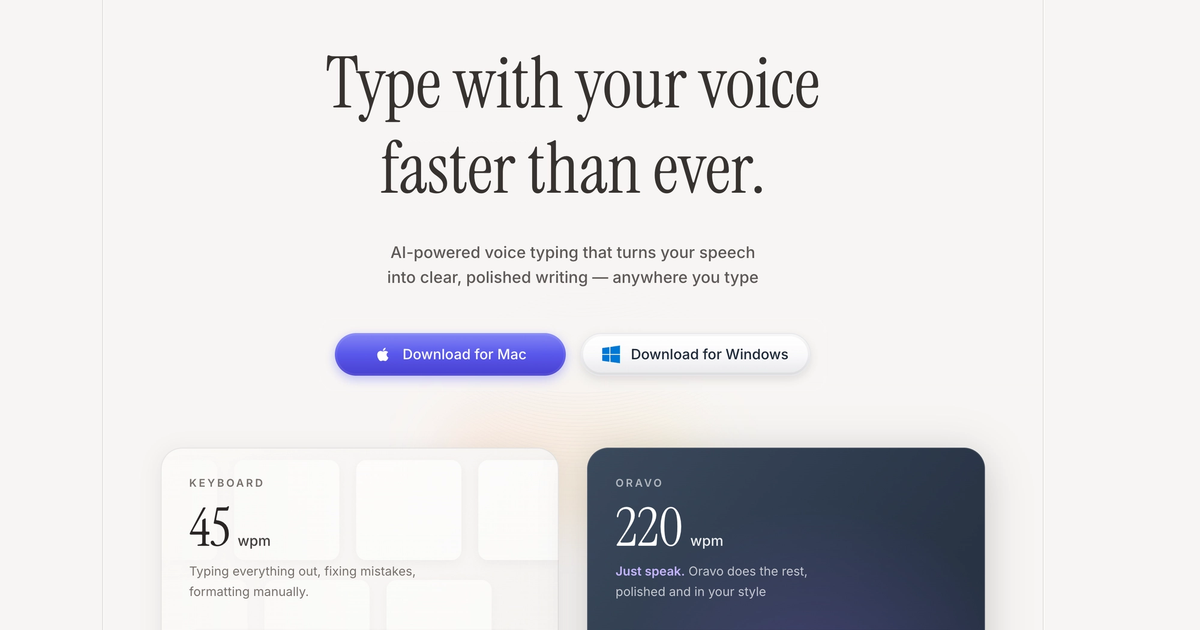
Mac voice typing is available through Apple's built-in Dictation (85-90% accuracy) or professional tools like Oravo AI (98% accuracy). While macOS Dictation provides basic free functionality, professional voice typing delivers 3-4x productivity gains through superior accuracy, intelligent formatting, universal app compatibility, and offline capability that Apple's native solution lacks.
macOS Built-In Dictation: What Mac Users Need to Know
How to Activate Mac Dictation
Method 1: Keyboard Shortcut Press Fn key twice (default) to activate dictation in any text field.
Method 2: Edit Menu Edit > Start Dictation in most applications.
Method 3: Custom Shortcut System Settings > Keyboard > Dictation > Enable Dictation Set custom shortcut if default conflicts with other apps.
Apple Dictation Limitations
Accuracy Challenges: 85-90% macOS Dictation achieves 85-90% accuracy creating 10-15 errors per 100 words. This error rate requires substantial editing time that negates voice typing speed benefits for professional use.
Manual Punctuation Required You must say "comma," "period," "question mark," "new paragraph" verbally. This constant interruption disrupts natural speaking flow and reduces dictation speed by 40-50%.
No Custom Vocabulary Cannot add technical terms, proper nouns, company names, or industry jargon. Specialized vocabulary consistently misrecognized with no learning capability.
60-Second Time Limit (Default) Standard dictation limits sessions to 60 seconds. Enable "Enhanced Dictation" for unlimited length but requires 1.2GB download and reduces accuracy further offline.
Internet Dependency Standard dictation requires internet connection. Enhanced Dictation works offline but with reduced 75-80% accuracy unsuitable for professional work.
Basic Formatting Only No intelligent paragraph structuring, no filler word removal, no context-aware capitalization. Simple transcription without professional formatting intelligence.
Application Compatibility Gaps While theoretically system-wide, Mac dictation has known issues with:
- Some terminal applications
- Legacy Mac apps
- Certain web applications
- Developer tools and IDEs
Why Mac Users Need Professional Voice Typing
The Accuracy Difference That Matters
At 85% accuracy (Mac Dictation):
- 15 errors per 100 words
- 150 errors in 1,000-word document
- 15-20 minutes editing time per 1,000 words
- Editing negates voice typing speed advantage
At 98% accuracy (Oravo AI):
- 2 errors per 100 words
- 20 errors in 1,000-word document
- 2-3 minutes editing time per 1,000 words
- Speed advantage preserved after editing
This 13-point accuracy improvement transforms voice typing from frustrating experiment to reliable productivity tool.
Professional Features Missing from Mac
Intelligent Formatting Professional tools automatically structure paragraphs, remove filler words ("um," "uh"), maintain professional tone, and adapt formatting to content type.
Mac Dictation provides literal transcription without formatting intelligence.
Custom Vocabulary System Add unlimited technical terminology, product names, colleague names, industry jargon. AI learns from corrections improving to 99%+ accuracy for your specific content.
Mac offers no customization or learning.
Offline High-Accuracy Mode Professional tools maintain 95%+ accuracy without internet through on-device AI processing.
Mac Enhanced Dictation offline accuracy drops to 75-80%.
Universal Application Support Professional voice typing guarantees compatibility with every Mac application without exceptions.
Mac Dictation has known compatibility issues with specific apps.
Multi-Language Flexibility Professional tools support 100+ languages with seamless mid-document switching.
Mac supports multiple languages but requires manual switching and separate setup.
Oravo AI: Professional Voice Typing for Mac
What Makes Oravo Different on Mac
98% Accuracy Advanced AI models achieve professional accuracy matching human transcription. Context-aware processing understands sentence meaning for correct homophone usage.
Universal Mac App Support Works identically in Safari, Chrome, Firefox, Mail, Messages, Slack, Notion, Obsidian, Bear, Ulysses, VS Code, Terminal, Xcode, and every Mac application. System-level integration ensures zero compatibility gaps.
Intelligent Automatic Formatting Infers punctuation from speech patterns. Professional capitalization. Paragraph structuring. Filler word removal creating polished text from natural speech.
Custom Vocabulary Add unlimited terms, proper nouns, technical vocabulary. AI learns your corrections improving accuracy over time to 99%+.
Offline Mode Maintain 95%+ accuracy without internet. Essential for flights, coffee shops with poor WiFi, secure environments, or privacy preference.
Native Mac Experience Optimized for macOS with native Apple Silicon support. Minimal resource usage. Fast activation with customizable hotkey. Integrates seamlessly with Mac workflows.
Multi-Language Support Dictate in 100+ languages with seamless switching. Perfect for multilingual Mac users or international team communication.
Oravo vs Mac Dictation Comparison
Feature
Oravo AI
Mac Dictation
Mac Enhanced Dictation
Accuracy
98%+
85-90%
75-85%
Setup
2 minutes
Instant
1.2GB download
Punctuation
Automatic
Manual verbal
Manual verbal
Time Limit
Unlimited
60 seconds
Unlimited
Custom Dict
Yes, unlimited
No
No
Offline
Yes, 95%+ accuracy
No (requires internet)
Yes, 75-85% accuracy
App Support
All apps guaranteed
Most, some issues
Most, some issues
Learning
Yes, improves
No
No
Languages
100+ seamless
Multiple, manual switch
Multiple, manual switch
Formatting
Intelligent
Basic
Basic
Price
$9.99/mo
Free
Free
How to Set Up Voice Typing on Mac: Complete Guide
Option 1: Mac Native Dictation (Free, Basic)
Step 1: Enable Dictation
- System Settings > Keyboard
- Click "Dictation" in sidebar
- Toggle "Dictation" to On
- Choose "Use Enhanced Dictation" for offline (1.2GB download)
Step 2: Configure Microphone
- System Settings > Sound > Input
- Select microphone (built-in or external)
- Test input levels by speaking
Step 3: Set Activation Shortcut
- In Dictation settings, note shortcut (default: press Fn twice)
- Change shortcut if desired
- Test: Press shortcut in any app, speak, press shortcut again to stop
Step 4: Learn Verbal Commands
- Say "comma" for ,
- Say "period" or "full stop" for .
- Say "question mark" for ?
- Say "new paragraph" for paragraph break
- Say "new line" for line break
- Say "cap" or "capitalize" before word to capitalize
Option 2: Oravo AI Professional Voice Typing (Recommended)
Step 1: Download and Install
- Visit oravo.ai/signup
- Create free account (no credit card)
- Download Oravo for Mac (supports Intel and Apple Silicon)
- Install via standard Mac installer
- Grant microphone access when prompted
Step 2: Configure Audio
- Oravo detects Mac microphone automatically
- Test audio levels (speak normally, check green indicator)
- Select different microphone if needed (Settings > Audio)
- Position external mic 6-12 inches from mouth
Step 3: Set Activation Hotkey
- Default: Cmd + Shift + Space (customizable)
- Settings > Hotkey to change if conflicts exist
- Practice: Press hotkey, speak, release
- Choose hold-to-talk or toggle mode
Step 4: Build Custom Dictionary Add Mac-specific vocabulary:
- Mac application names you mention
- Colleague and client names
- Company and product names
- Technical terms from your work
- Keyboard shortcuts you reference verbally
Takes 10-15 minutes, provides 99%+ accuracy for your vocabulary.
Step 5: Test Across Mac Apps Verify Oravo works in your daily applications:
- Safari, Chrome, Firefox, Arc
- Mail, Messages, Slack, Discord
- Notion, Bear, Obsidian, Evernote
- Pages, Keynote, Numbers
- VS Code, Xcode, Terminal
- Any app you type in regularly
Mac-Specific Voice Typing Workflows
Universal Control and Multi-Device Dictation
Mac users with iPad can leverage Universal Control for enhanced workflows:
Setup:
- Enable Universal Control: System Settings > Displays > Advanced
- Position iPad next to Mac
- Use Oravo on Mac, keyboard shortcuts on iPad
- Seamless cross-device workflow
Use Case: Dictate on Mac while referencing research on iPad without switching focus.
Shortcuts Integration
Create Mac Shortcuts triggered by voice:
Example Shortcut:
- Open Shortcuts app
- Create new shortcut: "Insert Meeting Template"
- Add Action: Type Text (your meeting template)
- Assign voice phrase: "meeting template"
- Use with Oravo: Dictate "insert meeting template" and shortcut executes
Mac Ecosystem Integration
iPhone to Mac Dictation Handoff Start dictating on iPhone using Oravo iOS app, continue seamlessly on Mac via iCloud sync.
AirPods Integration Use AirPods Pro or Max as high-quality wireless microphone for Mac dictation with noise cancellation.
Apple Watch Dictation Sync Quick voice notes on Apple Watch sync to Mac for expansion via Oravo dictation.
Application-Specific Mac Voice Typing
Safari and Web Browsers
Gmail Composition:
- Click compose, activate Oravo, dictate complete email
- Switch to keyboard for subject line (faster to type short text)
- Voice for CC/BCC if many recipients
Google Docs:
- Superior to Google Docs Voice Typing (limited to Chrome)
- Works in Safari, Firefox, Arc, any browser
- No browser dependency
Mail App
Email Workflow:
- New message
- Type recipient and subject (quick, not worth voice)
- Click body, activate Oravo
- Dictate full email naturally
- Light editing if needed
- Send
Efficiency: 3-minute emails in 45 seconds.
Messaging Apps
iMessage: Quick messages faster to type, but longer explanations benefit from voice:
- "Can you send me the Q4 report when you get a chance" - type it
- Paragraph explaining project context - dictate it
Slack: Professional messages and explanations at speaking speed. No more abbreviated Slack messages due to typing friction.
Note-Taking Apps
Notion: Dictate comprehensive notes while viewing reference material. Perfect for meeting notes, research synthesis, project documentation.
Bear/Obsidian: Knowledge management and personal wiki building accelerated through voice capture.
Apple Notes: Quick voice capture synced across Mac, iPhone, iPad ecosystem.
Development Tools
VS Code:
- Type code syntax (faster for programming)
- Voice for code comments and documentation
- Dictate README files
- Voice for commit messages
Terminal:
- Type commands (precision required)
- Voice for command explanations and documentation
- Dictate troubleshooting notes
- Voice for script documentation
Xcode:
- Type Swift/Objective-C code
- Voice for code documentation and comments
- Dictate user-facing strings and descriptions
Troubleshooting Mac Voice Typing Issues
Problem: Low Accuracy Despite Setup
Solutions:
Upgrade Microphone MacBook built-in mics acceptable but external USB mic (Blue Yeti, Audio-Technica AT2020) or quality headset (AirPods Pro, Jabra) improves accuracy significantly.
Check Input Levels System Settings > Sound > Input. Speak normally, levels should reach 50-75%. Too quiet reduces accuracy.
Background Noise Mac fans, HVAC, or ambient noise degrades accuracy. Use directional microphone or quieter environment.
Speaking Pace Speak at normal conversational pace (180-220 WPM). Too slow or too fast reduces accuracy.
Problem: Oravo Hotkey Not Working
Diagnosis:
- Check if Oravo is running (menu bar icon)
- Test in TextEdit (known working app)
- If works in TextEdit but not target app, check for hotkey conflicts
Solutions:
Hotkey Conflict: Target app uses same Cmd + Shift + Space. Change Oravo hotkey in Settings.
Accessibility Permissions: System Settings > Privacy & Security > Accessibility. Ensure Oravo has permission.
Application Security: Some apps block system input. Run Oravo with same security context as target app.
Problem: Mac Dictation Activates Instead of Oravo
Cause: Mac native dictation interfering with Oravo.
Solution:
- System Settings > Keyboard > Dictation
- Toggle Dictation Off or change shortcut to non-conflicting key
- Use only Oravo for voice typing
Problem: Dictation Slow or Laggy
Causes:
System Resources: Close resource-intensive apps. Activity Monitor shows CPU/RAM usage. Oravo uses minimal resources but other apps may interfere.
Network Latency (Cloud Mode): Switch to Oravo offline mode: Settings > Processing > Offline Mode maintains 95%+ accuracy without internet.
Microphone Latency: Bluetooth headphones introduce 100-200ms lag. Use wired USB microphone for lowest latency.
Mac Voice Typing for Different Workflows
Creative Professionals
Writers and Authors:
- Draft novels, articles, scripts via voice
- Speak naturally, separate creation from editing
- 4x faster first drafts
- Reduced writer's block from conversational approach
Content Creators:
- Video scripts spoken naturally
- Blog posts and social media content
- Podcast show notes and transcripts
- Newsletter composition
Software Developers
Documentation:
- Technical specifications while viewing architecture
- API documentation and README files
- Code comments explaining complex logic
- Commit message details
Communication:
- Slack and email responses
- Code review feedback and explanations
- Team wiki contributions
- Bug reports with reproduction steps
Business Professionals
Email Management:
- Process 50-80 daily emails in 60-90 minutes
- Comprehensive responses instead of brief replies
- Professional tone automatically formatted
Reports and Presentations:
- Quarterly business reviews
- Client proposals and presentations
- Project status updates
- Strategic planning documents
Students and Academics
Academic Writing:
- Research papers and essays
- Thesis and dissertation chapters
- Literature reviews and analysis
- Study notes and summaries
Lecture Notes:
- Real-time note-taking during classes
- Capture key concepts without typing lag
- Comprehensive notes for better retention
Mac Voice Typing ROI Calculation
Individual Mac User ROI
Scenario: Mac professional saving 1.5 hours daily
Annual Time Value:
- Time saved: 1.5 hours daily
- Work days: 250 annually
- Hourly rate: $60
- Annual value: 1.5 x 250 x $60 = $22,500
Oravo Cost:
- Annual subscription: $99.99
ROI: $22,500 / $99.99 = 225x return
Mac Team ROI
Scenario: 25-person Mac-based team saving 1 hour daily each
Annual Time Value:
- Time per person: 1 hour daily
- Team size: 25 people
- Work days: 250 annually
- Hourly rate: $70
- Annual value: 25 x 1 x 250 x $70 = $437,500
Oravo Cost:
- Enterprise: $8.99/user/month
- Annual: 25 x $8.99 x 12 = $2,697
ROI: $437,500 / $2,697 = 162x return
Frequently Asked Questions
Is Oravo better than Mac built-in dictation?
Yes, significantly. Oravo achieves 98% accuracy versus Mac Dictation's 85-90%, provides intelligent automatic formatting versus basic transcription, works offline with 95% accuracy versus Mac's 75-80% enhanced dictation, offers custom vocabularies versus no customization, and includes professional features Mac lacks entirely. For professional use, Oravo delivers productivity gains Mac Dictation cannot match.
Does voice typing work on MacBook Air and MacBook Pro?
Yes, voice typing works excellently on all Mac models including MacBook Air, MacBook Pro (Intel and Apple Silicon), iMac, Mac mini, and Mac Studio. Oravo optimizes for both Intel and Apple Silicon chips. Built-in microphones acceptable, but external mics improve accuracy.
Can I use voice typing in all Mac applications?
Oravo works in every Mac application system-wide including Safari, Chrome, Mail, Messages, Slack, Notion, Pages, VS Code, Terminal, and any app with text input. Mac native dictation has occasional compatibility issues with specific applications that Oravo's system-level integration avoids.
Does Mac voice typing work offline?
Mac Enhanced Dictation works offline with 75-80% accuracy (too low for professional use). Oravo offline mode maintains 95%+ accuracy without internet through on-device AI processing, essential for flights, secure environments, or privacy preference avoiding cloud processing.
How do I improve Mac voice typing accuracy?
For Mac native dictation, enable Enhanced Dictation and speak clearly with verbal punctuation. For professional accuracy, upgrade to Oravo (98% out-of-box), add custom vocabulary for specialized terms, use quality external microphone, and speak at natural conversational pace.
Can I use voice typing for coding on Mac?
Voice typing excels for code documentation, comments, README files, and technical explanations. Actual code syntax remains faster to type. Mac developers use hybrid approach: voice for documentation and AI prompting (Cursor, GitHub Copilot), keyboard for code precision.
Does voice typing work with AirPods on Mac?
Yes, AirPods and AirPods Pro work excellently as wireless microphones for Mac voice typing. Noise cancellation in AirPods Pro improves accuracy in noisy environments. Bluetooth introduces minimal latency (50-100ms) acceptable for most users. Wired USB microphones provide lowest latency if needed.
How much does professional Mac voice typing cost?
Oravo costs $9.99/month or $99.99/year for individuals. Enterprise teams pay $8.99/user/month (annual, minimum 3 users). Free tier available with 2,000 words weekly. ROI typically exceeds 150x through time savings making cost negligible versus productivity value.
Will voice typing work with my Mac in Spanish, French, or other languages?
Yes, Oravo supports 100+ languages with seamless switching. Dictate in English, switch to Spanish mid-document, continue in French. Mac native dictation supports multiple languages but requires manual switching. Professional multilingual users benefit significantly from Oravo's language flexibility.
Can voice typing help with RSI and wrist pain on Mac?
Yes, voice typing eliminates keyboard reliance preventing and treating repetitive strain injuries. Many Mac professionals report complete RSI symptom elimination within 4-8 weeks of switching to voice-primary workflows. Occupational therapists recommend voice typing as effective RSI solution maintaining productivity while resting hands and wrists.
Transform Your Mac Productivity with Oravo AI
Stop accepting Mac native dictation limitations. Upgrade to professional voice typing delivering 98% accuracy, intelligent formatting, universal app compatibility, and offline capability that Apple's built-in tool cannot provide.
Try Oravo AI free on Mac (no credit card required):
- 98% accuracy beating Mac native 85-90%
- Works in every Mac application guaranteed
- Native Apple Silicon and Intel support
- 2-minute setup, instant productivity
- Offline mode for anywhere dictation
- Custom vocabulary for your terminology
- 2,000 words per week free forever