Granola's Free Voice Typing on Mac: What It Does, What It Misses, and Who Should Actually Try It
On October 29, 2026, Granola did something that changed the price of voice typing overnight, at least for Mac users. The company best known for meeting notes added voice typing to its Mac app and made it free, with no word limit, for every Granola user, including people on its free Basic plan. Press the Fn key, talk, and clean text lands wherever your cursor is: in an email, a Slack message, a Google Doc, or a prompt for Claude.
The short answer is this. If you already use Granola on a Mac, turn it on and try it on your next three emails, because it costs nothing extra and it knows the names you use at work. If you are on Windows, Android, or an iPhone, nothing changes for you yet, and if you already pay for a dictation app you like, a free Mac-only feature is not by itself a reason to move.
What Granola actually launched
Granola started as a meeting notepad. It listens through your own computer instead of sending a robot participant into the call, and it turns the rough notes you type during a meeting into a fuller write-up afterward. Voice typing is the other side of that job. Meeting notes capture what other people said. Voice typing writes what you want to say.
The workflow is deliberately simple, and that is part of the appeal. Open any app on your Mac, click where you want the text, hold Fn, and speak the way you would explain it to a colleague. Granola cleans up the filler words, adds punctuation and paragraph breaks, and pastes the finished text in place. You do not write inside Granola and copy it across. The words go straight into Gmail, Slack, Notion, or wherever your cursor already sits.
Granola's own page puts the price up front: unlimited words, for free, for all Granola users. That is the sentence that got attention, because the best known dictation app, Wispr Flow, limits its free tier to 2,000 words a week on desktop and charges $15 a month for Pro. Granola is not charging for dictation at all, which makes sense once you see where its money comes from. Its paid business is meetings and team workspaces, so dictation works as a free extra that keeps people inside Granola, not as the product it needs to sell.
One detail matters more than the price, and it is easy to miss in the launch headlines. Granola already knows your work vocabulary, because it has sat in your meetings. Its page gives a telling example: you say something like "ask Saoirse to send the ARR waterfall before Thursday's board prep," and Granola writes the colleague's name and the team jargon correctly, because it has seen both before. A general dictation app has to learn those names from scratch. Granola starts with a head start, at least for the people and projects that come up in your calls.
How to try it in ten minutes
You need a Mac and a free Granola account. There is no separate download for voice typing. It lives inside the Granola app you already use for meetings.
- Open Granola on your Mac and sign in, or create a free account if you do not have one.
- Click into any app where you can type. Gmail in a browser works, and so does Slack, Notes, or Google Docs.
- Click exactly where the text should go, then hold Fn and speak one short message. A two or three sentence email reply is a better first test than a long document, because it shows you the cleanup and the formatting without much to fix if it goes wrong.
- Release the key and read what landed before you send anything. Check names, numbers, and dates first. Those are the three things dictation gets wrong most often, in every app, and they are the three things that matter most in a work message.
- Try the same test in a second app, for example a Slack message and then a prompt for an AI chatbot. The point of a system-wide tool is that it follows your cursor, so test whether it feels the same in both places.
- If you also use Wispr Flow or another dictation app on the same Fn key, expect a clash. Users reported double dictation on launch day, with both apps firing at once, and Wispr emailed its users with steps to turn Granola's voice typing off. Pick one app for the Fn key and switch the other one off in its settings before you judge either of them, or two apps fighting over one key will make both of them look broken.
The three catches, stated plainly
Free and unlimited is a real offer, and it still has edges. Here is what to check before you build a daily habit around it.
It is Mac only for now. Granola's page says voice typing is available now on Mac, with Windows, iOS, and Android coming soon, and it gives no dates for those versions. If your writing happens on a Windows laptop at work and a Mac at home, or mostly on your phone, this feature covers only part of your day. A dictation habit that stops at one device tends to fade, because you end up typing anyway on the other machines. Wait for the Windows version if Windows is where you do most of your writing, and do not buy a Mac for a free feature.
Free today is not a promise about next year. Granola has not said how long dictation stays unlimited and free, and features launched free to win users have a habit of moving behind a paywall later. That does not make the current offer dishonest. It does mean you should treat it as a good deal right now, not as a permanent price. If you would keep using it at a paid price, that is a different decision from using it while it costs nothing, and it is worth knowing which one you are making.
Check what it reads around your cursor. This is the setting most people will skip, and it is the one worth a minute of your time. An independent write-up of the launch notes that when you start dictating, Granola reads the text around your cursor and nearby text on screen, and sends that context to its transcription provider, AssemblyAI, so names come out spelled right. It skips password fields, which is good, and the setting is on by default. The same write-up notes that for about half a minute after it types, Granola watches what you dictated, and if you fix a name it got wrong, it sends the correction and the surrounding words back so it can learn from them. Turning off the screen reading turns that learning off too. None of this is hidden, and Granola says its providers do not train on your dictations, but the defaults still deserve a conscious choice. If you dictate anything sensitive, open Granola's settings first, find the context setting, and decide whether you want it on. A tool that guesses names well is useful. A tool that guesses names well because it read your screen is a trade you should make on purpose.
A quick comparison, without the sales pitch
Most launch coverage compares Granola to Wispr Flow and stops there. The honest comparison is wider, because most people already have a free option on their computer.
Tool: Granola voice typing; Best for: Mac users who already take meeting notes in Granola; Price for voice typing: Free, unlimited words; Platforms for voice typing: Mac only for now; Watch out for: Windows and phone versions have no date yet; screen context reading is on by default
Tool: Apple Dictation on Mac; Best for: Short replies and occasional dictation, with nothing to install; Price for voice typing: Built into macOS; Platforms for voice typing: Mac, iPhone, iPad; Watch out for: Less cleanup and formatting than a dedicated app, and it does not learn your meeting vocabulary
Tool: Wispr Flow; Best for: People who dictate a lot, on several devices, and want one dictation app everywhere; Price for voice typing: Free tier limited to 2,000 words a week on desktop; Pro $15 a month; Platforms for voice typing: Mac, Windows, iOS, Android; Watch out for: You pay for the cross-device coverage Granola does not yet offer
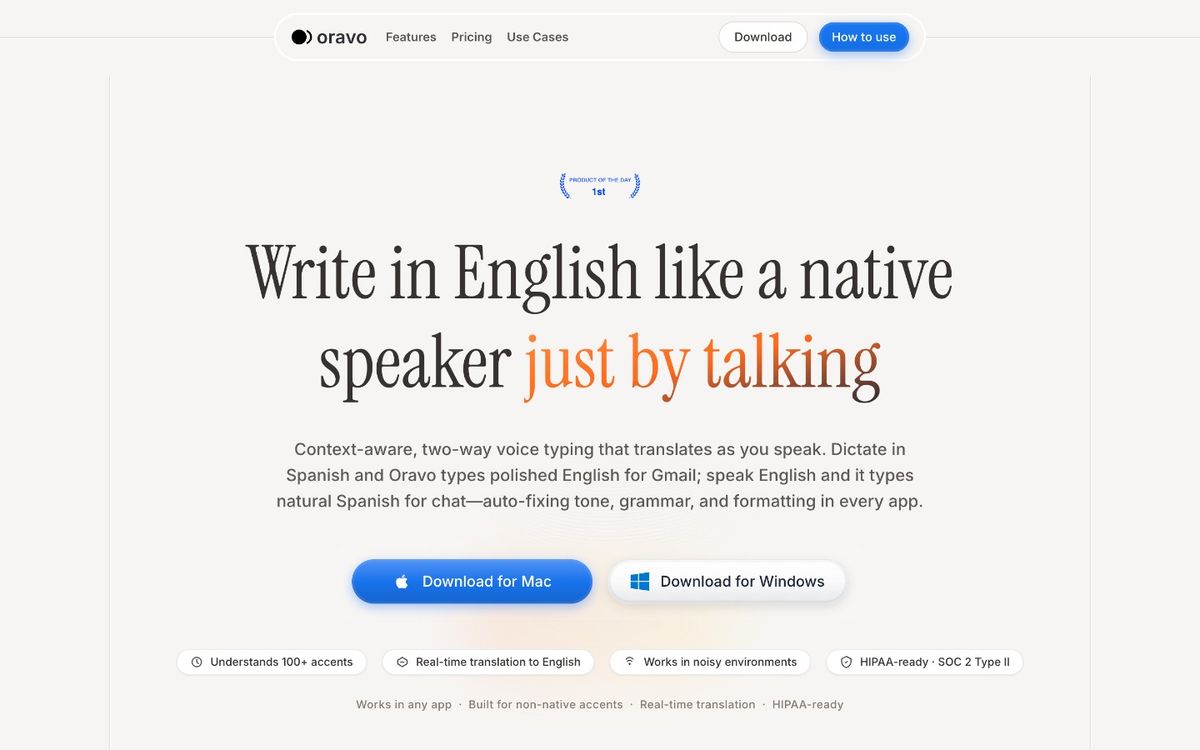
Tool: Oravo dictation; Best for: People who want a dedicated dictation app on Mac, Windows, and Android, rather than a meeting app with dictation added; Price for voice typing: 5,000 words free; Pro $9.99 a month; Platforms for voice typing: Mac, Windows, Android, with iOS coming soon; Watch out for: The free tier is a word allowance, not unlimited, so heavy daily use will hit the limit
Read that table by your own setup, not by the headline price. Free wins when it covers the devices you actually write on. Unlimited wins when you dictate every day. A dedicated app wins when you need the same tool on a Windows laptop and a phone, or when you want dictation to be the main job, not an extra inside a meeting app.
Who should try it, and who should wait
Try it this week if you are on a Mac, you already use Granola for meetings, and your heaviest writing is emails, Slack messages, and short documents. You will get the most from the vocabulary head start, because the names it already knows are your names. Dictate the follow-up while the meeting is fresh, read it back, and send it before you move on to the next call.
Wait if you write mostly on Windows or your phone, if you dictate long documents every day and need a tool that travels with you, or if the screen context setting bothers you. In those cases, the built-in dictation on your device covers short replies for free, and a dedicated dictation app is the honest next step, not a meeting app's new extra.
If you already pay for Wispr Flow and you like it, Granola's launch does not make your subscription a mistake. Wispr's offer to Granola subscribers, credit for remaining paid Granola time plus up to three extra months, capped at twelve months in total, shows how directly the two companies now compete. Try Granola free, keep Wispr if it still earns its place, and let the tool that handles your worst writing day win.
Questions people actually ask
Is Granola voice typing really free? Yes, as Granola states it today. Voice typing is free for all Granola users, including the free Basic plan, with no word limit stated at launch. Check the current pricing page before you rely on it long term, because free plans change.
Does it work on Windows? Not yet. Granola lists Windows, iOS, and Android as coming soon, with no dates given. The launch version is Mac only.
Do I need to use Granola for meetings to use voice typing? No. Voice typing works in any app with a cursor, and you do not have to take meeting notes to use it. Meeting users get one advantage: Granola already knows their colleagues' names and jargon, which helps it spell those words right.
Will it clash with Wispr Flow? It can, because both apps default to the Fn key on Mac. If both are installed, turn one of them off for that key before you test either one, or you may get double text.
Should I turn off the screen context setting? That depends on what you dictate. Leaving it on helps Granola spell names and jargon correctly, because it sends surrounding text to its transcription provider to do that. Turning it off stops that reading, and also stops the correction learning that follows a dictation.
What if I am not on a Mac? Use the dictation already built into your device for short replies, and look at a dedicated dictation app if you dictate daily across devices. Granola's voice typing is worth revisiting when its Windows or phone version arrives, not before.
Granola's launch is a useful shake-up, not a finish line. It proves that a meeting app can give away good dictation, and it puts pressure on every paid dictation app to justify its price with coverage or features a free extra does not offer. For Mac users who already live in Granola, that is a free upgrade worth trying today. For everyone else, it is a good reason to check what your current setup already does, and to wait for the version that runs on the computer you write on.
Oravo dictation is one such dedicated option if you want the comparison above in a single tool: it works wherever your cursor is on Mac, Windows, and Android, with 5,000 words free.
Written by
Raju Yadav
The Oravo team writes about voice typing, productivity and writing clear English when it is not your first language.