Best Voice Typing App for Gmail, Docs, and Notion in 2026
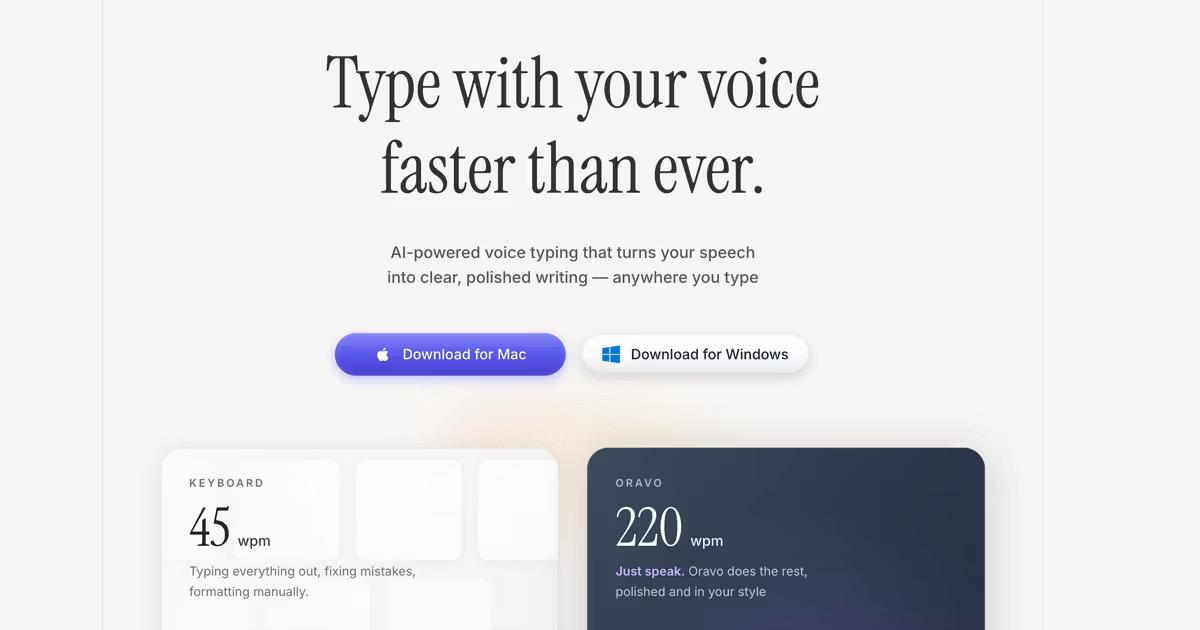
Voice typing transforms how professionals work with Gmail, Google Docs, and Notion by enabling 3-5x faster email composition, document creation at 200+ words per minute, and instant note capture without switching to keyboard. Modern AI voice typing like Oravo works seamlessly across all three platforms on any device, providing 98% accuracy with free and affordable options starting at $9.99 monthly or 2,000 words weekly free, making professional productivity accessible to everyone.
Why Voice Typing Matters for Gmail, Docs, and Notion Users
Gmail: Write Emails 3x Faster
Email consumes 28% of the average workday according to productivity research. Professionals spend 2-3 hours daily writing emails, managing inbox responses, and crafting client communications. Voice typing eliminates the typing bottleneck transforming email from time-consuming chore to rapid communication.
Traditional Email Writing: Think about response, type message carefully avoiding typos, re-read for clarity, send after 5-8 minutes per email.
Voice Email Writing: Speak message naturally as if talking to recipient, minor editing for tone, send within 90 seconds per email.
Time Savings:
- 50 emails daily at 5 minutes each = 250 minutes typing (4+ hours)
- 50 emails daily at 1.5 minutes each = 75 minutes dictating
- Daily savings: 175 minutes (nearly 3 hours)
- Weekly savings: 14.5 hours recovered
Google Docs: Create Documents Without Typing Fatigue
Knowledge workers create reports, proposals, documentation, meeting notes, and collaborative documents constantly. Typing extensive documents causes physical strain, mental fatigue, and slower output. Voice typing enables natural document creation at speaking pace.
Notion: Capture Ideas at the Speed of Thought
Notion users rely on rapid idea capture, project documentation, personal knowledge management, and collaborative wikis. Typing creates friction between thinking and capturing. Voice typing removes this barrier enabling thought-to-text fluency.
Use Cases:
- Meeting notes: Capture discussions in real-time without missing contributions
- Project documentation: Explain technical concepts naturally rather than struggling with written explanations
- Daily journaling: Record reflections, learnings, and plans conversationally
- Knowledge base building: Create comprehensive documentation through natural explanation
- Task descriptions: Add detailed context to tasks and projects rapidly
How Voice Typing Works Across Platforms
Universal Voice Typing vs Platform-Specific Tools
Platform-Specific Voice Typing Limitations:
Google Docs Voice Typing works only in Google Docs on Chrome browser. Gmail has no built-in voice typing. Notion lacks native voice dictation. Each platform requires separate workflows and switching between input methods.
Universal Voice Typing Advantages:
Tools like Oravo work everywhere - Gmail, Docs, Notion, Slack, email clients, browsers, and any text input field across Mac, Windows, iOS, and Android. Single tool, consistent experience, no platform switching.
The Oravo Advantage: System-Level Voice Input
Oravo functions at the operating system level, replacing keyboard input with voice across every application. This means:
Gmail Integration: Compose, reply, and forward emails by voice in Gmail web interface, Gmail mobile app, Apple Mail, Outlook, and any email client.
Google Docs Integration: Dictate documents, comments, suggestions, and edits directly in Docs with formatting commands, punctuation control, and collaborative editing support.
Notion Integration: Voice-create pages, databases, notes, wikis, and documentation with hierarchical structure, bullet points, and formatted text.
Beyond Core Apps: Voice typing works in Slack messages, calendar event descriptions, form filling, web searches, social media posts, and literally any text field.
Voice Typing Use Cases for Productivity Professionals
Gmail Email Management
Client Communication
Cold Outreach: Dictate personalized cold emails faster than templates. Speak naturally about how you can help the prospect. Edit for professionalism. Send 3x more outreach in same time.
Example Process:
- Open Gmail, click compose
- Activate Oravo voice typing
- Speak: "Hi [name] I noticed your company recently expanded into Chicago. I specialize in helping B2B companies optimize their regional marketing during expansion phases. Would love to schedule a quick 15-minute call to discuss how we've helped similar companies achieve 40% faster market penetration. Let me know if Tuesday or Wednesday afternoon works for you."
- Edit for personalization
- Send
- Time: 60-90 seconds vs 5-7 minutes typing
Customer Support Responses
Support Ticket Replies: Explain solutions verbally. Natural conversational tone builds better customer relationships than formal typed responses.
Before Voice Typing:
- 45 tickets daily at 8 minutes each = 6 hours of typing
- Fatigue leads to shorter less helpful responses
- Customer satisfaction scores average
After Voice Typing:
- 45 tickets at 2-3 minutes each = 2 hours dictating
- Energy remains high throughout day
- Comprehensive helpful responses
- Customer satisfaction improves 15-20%
Internal Team Communication
Project Updates: Dictate comprehensive status updates explaining progress, blockers, and next steps without typing fatigue.
Meeting Follow-ups: Send detailed meeting recaps with action items and decisions while memory is fresh.
Feedback and Reviews: Provide thorough constructive feedback to team members through natural spoken explanations.
Google Docs Document Creation
Reports and Analysis
Weekly Reports: Dictate findings, insights, and recommendations conversationally. 30-minute reports completed in 10 minutes speaking plus 15 minutes formatting.
Example Workflow:
- Create new Google Doc
- Type outline headings (quick structure)
- Activate voice typing
- Dictate Executive Summary section speaking main findings
- Dictate each section explaining analysis naturally
- Review and edit for clarity
- Format with headers, bullets, and visual elements
Quality Advantage: Speaking analysis forces clearer thinking than typing. If you can explain it clearly verbally, writing quality improves.
Proposals and Presentations
Client Proposals: Dictate proposal narrative explaining value proposition, methodology, deliverables, and pricing. Natural sales tone converts better than stiff typed proposals.
Time Comparison:
- 10-page proposal traditional typing: 4-6 hours
- 10-page proposal voice dictation: 60-90 minutes
- Client win rate: Similar or improved due to conversational clarity
Meeting Documentation
Real-Time Meeting Notes: Dictate key discussion points, decisions, and action items during meetings. Comprehensive notes without missing meeting content.
Tip: Use laptop or tablet with external mic for clear capture. Speak summaries of key points rather than transcribing verbatim. Focus on decisions, action items, and important context.
Post-Meeting Documentation: Immediately after meetings, dictate comprehensive notes while memory is fresh. Capture nuances and context that disappear hours later.
Notion Workspace Management
Project Documentation
Project Pages: Create comprehensive project documentation explaining goals, strategy, approach, and resources through natural explanation.
Technical Documentation: Explain complex systems, processes, and procedures conversationally. Easier than writing formal documentation.
Example:
- Traditional technical docs: Stiff formal language, incomplete explanations, 3-4 hours for comprehensive page
- Voice dictation docs: Conversational clear explanations, thorough coverage, 45-60 minutes for same content
Knowledge Base Creation
Company Wiki: Build internal knowledge base by speaking explanations of processes, policies, and institutional knowledge.
Personal Notes Database: Capture learnings, insights, and ideas as voice notes converted to searchable text in Notion databases.
Best Practice: Structure first (create database properties and templates), then dictate content for each page rapidly.
Daily Planning and Journaling
Daily Notes: Dictate daily plan, priorities, and reflections. More thorough documentation without typing time investment.
Weekly Reviews: Speak weekly accomplishments, learnings, and next week's priorities. Comprehensive reviews in fraction of typing time.
Personal Development: Voice journal about goals, progress, challenges, and insights. Natural self-reflection through speaking.
Best Voice Typing Tools for Gmail, Docs, and Notion
Oravo AI: Best Overall Cross-Platform Solution
Why Oravo Leads for Productivity Professionals:
Universal Compatibility: Works in Gmail, Google Docs, Notion, Slack, email clients, browsers, and every application. Mac, Windows, iOS, Android support.
98% Accuracy: Professional-grade transcription requiring minimal editing. Critical for business communication quality standards.
Free Tier: 2,000 words per week free forever. Covers typical email volume plus moderate document creation. Test thoroughly before upgrading.
Affordable Premium: $9.99 monthly or $99.99 annually when free tier insufficient. Lower cost than typing-related productivity losses.
Offline Mode: Dictate without internet connection. Essential for commuters, travelers, and unreliable WiFi situations.
Custom Vocabulary: Add industry terminology, client names, product names, and specialized vocabulary for 99% accuracy in your domain.
Multi-Language Support: 100+ languages for international teams and multilingual professionals.
No Learning Curve: Activate and start dictating immediately. Productivity gains from day one.
Formatting Commands: "New paragraph," "comma," "period," "question mark," "exclamation point," "new line" for natural formatting control.
Professional Use Case Fit:
- Sales professionals writing 50+ emails daily
- Consultants creating client reports and proposals
- Project managers documenting meetings and updates
- Content creators drafting articles and documentation
- Customer support teams handling high ticket volumes
- Remote workers managing multiple communication platforms
Google Docs Voice Typing: Limited Free Option
Pros:
- Free with Google account
- Built into Google Docs
- Zero setup required
Cons:
- Google Docs only - does not work in Gmail or Notion
- Chrome browser only - excludes Safari, Firefox, Edge users
- 90-92% accuracy requiring significant editing
- Verbal punctuation commands interrupt flow
- No offline mode
- No custom vocabulary
- Does not work on mobile
Verdict: Acceptable for occasional Google Docs users exclusively. Inadequate for professionals using Gmail, Notion, and multiple platforms. Oravo free tier provides superior cross-platform experience.
Apple Dictation (Mac/iOS): Basic Built-In Option
Pros:
- Free with Apple devices
- Works system-wide on Mac and iOS
- No installation required
Cons:
- Apple ecosystem only (excludes Windows and Android)
- 85-88% accuracy too low for professional use
- 60-second limitation without enabling Enhanced Dictation
- Manual punctuation commands
- No customization or learning
- Poor performance for extended dictation
Verdict: Testing only. Serious professionals require Oravo accuracy and features.
Windows Speech Recognition: Outdated Technology
Cons:
- 80-85% accuracy unacceptable for business communication
- Extensive training required
- Awkward command structure
- Frequent errors requiring heavy editing
- Technology superseded by modern AI
Verdict: Do not use. Modern AI voice typing like Oravo vastly superior.
How to Set Up Voice Typing for Productivity Workflows
Quick Setup with Oravo (10 Minutes)
Step 1: Create Account (3 minutes) Visit oravo.ai/signup, create account with work email, choose free tier to start, download for your primary device (Mac/Windows/iOS/Android).
Step 2: Test Basic Functionality (2 minutes) Open Gmail, click compose, activate Oravo, speak test email, verify accurate transcription.
Step 3: Add Custom Vocabulary (5 minutes) Add client names, company-specific terminology, product names, industry jargon, common phrases you use frequently.
Example Custom Vocabulary:
- Client names: "Acme Corporation," "TechStart Industries"
- Product names: "Dashboard Pro," "Analytics Suite"
- Industry terms: "GTM strategy," "MQL," "attribution modeling"
- Common phrases: "circle back," "action items," "deliverables"
Step 4: Configure Shortcuts (Optional) Set keyboard shortcut for instant activation. macOS: System Settings → Keyboard → Shortcuts. Windows: Oravo settings.
Done: Start using voice typing across Gmail, Docs, and Notion immediately.
Workflow Integration Strategies
Email Workflow:
- Process inbox by speaking replies
- Compose new emails by voice
- Voice-to-text for calendar invites and scheduling
- Dictate Slack messages and team communication
Document Workflow:
- Create document outline (typing for structure)
- Dictate section content by voice
- Edit and format
- Collaborate with comments and suggestions by voice
Notion Workflow:
- Create page structure and databases (typing)
- Voice-dictate page content
- Voice-add task descriptions and context
- Voice journal and daily notes
Productivity Gains Timeline:
Week 1: 20-30% time savings as you adapt to speaking instead of typing. Slight editing overhead as you learn voice dictation patterns.
Week 2-3: 40-50% time savings with improved dictation habits. Natural speaking patterns emerge. Editing decreases.
Month 2+: 60-70% time savings fully optimized. Voice becomes preferred input method. Quality matches or exceeds typed content.
Professional Voice Typing Best Practices
Email Dictation Excellence
Speak as You Would to the Recipient: Email tone improves when you imagine speaking to the person. Natural conversational flow builds better relationships than formal typed emails.
Casual Typed Email: "Per your inquiry regarding the timeline, we anticipate completion within the projected timeframe previously discussed."
Natural Dictated Email: "Thanks for checking in on the timeline. We're on track to finish by the end of next week as we discussed."
Structure Before Speaking: Think about key points before dictating. Optional: Type quick bullet point outline, then dictate full content for each point.
Edit for Professionalism: Voice dictation creates conversational tone. Edit to match professional context:
- Remove excessive casual language for formal communication
- Tighten verbose explanations
- Ensure appropriate formality level
- Verify grammar and punctuation
Document Dictation Strategy
Outline First, Dictate Second: Create document structure and headings by typing (fast for structure). Then dictate content for each section.
Example:
[Type outline]
# Executive Summary
# Current Situation Analysis
# Recommendations
# Implementation Timeline
# Budget and Resources
[Dictate content]
Activate voice typing. "Executive Summary. Our analysis of the Q4 performance data reveals three critical opportunities for improvement..." [Continue speaking naturally]
Section-by-Section Approach: Complete one section fully before moving to next. Easier to maintain flow and context than jumping around document.
Two-Pass Editing:
Pass 1 - Content: Review logic, completeness, accuracy. Voice typing produces more content enabling selective refinement versus expansion.
Pass 2 - Polish: Fix grammar (AI handles most automatically), improve sentence structure, format with headers and bullets, ensure consistent tone.
Notion Voice Best Practices
Database Properties First: Create database structure, properties, and templates using keyboard. Faster for precise configuration.
Content by Voice: Dictate page content, descriptions, and documentation by voice. Natural explanations produce better knowledge base content.
Voice Journaling: Daily notes and weekly reviews by voice. Comprehensive self-reflection without typing time investment.
Collaborative Documentation: Voice-dictate comprehensive explanations for team wikis and shared documentation. Clearer than abbreviated typed notes.
Voice Typing ROI for Professionals
Time Savings Calculator
Scenario: Marketing Manager
Current Time Investment:
- 40 emails daily at 6 minutes each = 240 minutes (4 hours)
- 2 reports weekly at 90 minutes each = 180 minutes
- Meeting notes 5 times weekly at 20 minutes each = 100 minutes
- Weekly total: 520 minutes (8.7 hours)
With Voice Typing:
- 40 emails at 2 minutes each = 80 minutes
- 2 reports at 35 minutes each = 70 minutes
- Meeting notes at 7 minutes each = 35 minutes
- Weekly total: 185 minutes (3.1 hours)
Weekly Savings: 5.6 hours Monthly Savings: 22.4 hours Annual Savings: 268 hours (nearly 7 work weeks)
Financial ROI
Oravo Investment: $99.99 annually
Time Value:
- 268 hours saved annually
- Average professional hourly rate: $50-100
- Time value saved: $13,400 - $26,800
ROI: 13,300% - 26,700%
Beyond raw time savings: reduced stress, sustainable work pace, better work-life balance, higher quality output through comprehensive development.
Career Advancement Value
Professionals Using Voice Typing Report:
- 40% more comprehensive documentation - Better project tracking and knowledge sharing
- 25% faster project completion - Reduced communication and documentation bottlenecks
- 50% less typing-related fatigue - Sustainable productivity throughout workday
- Higher perceived responsiveness - Rapid email replies improve stakeholder relationships
- Better meeting outcomes - Comprehensive notes enable better follow-through
Career Impact: Professionals who communicate faster, document thoroughly, and respond rapidly advance faster than counterparts stuck typing.
Voice Typing for Different Professional Roles
Sales Professionals
Primary Uses:
- Cold outreach and prospecting emails
- Follow-up sequences and nurturing
- Proposal creation and contracts
- CRM notes and activity logging
- Client communication and relationship building
Benefits:
- 3x more outreach volume in same time
- Personalized emails at scale
- Comprehensive CRM documentation
- Faster quote and proposal turnaround
- Better client relationships through rapid responsive communication
ROI: Sales professionals report 30-40% more deals closed when voice typing eliminates communication bottlenecks.
Project Managers
Primary Uses:
- Daily standups and status updates
- Meeting notes and action items
- Project documentation in Notion/Docs
- Stakeholder communication via email
- Risk and issue logging
Benefits:
- Comprehensive meeting documentation
- Clear stakeholder communication
- Reduced administrative overhead
- Better project visibility through thorough notes
- Sustainable pace managing multiple projects
Budget: $9.99 monthly essential for project management productivity.
Consultants and Advisors
Primary Uses:
- Client reports and deliverables
- Weekly client updates
- Meeting notes and insights
- Proposal and SOW creation
- Knowledge capture and documentation
Benefits:
- Professional high-quality deliverables
- Reduced billable time on documentation
- More time for strategic thinking
- Better client relationships through responsiveness
- Comprehensive knowledge management
Client Perception: Rapid comprehensive communication elevates perceived expertise and professionalism.
Customer Success and Support
Primary Uses:
- Support ticket responses
- Customer follow-up and check-ins
- Onboarding documentation
- Internal knowledge base articles
- Escalation explanations
Benefits:
- 2-3x faster ticket resolution
- Higher quality comprehensive responses
- Reduced agent burnout
- Improved customer satisfaction scores
- Better documentation and knowledge sharing
Team Impact: Support teams report 50% reduction in response time with equivalent or better quality when using voice typing.
Content Creators and Marketers
Primary Uses:
- Blog post and article drafts
- Social media content
- Email marketing copy
- Documentation and guides
- Campaign briefs and strategy docs
Benefits:
- Faster content production
- More natural conversational writing
- Reduced writer's block
- Higher volume without quality sacrifice
- Sustainable content creation pace
Creative Flow: Many creators report better writing flow when speaking versus typing removes the mechanical typing barrier.
Executives and Leadership
Primary Uses:
- Strategic communication to teams
- Board updates and investor communication
- Delegation and direction to direct reports
- Meeting preparation and follow-up
- Personal notes and planning
Benefits:
- Clear comprehensive communication
- Time saved on routine communication
- Better delegation through detailed direction
- Reduced time on administrative tasks
- Focus on strategic thinking versus typing
Executive Value: Every hour executives save on typing and writing redirects to higher-value strategic work.
Frequently Asked Questions
Is voice typing accurate enough for professional business communication?
Yes, modern AI voice typing like Oravo achieves 98% accuracy out of the box, and 99% with custom vocabulary. This matches or exceeds typical typing accuracy (most people type with 92-96% accuracy when including typos and errors). Professional business communication requires only light editing.
How do I handle punctuation and formatting with voice typing?
Modern voice typing automatically adds periods and commas intelligently. For additional punctuation, speak commands: "question mark," "exclamation point," "new paragraph," "comma," "colon." After brief practice, this becomes natural and maintains speaking flow.
Can I use voice typing in open offices without disturbing colleagues?
Speak at normal conversational volume (same as phone calls). Many professionals use voice typing in open offices without issues. Alternatives: conference rooms for long dictation sessions, noise-canceling microphone headsets to reduce volume needed, or voice type from home/private spaces for sensitive content.
Does voice typing work for technical writing with specialized vocabulary?
Yes, with custom vocabulary. Add industry terms, technical jargon, product names, and specialized vocabulary to Oravo's custom dictionary. Accuracy for technical content matches general writing. STEM professionals, lawyers, doctors, and engineers successfully use voice typing with domain-specific terminology.
Will recipients know I used voice typing?
No, voice-typed content appears identical to typed content. No indication of input method remains. Your writing quality, not input method, determines perception.
How does voice typing work with editing and revisions?
Voice typing handles initial content creation. Editing and revisions use combination of voice (for rewriting sections) and keyboard (for minor tweaks and formatting). Most professionals use 70% voice for drafting, 30% keyboard for editing and polish.
Can I use voice typing for confidential or sensitive information?
Oravo processes voice locally on-device in offline mode for maximum privacy. Online mode uses encrypted transmission. For maximum security, enable offline mode when handling sensitive content. Check your company's security policies regarding voice input tools.
Does voice typing work with multiple languages?
Yes, Oravo supports 100+ languages with language switching. Multilingual professionals dictate in their native language or switch between languages for international communication.
Will voice typing improve my writing skills?
Many professionals report writing improvement through voice typing. Speaking forces clearer thinking and more natural expression. If you can explain something clearly verbally, written quality improves. Some users find dictated writing clearer than typed writing.
How long does it take to get comfortable with voice typing?
Most professionals feel comfortable within 1-2 weeks of regular use. Initial adjustment period requires learning to speak in complete thoughts and trust the technology. By week 3-4, voice typing feels natural and becomes preferred input method for many tasks.
What equipment do I need for best voice typing results?
Most professionals use built-in laptop or phone microphones with excellent results. For optimal accuracy in noisy environments: USB desktop microphone ($30-80), noise-canceling headset ($50-150), or AirPods/quality earbuds ($50-200). Built-in microphones work well for 90% of use cases.
Can I use voice typing while commuting or traveling?
Yes, excellent use case. Voice-type emails and notes during commutes using phone. Dictate documents during flights using laptop offline mode. Many professionals complete 30-60 minutes of email and documentation during otherwise unproductive travel time.
Start Transforming Your Productivity Today
Voice typing transforms professional productivity by eliminating typing as communication bottleneck. Write emails 3x faster, create comprehensive documents without typing fatigue, capture thorough notes in real-time, and reclaim 5-10+ hours weekly for higher-value work.
Try Oravo AI free (no credit card required):
- 2,000 words per week free forever
- 98% accuracy for professional communication
- Works across Gmail, Google Docs, Notion, and everywhere
- Mac, Windows, iOS, Android support
- Perfect for productivity professionals