Why isn’t Oravo App recording my voice in Windows or mac?
App Not Responding? Here’s a Simple Troubleshooting Guide
When an app stops responding—especially one that relies on voice or audio—it can be frustrating. The good news? Most issues come down to a few common settings and are easy to fix.
Follow the steps below, top to bottom. You’ll likely be back up and running in minutes.
Step 1: Check If Audio Is Being Captured
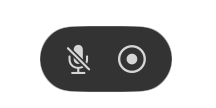
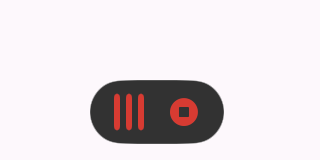
Start by looking at the volume indicator at the bottom of your screen.
- If the bottom bubble is recording state in red color when you press your trigger key, that audio is being captured correctly.
- If the bottom doesn’t change, as shown in the attached screenshot, the microphone may not be detected.
If there’s no movement, don’t worry—this usually means a permission or input issue.
Step 2: Verify Microphone Permissions
Your system needs to explicitly allow microphone access.
On macOS
- Open System Settings
- Go to Privacy & Security → Microphone
- Make sure the app is enabled
- If the app isn’t listed, quit and reopen it, then check again
On Windows
- Open Start → Settings
- Go to Privacy & security → Microphone
- Ensure microphone access is turned on
- Confirm that the app is allowed to use the microphone
Step 3: Check Audio Input Settings
Even with permissions enabled, the wrong microphone can be selected.
- Open Sound → Input in your system settings
- Make sure the correct microphone is selected
- Confirm the microphone is not muted
- Increase the input volume if needed
- Test the microphone at the system level
Windows tip: Some laptops mute the mic with a hardware shortcut. Try Fn + F7 (or a similar key).
Step 4: Check Your Internet Connection
If the app relies on cloud processing, a weak connection can cause issues.
- Make sure your internet connection is stable
- Temporarily disable VPNs, firewalls, or proxy tools
- Try again after disabling them to rule out conflicts
Step 5: Last Resort
If nothing else works, resetting local data can resolve corrupted state issues.
-> Close the app and reopen it as administrator in the Windows version
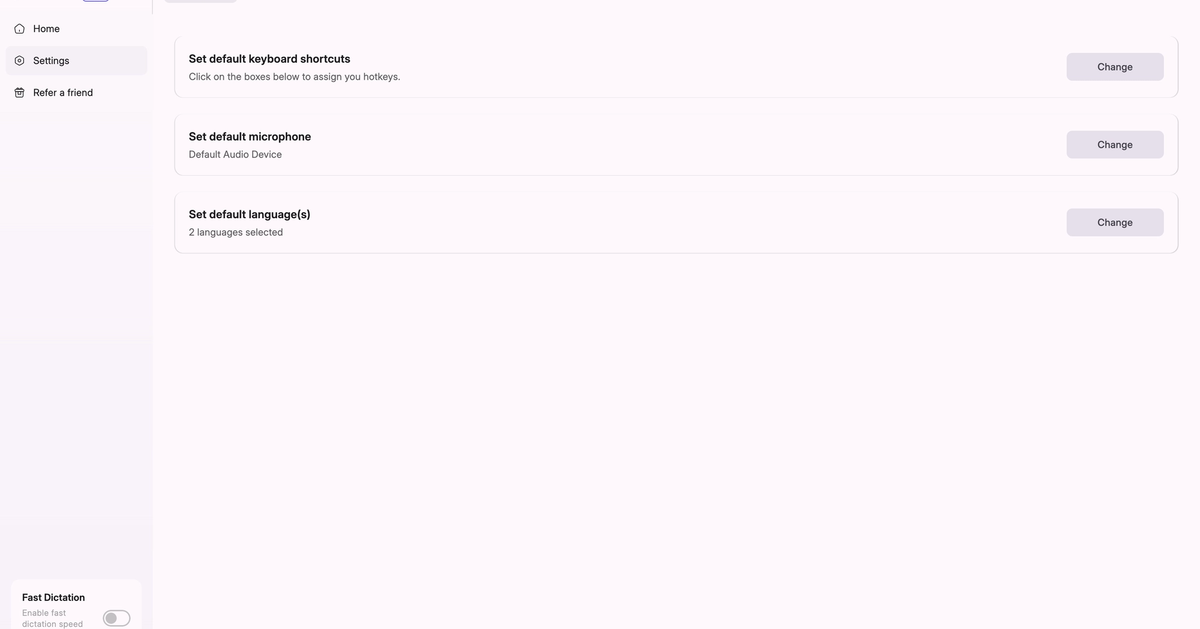
-> Try changing short shortcut or Trigger Key from the Oravo Setting->Default Page
A Quick Note on Microphones
Virtual microphones are not supported. For best results, use a physical microphone connected directly to your device.
Still Having Issues?
If you’ve tried all the steps above and the problem persists, use the Report an issue option in the app’s Help section to contact support.
Final Thought
Most issues come down to permissions, input selection, or connectivity. A quick check of these basics usually saves a lot of time—and frustration.