The fastest way to get voice typing in Obsidian is whatever you already have: press Win+H on Windows or Control twice on Mac with a note open, and you are dictating. The catch is that built-in dictation stops being enough once you use voice regularly, and the community plugins that fill the gap each demand their own tradeoffs. Below are the three approaches that actually work, the exact steps to set each one up, and the Obsidian-specific gotchas nobody mentions.
The three approaches, in brief
There are three fundamentally different ways to dictate into Obsidian, and most confusion comes from mixing them up.
1. System dictation. The OS types for you. On Windows it's Win+H, on Mac it's Apple Dictation. Works everywhere, free, no plugin needed. Accuracy is fine for plain English and weak for jargon, and you get a short burst window before it times out.
2. Community plugins. Plugins like Voxtral Transcribe or Lipisper live inside Obsidian itself. They can insert headings, bullet points, and to-do items by voice, since they know the editor. The cost: you disable Restricted mode, you trust a plugin with your microphone, and several plugins only work on desktop.
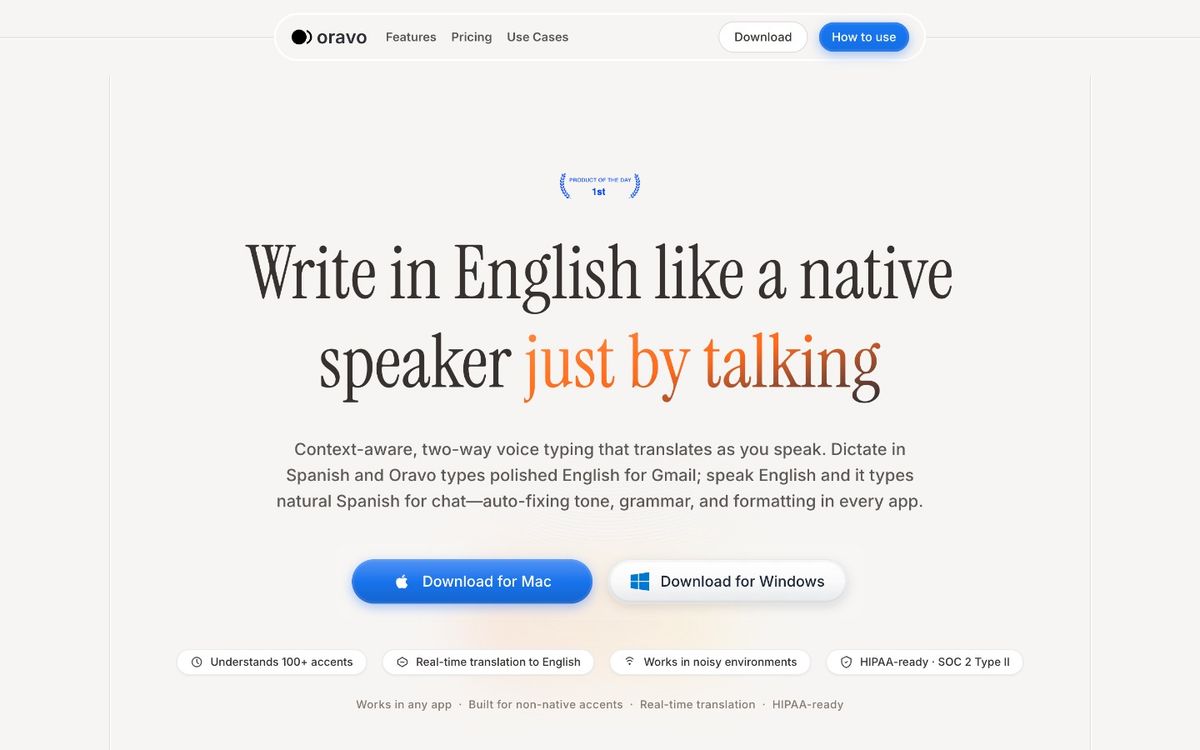
3. A global dictation app. Tools like Oravo, SuperWhisper, or Vext run outside Obsidian and type into whatever window has focus. No plugin, no vault trust decision, and the same setup works in Obsidian, your browser, and Slack. The tradeoff is they cannot see your vault, so note titles, links, and frontmatter stay manual.
Option 1: Built-in dictation (start here)
This is the zero-setup option, and honestly the right one if you only dictate occasionally.
Windows
- Open Obsidian and click into a note.
- Press Win+H. The voice typing toolbar appears at the top of the screen.
- Speak. Text lands at the cursor.
- Click the microphone icon or press Win+H again to stop.
Two settings worth changing first: in the voice typing toolbar, open Settings and enable auto punctuation. Without it, your notes come out as one long breath. Also know that Windows voice typing now offers a dictation overlay in Windows 11 22H2 and later, which is worth enabling if you dictate long passages, since the old toolbar tended to time out after a pause of around 30 seconds.
Mac
- Make sure Dictation is on: System Settings > Keyboard > Dictation.
- Click into an Obsidian note.
- Press Control twice (or your custom hotkey), speak, press again to stop.
iPhone
On the iOS Obsidian app, tap into a note, tap the text field, then tap the microphone key on the keyboard and dictate. It works fine for capture, with one real annoyance: Obsidian's mobile editor occasionally loses the keyboard focus when the dictation session ends, and you have to tap back into the note. Not a dealbreaker, but plan for it.
Where built-ins fall short, in practice: filler words ("um", "uh") land verbatim in your notes. Technical vocabulary from your PKM life, "Zettelkasten", "Dataview", "Templater", author names, mis-transcribes often. And longer dictation sessions are a fight, because the built-ins are designed for short bursts, not five-minute braindumps into a daily note.
Option 2: Community plugins
If you live in Obsidian and want voice features that understand markdown, plugins are the native answer. Two are worth knowing about in 2026.
Voxtral Transcribe (best plugin experience)
Powered by Mistral's Voxtral models, this is the most polished voice plugin available, and it was updated days ago as of this writing. Its party trick: voice commands. You can say "heading two" to insert ##, "new bullet" for a list item, "new to-do" for a checkbox, and wrap text in bold or code blocks with "open bold" / "close bold" phrases. It supports 13 languages, includes batch mode for longer dictation, and auto-correction that cleans up capitalization and punctuation after you stop recording.
Setup:
- Settings > Community plugins, turn off Restricted mode, and enable community plugins.
- Search for Voxtral Transcribe and install it.
- Enter your Mistral API key in the plugin settings.
- Click the microphone icon in the ribbon or press Ctrl+Space, and start speaking.
The honest cost: it's cloud-based, so your audio goes to Mistral's API, and it costs whatever Mistral charges per minute. If your vault holds client notes or sensitive thinking, read that twice. It is also the heaviest setup of the three options, since it requires an API key and billing.
Lipisper (local, free, offline)
Lipisper does the same job with open-source Whisper models running entirely on your machine. No API key, no cloud, no cost. Install it the same way (disable Restricted mode first, then search the community plugin store), and on first use it downloads a Whisper model, base at 142MB is the recommended balance. You can bind a hotkey in Settings > Hotkeys by searching for "Toggle Lipisper".
Tradeoffs: it inserts an audio embed (![[Lipisper/recording...wav]]) alongside the transcript by default, which clutters notes unless you change the setting. No voice commands for markdown structure, and transcription quality depends on which model size you picked, tiny is noticeably worse. Windows users sometimes have to wrestle with ffmpeg installation and audio device naming before recording works at all.
A note that applies to both plugins: on iOS and Android, community plugin support for microphone access is limited. If mobile capture matters to you, test the plugin on your phone before building a workflow around it.
Option 3: A global dictation app
The third approach sidesteps plugins entirely. You install one app, it types into whatever window is focused, and Obsidian is just another window.
This is worth considering if you want one voice setup across everything: Obsidian notes, Gmail, Slack, the browser. There is nothing to install inside Obsidian, so there is no community-plugin trust decision and no API key pasted into your vault. Most of these tools also do post-processing, stripping filler words and fixing punctuation before the text arrives, which is the single biggest readability upgrade over raw dictation in a note.
In practice, the differences that matter for Obsidian users: whether it runs on your platform (Windows and iOS included, not just Mac), whether your audio stays local or goes to a cloud service (matters if your vault holds anything sensitive), and whether it handles the jargon in your notes. The better tools accept a custom vocabulary for exactly this reason: one mention of "Zettelkasten" spelled wrong in a note you revisit six months later is a small tax that compounds.
Oravo is one option in this category that covers Mac, Windows, and iOS with push-to-talk and a custom dictionary on its free tier. Worth evaluating alongside SuperWhisper and Vext, which are Mac-first. The even-handed version of this: if you only ever dictate inside Obsidian on a Mac and you love voice commands for headings, Voxtral is the better fit. If you dictate everywhere and want one hotkey for all of it, go global.
Obsidian-specific gotchas
Whatever approach you pick, a few things are true of dictating into Obsidian specifically and not other apps.
Wikilinks are miserable by voice. Saying "open bracket bracket Project X close bracket bracket" to produce [[Project X]] is technically possible in every option above and enjoyable in none of them. The working pattern everyone lands on: dictate the prose, then type the links and tags afterward. Syntax is faster typed than spoken.
The audio-embed habit. Some plugins save the recording as a .wav embed in your vault by default. A few months of that and your vault is full of audio files you will never replay, each one syncing to every device. Turn off audio saving unless you have a reason.
Plugin audio on mobile. Microphone plugins frequently misbehave on the mobile apps: background recording stops when you switch apps, or the plugin simply doesn't load. iOS users in particular should verify before relying on it.
Frontmatter stays manual. No current approach dictates frontmatter well. YAML keys by voice are not worth it; open the note, dictate the body, type the properties.
Sync timing. If your vault syncs through iCloud or Obsidian Sync, a dictated note on desktop can take minutes to appear on mobile. This is a sync behavior, not a voice bug, but it confuses people the first time it happens.
A workflow that actually works: the voice-first daily note
The highest-value pattern is not full voice notes. It is mixing the two. Open today's daily note in the morning and dictate a paragraph of reflection. During the day, drop in quick captures: a thought from a walk, a quote from a call, an idea before it evaporates. In the evening, dictate a two-minute recap. The note gets three or four times thicker than it would typed, and every paragraph carries the texture of how you were actually thinking, which is what makes the note worth revisiting.
The second pattern worth stealing: voice-first draft, typed refinement. Speak the messy first version of a longer note, read it back, then edit. The dictation takes a minute; the edit takes two. Total time is about the same as typing, but the captured thought is richer, because speaking keeps up with reasoning in a way typing does not.
Which should you pick?
- Occasional dictation, any platform: system dictation (Win+H / Apple Dictation). Free and already installed.
- Voice-first note-taking inside Obsidian, plugin comfort: Voxtral Transcribe, if you're fine with cloud audio and an API key.
- Voice-first, but private and free: Lipisper with a local Whisper model. Accept the rougher edges.
- One voice setup across Obsidian and everything else: a global dictation app. If you want this with a free tier and no credit card, Oravo's free tier covers 5,000 words.
- Mobile-heavy capture: built-in keyboard dictation in the iOS app, and test any plugin on your phone first.
The through line is unglamorous: the right tool is the one whose tradeoffs you can live with daily, not the one with the longest feature list. Start with the built-in, and only upgrade when you've hit a limit you can name.
Written by
Raju Yadav
The Oravo team writes about voice typing, productivity and writing clear English when it is not your first language.