Google Docs has had free built-in voice typing for years — Tools > Voice typing, or Ctrl + Shift + S — and it's genuinely useful for drafting. But it only works in Chrome on desktop, the floating mic box times out when you pause to think, and it can't learn your vocabulary, so technical terms and proper nouns come out wrong every time. Here's exactly how the built-in tool works, where it falls short, and the setup that heavy Docs users switch to.
Try it free: dictate straight into Google Docs with Oravo — 5,000 free words, no credit card
Short answer
- Built-in method: open your doc in Chrome on desktop, click Tools → Voice typing (or press Ctrl + Shift + S), click the mic so it turns red, and start speaking. Say punctuation out loud ("period," "new paragraph").
- The built-in tool does not work in Firefox or Safari, in the Docs mobile app, or offline. It also times out when you pause for a while, and it can't learn custom words.
- For voice commands (editing and formatting by voice), say things like "select [word]" or "bold" — but expect trial and error; Docs prioritizes transcribing what you say over executing commands.
- Better all-round option: a system-wide dictation tool like Oravo that works in Docs in any browser, uses push-to-talk so the mic is only open when you hold a hotkey, learns your custom vocabulary on the free tier, and adapts its tone to formal writing — with 99% accuracy and sub-300ms latency.
How to use the built-in Google Docs voice typing
The built-in feature is free and needs no extensions. Here's the exact workflow:
Requirements
- The latest version of Google Chrome on a desktop computer. Microsoft Edge reportedly works too. It does not work in Firefox or Safari.
- A working microphone: a built-in laptop mic, webcam mic, or USB headset all work.
- Permission for docs.google.com to access your microphone (Chrome will prompt you the first time).
Step-by-step
- Open a new or existing document at docs.google.com in Chrome.
- Click Tools in the menu bar, then Voice typing. (Shortcut: Ctrl + Shift + S.)
- A small floating box with a microphone icon appears to the left of your document. Click the mic button — it turns red when it's listening. (If you used the keyboard shortcut, it starts red already.)
- If Chrome asks for microphone permission, click Allow.
- Start speaking. Docs waits while you pause to think, but only for a while — if you're silent long enough, the mic turns grey and you need to click it again to resume.
- Dictate punctuation as words: "period," "comma," "exclamation point," "question mark," "new line," "new paragraph."
- When you're done, click the mic again or press Ctrl + Shift + S to stop.
You can drag the floating mic box out of the way by its top edge. The text appears where your cursor is — no need to race through sentences.
Voice commands for editing and formatting
Docs also supports voice commands for editing. With the mic on, you can say "select [word]", "bold," "copy," or "insert table." Be warned: this is the roughest part of the built-in tool. Docs leans toward transcribing your words as text rather than executing commands, so you may need to try several times — sometimes it just types the command into your document. Say "voice commands help" while the mic is on for the full list.
Google says accuracy is typically above 90%, though your accent, background noise, and how technical the text is all matter. In practice, plain prose is fine; the problems start with names and jargon.
Where the built-in tool falls short
Most guides stop at the steps above. But if you're dictating in Docs regularly — meeting notes, first drafts, reports — these are the friction points you'll hit within a week:
1. Chrome desktop only. If you write Docs in Firefox or Safari, or draft on your phone in the Docs app, the built-in tool simply doesn't exist there. On mobile you're limited to the keyboard mic (Gboard or the iOS dictation key), which has no voice commands and, on iOS, cuts off after roughly 30–60 seconds of continuous speech.
2. The mic times out. The floating mic box goes idle if you pause for a while to think. For stream-of-consciousness drafting — the exact use case voice typing is best at — clicking the mic back on every time you gather your thoughts breaks the flow.
3. It can't learn your vocabulary. This is the big one for professionals. Dictate "Kubernetes," a client surname, a product codename, or an acronym like "QBR," and you'll correct it every single time — the built-in tool has no custom dictionary. For anyone whose docs are full of proper nouns and terminology, that correction loop eats the time dictation was supposed to save.
4. No tone awareness. What you say is what you get, filler words and all. A dictated first draft typically needs a full cleanup pass: removing false starts and tightening sentences to match the formal tone a document needs.
5. Voice commands are unreliable. As noted above, the edit-by-voice commands misfire often enough that most people give up on them and reach for the keyboard anyway.
6. Privacy is Google's. Your voice audio goes to Google's servers for processing. That's the deal with every free built-in tool, but it's worth knowing if you dictate anything sensitive — client details, unreleased product plans, personal writing.
None of this makes the built-in tool bad — it's free and genuinely handy for occasional dictation. But if Docs is where you work, these limitations compound daily.
A better workflow: system-wide dictation that lives in Docs
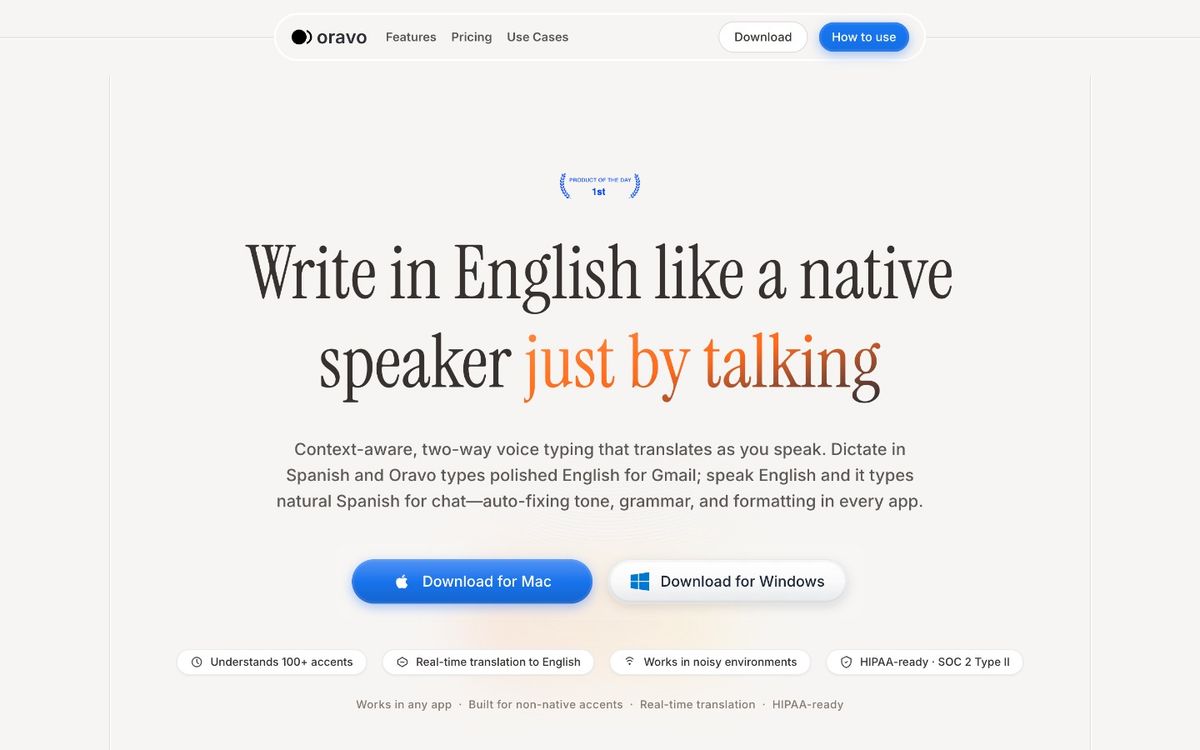
This is where a dedicated dictation tool earns its place. Oravo is a voice-typing app that works anywhere your cursor is — including Google Docs in any browser, plus comments, Suggesting mode, and every other app on your machine. The workflow looks like this:
- Click wherever you want text in your Google Doc.
- Hold the push-to-talk hotkey and speak — the mic is only open while you hold it, so there's no floating box to click, no idle timeout, and no background listening.
- Release the key. Clean, punctuated text appears at your cursor in under 300ms.
Because it types at the cursor rather than living inside Docs, it works in Chrome, Edge, Firefox, Safari, and the desktop apps — and it keeps working when you Alt-Tab to Slack, your CRM, or your email. No per-app setup.
Why Docs power users make the switch
- Custom dictionary on the free tier. Teach it "Kubernetes," client surnames, product codenames, and acronyms once, and it gets them right from then on. The free tier includes 5,000 words to start.
- Tone adapts to the app. Oravo detects where you're dictating and matches the tone — formal and clean in a Google Doc or Gmail, casual in Slack. Your dictated drafts arrive closer to finished.
- Real-time translation in 60+ languages. Dictate in Spanish, get English text in your doc (or the reverse) — useful for multilingual teams drafting shared documents.
- Privacy by design. Push-to-talk means the mic is physically never open unless you're holding the key, and Oravo has zero data retention: your voice recordings and transcripts are never stored. It's HIPAA-ready and SOC 2 Type II certified, which matters if your docs contain client or patient information.
- 99% accuracy with sub-300ms latency. Text lands as fast as you speak, so you don't outrun the transcription.
The honest trade-off: the built-in Docs tool is free and already there. Oravo's free tier gives you 5,000 words to see whether the difference matters for your volume; Pro is $9.99/month or $99/year after a 14-day trial that doesn't ask for a credit card. If you dictate a few sentences a week, the built-in is fine. If you dictate documents daily, the vocabulary learning and tone cleanup pay for themselves quickly.
Real workflows: how people actually dictate in Docs
A few concrete setups that work well, whichever tool you use:
Meeting notes in real time. Open a blank doc, start the mic, and narrate as it happens: "Action item, Priya to send the revised timeline by Friday, new paragraph." Saying "new paragraph" and "heading" as you go produces notes that are already structured.
First drafts without the blank page. Dictate the messy version fast — 150 words a minute of talking beats 40 of typing — then edit the draft on screen. This is the highest-leverage use of voice typing in Docs, and it's where tone adaptation and vocabulary learning matter most: a draft that arrives already formal and with correct terminology needs one editing pass, not two.
Suggesting-mode edits and comments. Built-in voice typing can't easily dictate into a comment thread or a suggestion bubble — the floating box and cursor focus fight you. A cursor-based tool just types wherever the cursor is, so you can dictate comments, replies, and suggested text exactly like body copy.
Multilingual documents. Dictate each section in the language you're thinking in and let real-time translation produce the other. The built-in tool can switch dictation languages from the mic box dropdown, but translating as you type is a separate step.
Try it free: dictate your next doc with Oravo — 5,000 free words, no credit card
FAQ
Does Google Docs have voice typing built in? Yes — Tools → Voice typing (or Ctrl + Shift + S) on the desktop version in Chrome. It's free, needs no extensions, and supports voice commands for editing and formatting. It's limited to Chrome (and reportedly Edge) on desktop; Firefox, Safari, and the mobile app don't support it.
Why is voice typing greyed out or missing in Google Docs? You're almost certainly not in Chrome on desktop, or you opened Docs in an unsupported browser. The tool only appears in the Tools menu on Chrome/Edge desktop. Also check that docs.google.com has microphone permission in Chrome's site settings.
Why does Google Docs voice typing keep turning off? The floating mic box goes idle when you're silent for a while — click it again to resume. There's no setting to change the timeout. If the interruptions bother you, a push-to-talk dictation tool stays under your control instead: the mic is open only while you hold the hotkey.
How do I add punctuation when voice typing in Google Docs? Say the punctuation out loud: "period," "comma," "exclamation point," "question mark," "new line," "new paragraph." Punctuation commands aren't available in every dictation language.
Can Google Docs voice typing learn my vocabulary? No. The built-in tool has no custom dictionary, so proper nouns, technical terms, and acronyms get misheard repeatedly. If your documents are full of specialized vocabulary, this is the single biggest reason to use a dedicated tool — Oravo includes a custom dictionary on its free tier.
Is it safe to dictate sensitive documents in Google Docs? The built-in tool sends your audio to Google's servers for processing, which is standard for free cloud transcription but worth considering for confidential material. If privacy matters — client data, health information, unreleased work — look for a tool with push-to-talk and a stated zero-retention policy. Oravo, for example, never stores voice recordings or transcripts and is HIPAA-ready and SOC 2 Type II certified.
Can I use voice typing in Google Docs on my phone? Not the built-in feature — it doesn't exist in the Docs mobile app. Your fallback is the keyboard microphone (Gboard on Android, the mic key on iOS), which transcribes but has no voice commands and cuts off long sessions. A system-wide tool like Oravo works on iOS too, in any app where the cursor is (Android is coming).
Ready to stop fighting the mic box? Try Oravo free — 5,000 words, 14-day Pro trial, no credit card
Written by
Raju Yadav
The Oravo team writes about voice typing, productivity and writing clear English when it is not your first language.