Voice Typing for Windows: Complete Guide 2026 | Oravo AI
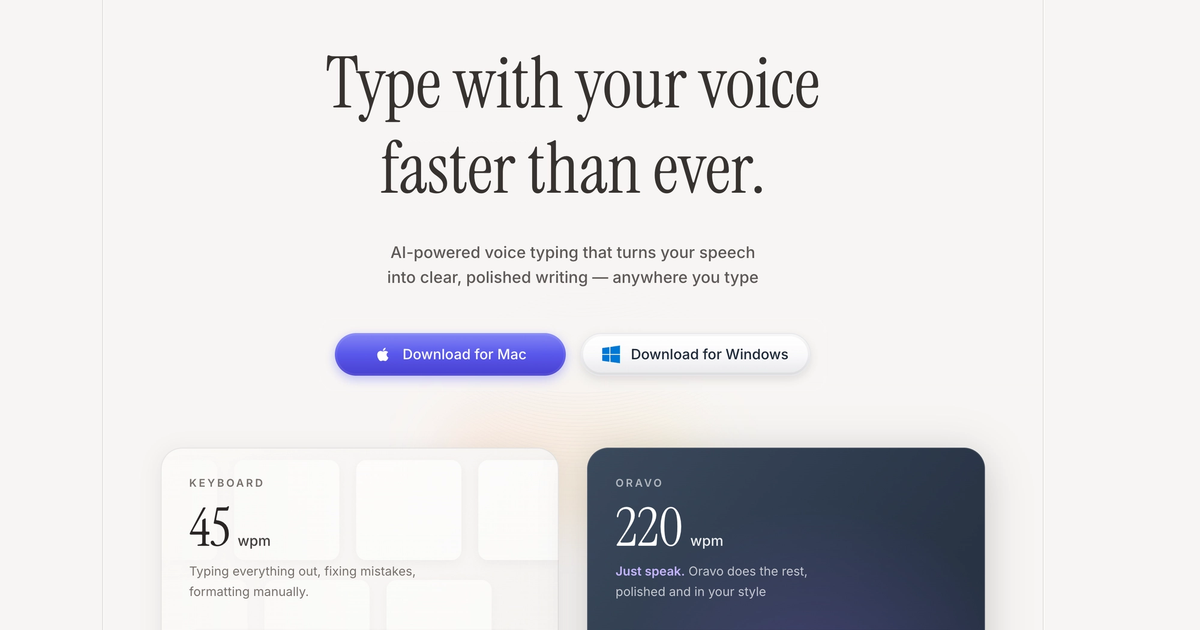
Windows voice typing is available through Windows built-in Speech Recognition (85-90% accuracy) or professional tools like Oravo AI (98% accuracy). Oravo transforms any Windows application into a speech-to-text editor by providing universal voice keyboard functionality across browsers, Office apps, email clients, messaging tools, and development environments with intelligent formatting and offline capability that Windows native dictation lacks.
Windows Built-In Voice Typing: What You Need to Know
Windows Speech Recognition vs Windows Voice Typing
Windows offers two native voice input methods with different capabilities and limitations:
Windows Speech Recognition (Legacy) Available since Windows Vista, this is the older command-based dictation system requiring specific verbal commands for navigation and formatting.
Activation: Settings > Ease of Access > Speech > Turn on Speech Recognition
Characteristics:
- Command-based requiring "comma," "period," "new line" verbal punctuation
- 80-85% accuracy even after voice training
- Requires 15-20 minute voice training setup
- Works system-wide across applications
- Offline capability with reduced accuracy
- Last major update in Windows 10 era
Windows Voice Typing (Modern) Introduced in Windows 11, this is Microsoft's newer AI-powered dictation attempting to modernize voice input.
Activation: Windows Key + H
Characteristics:
- Automatic punctuation in some contexts
- 85-90% accuracy without training
- Cloud-based requiring internet connection
- Works in text fields system-wide
- Simpler activation than legacy Speech Recognition
- Active development with ongoing updates
Windows Voice Typing Limitations
Both Windows native options share significant limitations preventing professional productivity:
Accuracy Issues 85-90% accuracy creates 10-15 errors per 100 words requiring substantial editing time that negates voice typing speed benefits.
Inconsistent Punctuation Windows Voice Typing attempts automatic punctuation but frequently fails, particularly in complex sentences, technical content, or professional writing requiring precise formatting.
No Custom Vocabulary Cannot add technical terms, proper nouns, product names, or industry jargon. Every specialized term risks misrecognition with no learning capability.
Limited Context Understanding Basic speech-to-text without understanding document context, writing style, or content type. Treats casual chat and formal business writing identically.
Internet Dependency Windows Voice Typing requires constant internet connection. No connectivity means no dictation, problematic for travel, remote locations, or security-conscious environments.
Application Compatibility Gaps While theoretically system-wide, Windows dictation has known issues with specific applications including some development environments, terminal applications, and legacy software.
Why Windows Users Need Professional Voice Typing Software
The Accuracy Gap That Matters
The difference between 85% accuracy (Windows native) and 98% accuracy (Oravo AI) appears small mathematically but creates dramatic practical impact:
At 85% accuracy (Windows Speech Recognition):
- 15 errors per 100 words
- 150 errors in 1,000-word document
- 15-20 minutes editing time per 1,000 words
- Editing time erases most voice typing speed advantage
At 98% accuracy (Oravo AI):
- 2 errors per 100 words
- 20 errors in 1,000-word document
- 2-3 minutes editing time per 1,000 words
- Voice typing maintains 3-4x speed advantage after editing
Professional voice typing software transforms dictation from frustrating novelty to genuine productivity tool through accuracy improvements that preserve time savings.
Universal Application Compatibility
Windows native dictation theoretically works system-wide but users report compatibility issues with:
- Visual Studio Code and development environments
- Command Prompt and PowerShell
- Legacy enterprise applications
- Some web applications in specific browsers
- Terminal emulators
- Specialized industry software
Professional voice typing like Oravo operates at system input level, ensuring compatibility with every Windows application without exceptions. Type anywhere, dictate anywhere.
Professional Features Missing from Windows
Intelligent Formatting Professional tools automatically structure paragraphs, remove filler words, maintain professional tone, and adapt formatting to content type (email vs documentation vs creative writing).
Windows dictation provides basic transcription without formatting intelligence.
Custom Vocabularies Add technical terminology, product names, colleague names, industry jargon, and specialized vocabulary. Professional tools learn from corrections improving accuracy over time.
Windows offers no customization or learning capability.
Offline High-Accuracy Mode Professional tools maintain 95%+ accuracy without internet through on-device AI processing.
Windows offline accuracy drops to 75-80%, becoming unusable for professional work.
Multi-Language Flexibility Professional tools support 100+ languages with seamless switching mid-document.
Windows supports fewer languages with manual switching and configuration.
Team Collaboration Enterprise deployments share custom dictionaries ensuring consistent terminology across organizations.
Windows offers no team features or centralized management.
Oravo AI: Professional Voice Typing for Windows
What Makes Oravo Different on Windows
Oravo AI provides Windows users with professional-grade voice typing addressing every limitation of Windows native dictation:
98% Accuracy Advanced AI models trained on millions of hours of speech achieve professional accuracy matching human transcription quality. Context-aware processing understands sentence meaning enabling correct homophone usage (their vs there vs they're).
Universal Application Support Works identically in Microsoft Office, Google Chrome, Firefox, Edge, Outlook, Teams, Slack, Discord, Notion, Visual Studio Code, PowerShell, Command Prompt, and every Windows application. System-level integration ensures zero compatibility gaps.
Intelligent Formatting Automatic punctuation inferred from speech patterns and pauses. Professional capitalization of names, titles, and proper nouns. Paragraph structuring for readability. Filler word removal (um, uh, like) creating polished written content from natural speech.
Custom Vocabulary System Add unlimited technical terms, proper nouns, and specialized vocabulary. AI learns from your corrections improving accuracy to 99%+ for your specific content and terminology.
Offline Mode Maintain 95%+ accuracy without internet connection through on-device processing. Essential for flights, remote locations, secure environments, or unstable connectivity.
Multi-Language Support Dictate in 100+ languages with seamless language switching. Create multilingual documents or switch between languages mid-dictation for international teams.
Windows-Specific Optimizations Optimized performance for Windows 10 and Windows 11. Minimal CPU and memory usage preserving system resources for other applications. Fast activation with customizable global hotkey.
Oravo vs Windows Voice Typing Comparison
Feature
Oravo AI
Windows Voice Typing
Windows Speech Recognition
Accuracy
98%+
85-90%
80-85%
Setup Time
2 minutes
Instant
15-20 minutes (training)
Punctuation
Automatic, intelligent
Automatic, inconsistent
Manual verbal commands
Custom Dictionary
Yes, unlimited
No
Limited
Offline Mode
Yes, 95%+ accuracy
No
Yes, 75-80% accuracy
Application Support
All apps, guaranteed
Most apps, some issues
Most apps, some issues
Learning Capability
Yes, improves over time
No
Minimal
Multi-Language
100+ languages
Limited
Limited
Formatting Intelligence
Advanced
Basic
None
Professional Features
Yes
No
No
Price
$9.99/month
Free
Free
How to Set Up Voice Typing on Windows: Complete Guide
Option 1: Windows Native Voice Typing (Free, Basic)
For Windows 11:
Step 1: Enable Voice Typing
- Press Windows Key + H to activate voice typing
- Or go to Settings > Time & Language > Speech
- Toggle "Online speech recognition" to On
- Select your microphone from dropdown
Step 2: Grant Microphone Permissions
- Settings > Privacy & Security > Microphone
- Toggle "Microphone access" to On
- Enable microphone for apps you will use
Step 3: Test Voice Typing
- Open any text application (Notepad, Word, browser)
- Click in text field
- Press Windows Key + H
- Speak naturally
- Say punctuation verbally: "comma," "period," "question mark"
For Windows 10:
Windows 10 uses the legacy Windows Speech Recognition:
Step 1: Open Speech Recognition
- Search "Windows Speech Recognition" in Start menu
- Click "Set up microphone"
- Follow setup wizard selecting your microphone type
Step 2: Complete Voice Training
- Speech Recognition will guide you through reading text aloud
- Training takes 15-20 minutes
- Improves accuracy for your voice
Step 3: Learn Commands
- Open "Speech Reference Card" from Speech Recognition
- Memorize verbal punctuation commands
- Learn navigation commands for cursor movement
Step 4: Start Dictating
- Say "Start listening" to activate
- Dictate with verbal punctuation
- Say "Stop listening" to deactivate
Option 2: Oravo AI Professional Voice Typing (Recommended)
Step 1: Download and Install Oravo
- Visit oravo.ai/signup
- Create free account (no credit card required)
- Download Oravo for Windows
- Run installer (2-minute automated installation)
- Grant microphone permissions when prompted
Step 2: Configure Microphone
- Oravo automatically detects your microphone
- Test audio levels (speak normally, levels should show green)
- Select alternative microphone if needed (Settings > Audio)
- Position microphone 6-12 inches from mouth for optimal accuracy
Step 3: Set Your Activation Hotkey
- Default hotkey: Ctrl + Shift + Space (customizable)
- Settings > Hotkey to change if default conflicts
- Practice: Press hotkey, speak sentence, release hotkey
- Choose hold-to-talk or toggle mode based on preference
Step 4: Customize for Windows Workflow
- Add Windows-specific vocabulary:
- Application names you frequently mention
- File paths and directory names
- Windows technical terminology
- Keyboard shortcuts you reference verbally
- Configure application-specific settings:
- Auto-capitalize in Outlook for professional emails
- Casual formatting in Slack and Teams
- Technical formatting in VS Code and development tools
Step 5: Test Across Applications
Open each application you use daily and test dictation:
- Microsoft Word, Excel, PowerPoint
- Outlook and email
- Chrome, Firefox, Edge browsers
- Slack, Teams, Discord
- Notion, Evernote, OneNote
- Visual Studio Code, any IDEs
- Command Prompt, PowerShell
Oravo works identically in all applications. If any application has issues, contact support (usually user configuration, not application compatibility).
Step 6: Build Your Custom Dictionary
During first week of use, add frequently misrecognized terms:
- Colleague and client names
- Company and product names
- Technical jargon and acronyms
- Industry-specific terminology
One-time 10-15 minute investment provides 99%+ accuracy for your specific vocabulary.
Windows Voice Typing Tips for Maximum Productivity
Keyboard Shortcut Optimization
Windows users benefit from combining voice dictation with keyboard shortcuts for hybrid workflows:
Dictation + Shortcuts Pattern:
- Press Oravo hotkey (Ctrl + Shift + Space)
- Dictate content paragraph
- Release hotkey
- Use keyboard shortcut (Ctrl + B for bold, Ctrl + I for italic)
- Press hotkey again for next dictation segment
This hybrid approach maximizes both voice speed and keyboard precision.
Application-Specific Workflows
Microsoft Word:
- Dictate body content via voice
- Use keyboard for styles, formatting, and document structure
- Voice for comments and track changes explanations
- Keyboard for final document layout and formatting
Outlook Email:
- Dictate email body naturally
- Type subject lines (usually short, faster to type)
- Voice for longer CC recipients list if needed
- Keyboard for final send and organization
Visual Studio Code:
- Type code syntax (faster for precise programming)
- Voice for code comments and documentation
- Dictate commit messages
- Voice for README and documentation files
PowerShell/Command Prompt:
- Type commands and scripts (precision required)
- Voice for command documentation and comments
- Dictate notes about script functionality
- Voice for troubleshooting logs and error descriptions
Multi-Monitor Setup Optimization
Windows professionals often use multiple monitors. Voice dictation enables optimal multi-monitor workflows:
Reference + Dictate Pattern:
- Monitor 1: Display source material (research, data, code to document)
- Monitor 2: Dictation application (Word, Notion, email)
- Dictate while viewing source without switching windows or typing
This eliminates constant Alt-Tab switching and context loss from window management.
Windows Security and Privacy Settings
For users concerned about voice data privacy on Windows:
Oravo Privacy Controls:
- Settings > Privacy > Voice Data
- Toggle "Delete voice recordings immediately" (default: On)
- Toggle "Never use my data for AI training" (default: On)
- Review data handling policy in Settings
Windows Privacy Settings:
- Settings > Privacy & Security > Speech
- Review which apps have microphone access
- Disable "Online speech recognition" if using Oravo exclusively (Oravo works offline)
- Clear Windows voice data: Settings > Privacy > Speech > Clear cloud data
Troubleshooting Windows Voice Typing Issues
Problem: Low Accuracy Despite Following Setup
Causes and Solutions:
Microphone Quality or Placement
- Built-in laptop microphones often insufficient for professional accuracy
- Solution: Use external USB microphone (Blue Yeti, Audio-Technica AT2020USB) or quality headset (Jabra, Plantronics, AirPods Pro)
- Position microphone 6-12 inches from mouth, not touching lips
Background Noise Interference
- Windows environment with HVAC, traffic, family noise degrades accuracy
- Solution: Use directional microphone focusing on your voice, enable noise suppression in Oravo settings, find quieter dictation times or locations
Speaking Too Slowly
- Common misconception: slowing speech improves accuracy
- Reality: AI trains on natural speech patterns; slow speech reduces accuracy
- Solution: Speak at normal conversational pace (180-220 words per minute)
Unclear Articulation
- Mumbling or trailing off sentence endings reduces accuracy
- Solution: Maintain clear enunciation through entire sentence, project voice normally
Problem: Oravo Not Activating in Specific Application
Diagnosis:
- Verify Oravo is running (check system tray icon)
- Test hotkey in Notepad (known working application)
- If works in Notepad but not target app, application may have hotkey conflict
Solutions:
Hotkey Conflict:
- Target application uses same hotkey (Ctrl + Shift + Space) for different function
- Solution: Change Oravo hotkey in Settings to non-conflicting combination
Application Running as Administrator:
- Applications running with elevated privileges block normal applications
- Solution: Run Oravo as administrator (right-click > Run as administrator) or run target application without admin privileges
Application Using Exclusive Audio:
- Some applications claim exclusive microphone access
- Solution: Close applications with video/audio features, verify microphone not locked by other software
Problem: Windows Voice Typing Activates Instead of Oravo
Cause: Windows Voice Typing (Windows Key + H) activating simultaneously with Oravo.
Solution:
- Disable Windows Voice Typing entirely
- Settings > Time & Language > Speech
- Toggle "Online speech recognition" to Off
- This prevents Windows interference with Oravo
Problem: Dictation Lags or Drops Words
Causes and Solutions:
Insufficient System Resources
- CPU overloaded with other applications
- Solution: Close unnecessary applications, upgrade RAM if system has less than 8GB
Network Latency (Cloud-Based Tools)
- Slow internet causing transcription delays
- Solution: Use Oravo's offline mode (Settings > Processing > Offline Mode)
Microphone Buffer Issues
- USB microphone driver conflicts
- Solution: Update microphone drivers, switch USB ports, use Bluetooth headset alternative
Windows Voice Typing Use Cases and Workflows
Professional Email Management
Windows professionals handling 50-80 daily emails achieve dramatic productivity through voice dictation:
Traditional Typing Approach:
- 50 emails x 3 minutes typing each = 150 minutes (2.5 hours)
- Rushed content due to time pressure
- Email backlog constant source of stress
Voice Dictation with Oravo:
- 50 emails x 45 seconds speaking each = 38 minutes
- Comprehensive, thoughtful responses
- Inbox zero achievable daily
Time Saved: 112 minutes (1.9 hours) daily
Software Documentation
Developers on Windows creating technical documentation, README files, API docs, and code comments:
Documentation Bottleneck (Typing):
- Documentation perpetually delayed
- Developers avoid writing thorough docs due to typing burden
- Knowledge stays in developer heads creating bus factor risk
Documentation Flow (Voice Dictation):
- Speak documentation while viewing code on second monitor
- Comprehensive explanations in minutes not hours
- Documentation becomes natural part of development workflow
Example: 2,000-word API documentation
- Typing: 60-90 minutes
- Voice dictation: 15-20 minutes
- Time saved: 70 minutes per documentation task
Business Report Creation
Creating quarterly reports, project status updates, or client deliverables in Microsoft Word:
Voice Dictation Workflow:
- Open Word document template
- Display data dashboard on second monitor
- Activate Oravo, speak report sections while viewing data
- Switch to keyboard for final formatting and charts
- Complete comprehensive report in 25% of typing time
Remote Team Communication
Windows professionals in remote teams using Slack, Microsoft Teams, or Discord:
Communication Volume Challenge:
- Remote work increases written communication 300%
- Typing bottleneck reduces communication quality
- Brief messages lead to misunderstanding requiring clarification
Voice Solution:
- Speak comprehensive messages providing full context
- Same time investment, 3-4x longer messages
- Reduced misunderstanding, fewer clarifying messages
- Improved remote team coordination
Windows vs Mac Voice Typing: Platform Differences
Accuracy Comparison
Windows Native: 85-90% accuracy (Windows Voice Typing) Mac Native: 85-90% accuracy (macOS Dictation) Result: Equivalent limitations on both platforms
Oravo on Windows: 98% accuracy Oravo on Mac: 98% accuracy Result: Equivalent professional accuracy across platforms
Feature Parity
Professional voice typing tools like Oravo provide identical features on Windows and Mac, unlike native options with platform-specific quirks.
Cross-Platform Benefits:
- Consistent experience for users switching between devices
- Single tool to learn regardless of platform
- Shared custom dictionaries across Mac and Windows
- Uniform accuracy and reliability
Windows-Specific Advantages with Oravo
Broader Application Ecosystem: Windows enterprise applications, legacy software, and specialized industry tools often lack Mac equivalents. Oravo's universal Windows compatibility ensures voice dictation in every Windows application regardless of age or obscurity.
PowerShell and Command-Line: Windows developers and IT professionals rely heavily on PowerShell and Command Prompt. Oravo enables dictating scripts, commands, and technical notes directly in terminal environments.
Enterprise Integration: Windows dominates enterprise environments. Oravo's enterprise features integrate with Windows-centric IT infrastructure including Active Directory, Group Policy, and Windows Endpoint Manager.
Windows Voice Typing ROI Calculation
Individual Professional ROI
Scenario: Windows professional saving 1.5 hours daily through voice dictation
Annual Time Value:
- Time saved: 1.5 hours per day
- Work days: 250 per year
- Hourly rate: $50
- Annual value: 1.5 x 250 x $50 = $18,750
Oravo Cost:
- Annual subscription: $99.99
ROI: $18,750 / $99.99 = 187x return on investment
Enterprise Team ROI
Scenario: 50-person team each saving 1 hour daily
Annual Time Value:
- Time saved per person: 1 hour daily
- Team size: 50 people
- Work days: 250 per year
- Hourly rate: $60 average
- Annual value: 50 x 1 x 250 x $60 = $750,000
Oravo Cost:
- Enterprise pricing: $8.99/user/month
- Annual cost: 50 x $8.99 x 12 = $5,394
ROI: $750,000 / $5,394 = 139x return on investment
Additional Benefits:
- Reduced RSI medical costs and sick leave
- Improved documentation quality
- Faster employee onboarding with better documentation
- Increased employee satisfaction and retention
Getting Started with Voice Typing on Windows
Quick Start: 5-Minute Setup
Step 1: Download Oravo (2 minutes)
- Visit oravo.ai/signup
- Create account (free trial, no credit card)
- Download Oravo for Windows
- Install automatically
Step 2: Configure Microphone (1 minute)
- Oravo detects microphone automatically
- Test audio levels
- Confirm voice detected properly
Step 3: Test in Your Applications (2 minutes)
- Open Outlook, press Ctrl + Shift + Space, speak test email
- Open Microsoft Word, dictate test paragraph
- Open Chrome, dictate in any web application
- Verify Oravo works in all your daily applications
You're Ready: Start dictating in every Windows application immediately.
First Week Best Practices
Days 1-2: Build Comfort
- Use Oravo for all email responses
- Dictate casual content (notes, personal documents)
- Get accustomed to activating via hotkey
- Adjust speaking pace and microphone position
Days 3-4: Add Custom Vocabulary
- Note any misrecognized terms
- Add to custom dictionary in Settings
- Include colleague names, product terms, industry jargon
- 15-minute investment provides lasting accuracy improvement
Days 5-7: Expand to All Content
- Dictate professional documentation
- Use for meeting notes and project updates
- Create reports and presentations via voice
- Integrate fully into daily workflows
End of Week: Calculate time saved, confirm productivity improvement, commit to continued usage.
Frequently Asked Questions
Is voice typing on Windows as accurate as Mac?
Yes, with professional tools like Oravo achieving 98% accuracy on both Windows and Mac. Windows native voice typing (85-90% accuracy) and Mac native dictation (85-90% accuracy) are equivalently limited. Choose professional voice typing software for reliable accuracy regardless of platform.
Can I use voice typing in all Windows applications?
Oravo AI works in every Windows application system-wide including Microsoft Office, web browsers, email clients, messaging apps, development environments, terminal applications, and legacy software. Windows native dictation has occasional compatibility issues with specific applications.
Does Windows voice typing work offline?
Windows Speech Recognition (legacy) works offline with 75-80% accuracy (too low for professional use). Windows Voice Typing (Windows 11) requires internet connection. Oravo AI provides offline mode maintaining 95% accuracy without internet, essential for travel or secure environments.
How do I improve Windows voice typing accuracy?
For Windows native dictation: Complete voice training in Speech Recognition, use quality microphone, speak clearly at normal pace, work in quiet environment. For professional accuracy: Upgrade to Oravo AI (98% accuracy out-of-box), add custom vocabulary for specialized terms, speak naturally without slowing down.
Can I use voice typing for coding on Windows?
Voice typing excels for code documentation, comments, README files, and technical explanations. Actual code syntax remains faster to type due to precision requirements. Developers use hybrid approach: voice for documentation and AI tool prompting (Cursor, GitHub Copilot), keyboard for code syntax.
Is Oravo better than Windows built-in voice typing?
Yes, significantly. Oravo achieves 98% accuracy versus Windows native 85-90%, provides intelligent automatic formatting versus basic transcription, works offline with high accuracy versus requiring internet, offers custom vocabularies and learning versus no customization, and includes professional features Windows lacks entirely.
How much does professional voice typing for Windows cost?
Oravo AI costs $9.99/month or $99.99/year for individuals. Enterprise teams pay $8.99/user/month (annual billing, minimum 3 users). Free tier available with 2,000 words per week. ROI typically exceeds 100x through time savings making cost negligible compared to productivity value.
Can I use voice typing in PowerShell and Command Prompt?
Yes, Oravo works in PowerShell, Command Prompt, and all Windows terminal applications. Useful for dictating command documentation, script comments, troubleshooting notes, and error descriptions. Type actual commands for precision, use voice for explanatory text.
Does voice typing on Windows 11 work better than Windows 10?
Windows 11 Voice Typing (Windows Key + H) slightly more modern than Windows 10 Speech Recognition but both achieve 85-90% accuracy with significant limitations. Upgrade to Oravo AI on either Windows 10 or Windows 11 for professional 98% accuracy and full features.
Can voice typing help with carpal tunnel syndrome on Windows?
Yes, voice typing is recommended by occupational therapists for RSI prevention and recovery. Eliminating keyboard typing allows hands, wrists, and forearms to rest while maintaining productivity. Many Windows professionals report complete RSI symptom elimination within 4-8 weeks of switching to voice-primary workflows with Oravo.
Transform Your Windows Productivity with Oravo AI
Stop accepting Windows native dictation limitations. Upgrade to professional voice typing with Oravo AI and experience 98% accuracy, universal application compatibility, intelligent formatting, and offline capability that Windows built-in tools cannot provide.
Try Oravo AI free on Windows (no credit card required):
- 98% accuracy beating Windows native 85-90%
- Works in every Windows application guaranteed
- 2-minute setup with instant productivity
- Offline mode for anywhere dictation
- Custom vocabulary for your terminology
- 2,000 words per week free forever