Best Voice to Email Software in 2026 -- Tested for Speed, Accuracy, and Professional Output
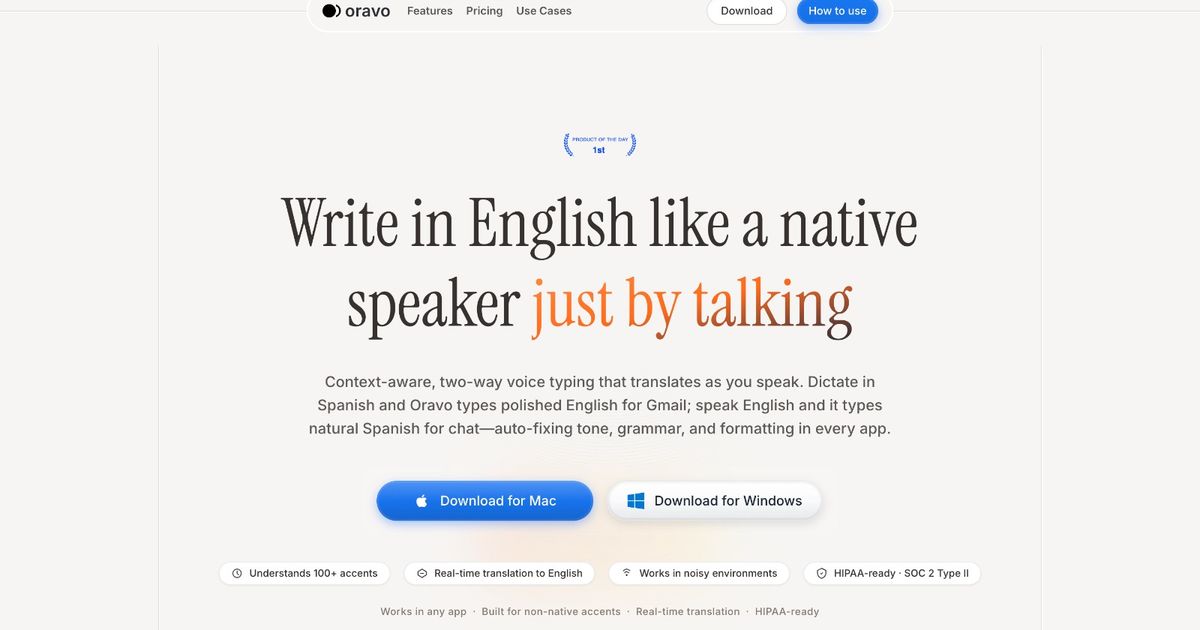
The best voice to email software in 2026 includes Oravo, Apple Dictation, Windows Voice Typing, Dragon NaturallySpeaking, and Google Docs Voice Typing. For professionals who need to dictate emails that are ready to send without manual correction -- particularly non-native English speakers -- Oravo is the strongest option, combining accent-aware transcription with an AI professional tone layer that converts natural spoken input into polished email copy directly inside Gmail and Outlook Web.
At a Glance: Best Voice to Email Software
Tool
Works In
Accent Support
Professional Email Output
Correction Required
Best For
Oravo
Gmail, Outlook Web, any browser email
Excellent -- accent correction built in
Yes -- full AI refinement layer
Minimal -- 20 to 30 seconds
Non-native English professionals emailing daily
Apple Dictation
Mail, any Mac email client
Moderate
No -- raw transcription
High for non-native speakers
Mac users; native English; free option
Windows Voice Typing
Outlook desktop, any Windows email app
Moderate
No -- raw transcription
High for non-native speakers
Windows users; native English; free option
Dragon NaturallySpeaking
Any Windows email app
Moderate -- trains over time
No -- raw transcription
Moderate after training
Windows power users; high-volume dictation
Google Docs Voice Typing
Gmail via workaround
Moderate
No -- raw transcription
High
Google Workspace users; workaround workflow
Why Email Is the Hardest Test for Voice Dictation
Of all the communication formats where voice dictation is used -- Slack messages, WhatsApp replies, meeting notes, documents -- email is the one with the least margin for error.
A Slack message that sounds slightly informal is fine. A WhatsApp reply with a small grammar slip is overlooked. But an email to a client, a prospective employer, a senior stakeholder, or a business partner is read more carefully, judged more critically, and retained longer than any other form of professional communication.
Email is where voice dictation tools either earn their place or expose their limitations.
Most voice to email software falls into one of two failure modes for professional use.
The first is accuracy failure: the tool mishears words, and those wrong words go into the email and get sent. A client's name transcribed incorrectly. A project deadline garbled. A key number wrong. These are not recoverable with a "sorry, typo" -- they signal that the sender did not check their own communication.
The second is quality failure: the tool transcribes accurately but the output reads like someone speaking rather than someone writing. Filler words, informal phrasing, sentence fragments, grammar patterns from a native language that is not English -- all of this lands in the email as transcribed. The email arrives. It is readable. But it does not read like a professional wrote it.
A tool that solves accuracy failure but not quality failure is not a complete voice to email solution. For non-native English professionals, both failures happen simultaneously with standard tools, which is why the correction loop for voice-dictated email is so long and why most professionals who have tried voice email dictation have quietly given up on it.
This review identifies the tools that actually solve both problems.
Deep-Dive Reviews: Voice to Email Software
Oravo -- The Only Tool That Solves Both Problems
Oravo is the only voice to email tool in this comparison that addresses both accuracy failure and quality failure simultaneously. This is not a marginal difference -- it is a structural one that changes whether voice email dictation is worth doing at all.
How Oravo works inside Gmail
Oravo integrates directly into Gmail's compose window in Chrome. You open a new email, click into the body field or subject line, activate Oravo with a shortcut, and speak. The email you speak goes through Oravo's two-layer processing pipeline and appears in the compose field as ready-to-send professional English.
There is no separate window. No copy-paste step. No prompting an AI with a description of the email you want to write. You describe the email the way you would describe it out loud to a colleague -- naturally, quickly, imperfectly -- and Oravo produces the professional version.
The two-layer processing pipeline
Layer one is accent-aware transcription. Oravo's speech recognition model was trained on a diverse global accent corpus, making it materially more accurate for non-native English speakers from the first use without any training period. Indian English, African English, Latin American English, Southeast Asian English -- these are first-class inputs, not accent profiles that need to be trained into the system.
Layer two is professional email refinement. After transcription, Oravo applies a professional tone and grammar pass specifically calibrated for business email communication. This is where quality failure is eliminated.
What you say: "Hi so basically I wanted to touch base regarding the proposal we sent last week and see if you had any questions or concerns because we are happy to jump on a call to discuss further."
What appears in your Gmail compose field: "Hi [Name], I wanted to follow up on the proposal we sent last week and check if you have any questions or concerns. We are happy to schedule a call to discuss further."
Same information. Same intent. Completely different professional register.
The correction loop with Oravo
After dictation, a 20 to 30 second review to confirm the output matches intent and to add any recipient-specific personalization. No fixing transcription errors. No converting spoken register to written register. No removing filler words. Those steps have already happened.
At 20 emails per day, the difference between a 4-minute typed email and a 90-second Oravo-dictated email is roughly 50 minutes returned per day.
Non-native English speaker advantage
For professionals who think in a language other than English and write in English professionally, Oravo eliminates both the accuracy gap and the professional quality gap that make standard voice to email tools unusable at professional standards. You speak the way you think -- including code-switching, informal phrasing, and L1 grammar patterns -- and Oravo outputs the email your recipient expects to receive from a proficient professional English writer.
Oravo summary
- Works in: Gmail (Chrome), Outlook Web (Chrome), any browser-based email client
- Accent accuracy: Excellent
- Professional output: Yes -- full email refinement
- Setup: Two minutes, browser only
- Best for: Non-native English professionals; any professional writing business email at volume
Apple Dictation -- The Best Free Voice to Email Tool for Mac Users
Apple Dictation works in Apple Mail, and because it operates system-wide on macOS, it works in any email application installed on your Mac -- including the desktop versions of Outlook, Spark, Airmail, and others. For Mac users, this makes it the most versatile free voice to email option available.
What it does well
System-wide coverage on Mac means you can dictate into any email field in any email client without workarounds. The on-device processing on Apple Silicon provides real-time transcription with good accuracy for standard English in quiet environments. Auto-punctuation handles sentence boundaries reasonably well for short to medium emails.
For a Mac user who writes primarily in standard English and sends relatively short emails, Apple Dictation reduces the physical typing burden meaningfully without significant setup.
What it does not do
Apple Dictation provides raw transcription. What you say goes into the email. No professional tone refinement, no filler word removal, no L1 grammar correction. For non-native English speakers, the output requires the same manual correction that any raw transcription tool produces.
For longer, more complex emails where the gap between spoken casual English and professional email register is widest, Apple Dictation's output needs substantial editing before it is ready to send.
Apple Dictation summary
- Works in: Any Mac email application
- Accent accuracy: Good for standard English; moderate for non-native accents
- Professional output: None
- Setup: Zero -- built into macOS
- Best for: Mac users; native English speakers; casual email volume; free solution
Windows Voice Typing -- The Free Windows Voice to Email Option
Windows Voice Typing (Win + H) works in Outlook desktop, Windows Mail, and any other Windows email application, as well as Outlook Web and Gmail in Chrome. For Windows users looking to replace Dragon or simply try voice email dictation for the first time at no cost, it is the practical starting point.
What it does well
System-wide Windows coverage, cloud-based accuracy for standard English, auto-punctuation, and zero cost. For quick internal emails in standard English, Windows Voice Typing reduces typing time meaningfully. The activation shortcut (Win + H) is fast enough to make it practical for frequent use.
What it does not do
Raw transcription only. No professional output layer. For non-native speakers or formal external emails, the correction overhead following dictation is high enough to eliminate the time saving.
Windows Voice Typing summary
- Works in: All Windows email applications; browser-based email in Chrome
- Accent accuracy: Good for standard English; moderate for non-native accents
- Professional output: None
- Setup: Zero -- built into Windows 10 and 11
- Best for: Windows users; native English speakers; casual to moderate email volume; free solution
Dragon NaturallySpeaking -- High Volume, High Price, Raw Transcription
Dragon remains the best system-wide voice to email solution for Windows-only power users who dictate at very high volume and primarily write in standard English. Its accuracy for trained voice profiles is high, and its coverage of Windows email applications -- including Outlook desktop with dedicated Outlook integration -- is the most complete of any tool in this comparison.
What it does well
System-wide Windows coverage including specialized Outlook features. High accuracy for trained voice profiles after a significant investment in corrective training. Voice navigation commands for moving around emails and documents. For a legal professional, executive assistant, or healthcare administrator who dictates hundreds of emails per day on Windows, Dragon's combination of accuracy and Outlook integration has real value.
What it does not do
Dragon does not work on Mac, Linux, or browser-based email. It does not provide professional output refinement. Its accuracy for non-native accents before significant training investment is not better than free alternatives. And its $500 price point is difficult to justify in 2026 for any user whose needs are covered by free alternatives or Oravo.
Dragon NaturallySpeaking summary
- Works in: All Windows email applications including Outlook desktop
- Accent accuracy: Moderate initially; improves with training
- Professional output: None
- Setup: Significant -- installation, training sessions
- Best for: Windows-only power users; high-volume dictation; standard English
Google Docs Voice Typing -- The Gmail Workaround That Adds Steps
Google Docs Voice Typing is occasionally recommended as a voice to Gmail solution. The workflow: open Google Docs, enable voice typing, dictate your email, copy the text, paste it into the Gmail compose window. It works, technically.
Why it is not a real voice to email solution
The copy-paste step between Google Docs and Gmail adds a workflow interruption that defeats a significant portion of the time saving. You are not dictating into your email -- you are dictating into a document and then transferring the content. The additional context switch, the copy action, and the paste action are minor individually but add up across email volume.
The output is also raw transcription with the same accuracy limitations as any Google-engine-based tool. There is no professional email refinement.
Google Docs Voice Typing summary
- Works in: Google Docs; Gmail via copy-paste workaround
- Accent accuracy: Moderate -- standard Google ASR
- Professional output: None
- Setup: Zero -- built into Google Docs
- Best for: Occasional use when no other option is available; not recommended as a primary voice to email workflow
The Professional Email Dictation Workflow: How to Actually Do It with Oravo
Step 1: Open Gmail in Chrome. Oravo works within the Gmail compose window directly. No separate application needed.
Step 2: Click compose. Open a new email or reply. Place your cursor in the body field.
Step 3: Activate Oravo. Use the keyboard shortcut or browser icon. The dictation interface appears within the Gmail field.
Step 4: Speak the email naturally. Do not perform written English. Describe the email the way you would explain it out loud. "Hi tell Priya that the Q3 report is ready and she can find it in the shared drive under finance reports and if she has questions she can ping me on Slack."
Step 5: Review Oravo's output. What appears: "Hi Priya, the Q3 report is ready and available in the shared drive under Finance Reports. Please feel free to reach out on Slack if you have any questions."
Step 6: Add personalization and send. Subject line, recipient, any specific details that were not in the dictation. Send.
Total time for this email: under 90 seconds, including the review step.
Voice to Email for Specific Professional Contexts
Client communication
Client emails carry the highest professional stakes. A transcription error or informal phrasing in a client email is a credibility event. For client communication specifically, the professional refinement layer in Oravo is not optional -- it is the feature that makes voice dictation viable at all. Standard tools are not suitable for regular client email dictation.
Internal team email
Internal emails have lower quality expectations and shorter average length. Standard voice dictation tools are more acceptable for internal communication where the recipient knows you and the stakes of a minor error are lower. That said, the time saving from Oravo is identical for internal emails and the habit of using a single consistent tool simplifies the workflow.
Sales outreach and follow-up
Sales professionals send high volumes of personalized email. Voice dictation for sales email has a particularly strong case: the conversational, direct tone that sales email requires is exactly what natural spoken dictation produces. Oravo's refinement layer polishes the spoken tone without removing the directness that makes sales email effective. For SDRs and AEs sending 30 or more emails per day, the time saving compounds significantly.
Executive communication
Senior professionals often spend disproportionate time on email because every message carries an organizational weight that requires care. For executives who write in standard English and want to move faster without losing quality, Apple Dictation or Windows Voice Typing handle casual communication adequately. For executives who are non-native English speakers -- a large and growing demographic in global companies -- Oravo is the tool that makes high-quality email dictation viable.
The Non-Native English Speaker Email Problem: Direct and Honest
This needs to be stated clearly because voice to email guides rarely say it.
If English is not your first language and you write professional emails in English, every email you send represents a translation task. You think the thought in your native language or in a multilingual mental space. You translate it into English as you compose. You review it to check if it sounds right to an English reader. You often revise it because it does not sound quite right. You send it.
That process is slow. Not because your English is poor -- it may be excellent. But because the process of translating from your thinking language to written professional English takes cognitive effort that your native-English-speaking colleagues do not expend on the same task.
Voice dictation with standard tools does not help with this. You still do the translation. You just do it while speaking instead of while typing. And then you get back raw transcription of your translated speech, which needs correction because the translation happened under time pressure and the tool made its own errors on top of yours.
Oravo helps with this in a specific and meaningful way. You speak more naturally -- less perfectly translated, more like your actual thinking. Oravo handles the professional English conversion. The translation task is still yours. The polishing task is Oravo's. That division means you speak faster, the output is more professional, and the correction loop nearly disappears.
For non-native English professionals, that is not a marginal productivity improvement. It is the difference between voice to email being a net time cost and it being the most significant workflow improvement in their communication stack.
Frequently Asked Questions
Can I send emails entirely by voice without touching my keyboard?
Yes, with some qualification. Oravo handles the email body entirely by voice. Adding the recipient, subject line, and any attachments typically requires keyboard input or mouse interaction in Gmail's compose interface. For a fully hands-free experience including addressing and sending, combining Oravo with voice control features (Google Assistant for simple sends, or Dragon for Windows power users) gets you closest to a complete hands-free email workflow.
Does voice to email work well for long emails?
Yes -- voice dictation has a stronger time saving case for longer emails than for short ones. A 300-word email that takes 7 to 8 minutes to type takes under 3 minutes to dictate through Oravo including review. The longer the email, the more the speaking speed advantage compounds.
What happens if I misspeak during dictation?
If you misspeak and immediately correct yourself -- "the meeting is on Tuesday -- I mean Wednesday" -- Oravo's refinement layer handles the self-correction and outputs "the meeting is on Wednesday." For substantive changes of direction mid-dictation, the output may reflect the confusion. In these cases, the 30-second review step is where you catch and fix the issue.
Is it socially acceptable to dictate emails out loud in an office?
This is a real practical constraint. Dictating emails in an open office environment creates noise and privacy concerns. Voice to email dictation works best in private offices, working from home, in a closed meeting room, or with a noise-canceling microphone in a reasonably quiet environment. For open office workers, short dictation sessions with brief spoken content are more socially viable than long dictation sessions.
How does Oravo handle email to multiple people with different tones?
Oravo applies professional email register consistently to whatever you dictate. If you speak in a warm, conversational tone, the output reflects that -- polished but warm. If you dictate a formal request, the output reflects that. The refinement layer adjusts register and grammar without imposing a single corporate voice. You control the tone through how you speak; Oravo handles the execution.
Does voice to email work in Outlook?
Yes. Oravo works in Outlook Web accessed through Chrome. For Outlook desktop on Windows, Windows Voice Typing provides system-wide dictation including into Outlook's compose window. For Outlook on Mac, Apple Dictation covers the same function. For non-native English speakers who need professional output quality in Outlook, Oravo through Outlook Web is the recommended path.
Who Should Use Which Voice to Email Tool
Your profile
Recommended tool
Non-native English professional; Gmail or Outlook Web; needs clean output
Oravo
Mac user; Apple Mail or any Mac email client; native English; free solution
Apple Dictation
Windows user; Outlook desktop or any Windows email app; native English; free solution
Windows Voice Typing
Windows power user; very high volume; standard English; specialist app integration
Dragon NaturallySpeaking
Google Workspace user; occasional light dictation; workaround acceptable
Google Docs Voice Typing (workaround)
The Bottom Line
Voice to email software has existed in various forms for two decades. The promise -- speak your emails instead of typing them and get your inbox to zero faster -- has always been compelling. The delivery has always fallen short for the same reason: the tools transcribed what you said without caring about whether what you said was ready to send.
For native English speakers with standard accents dictating casual internal emails, that limitation is manageable. For non-native English professionals writing external client communication, it is not.
Oravo is the first voice to email tool that addresses the full problem. Higher accuracy on diverse accents means fewer transcription errors. The professional refinement layer means the output that arrives in your compose field is the email you needed to write, not a rough transcription of what you said while thinking of it.
The time you spend on email should be spent on what you want to say, not on how to say it in professional English. Oravo handles the second part.
Dictate Your Next Email in Under 90 Seconds
Free trial. Works in Gmail and Outlook Web through Chrome. Setup under two minutes.