How to Send Emails Faster Without Sacrificing Quality (2026)
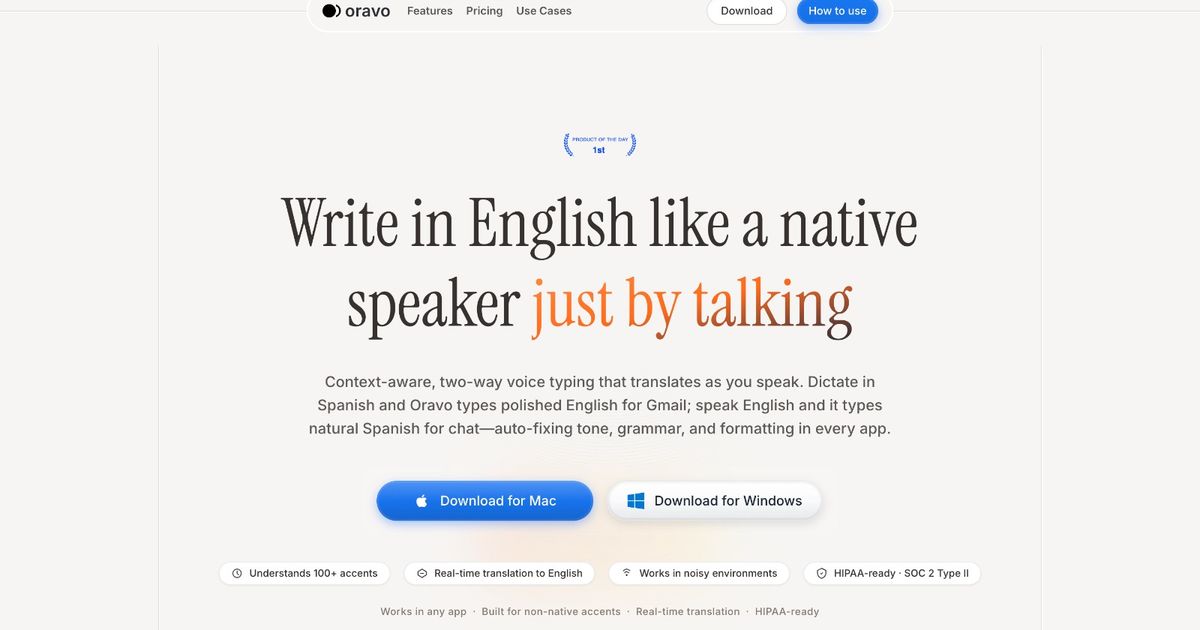
The fastest way to send professional emails in 2026 without sacrificing quality is to use voice dictation with AI refinement. Speaking is 3x faster than typing, and tools like Oravo eliminate the correction loop by converting natural spoken input into polished professional English automatically. For non-native English speakers in particular, this approach saves 30 to 60 minutes per day compared to typing or using standard voice tools that require manual correction after dictation.
The Email Problem Nobody Wants to Admit
Email is eating your day. Not because you receive too many -- though you probably do -- but because each one you send costs more time than it should.
You open the compose window. You think about how to start. You type a sentence, delete it, retype it. You write the body. You re-read it and change three phrases. You check the tone. You read it again. You send it.
For a 100-word email, that process routinely takes 4 to 7 minutes. At 20 emails per day, that is 80 to 140 minutes -- nearly two hours -- spent on email composition alone. Not reading. Not organizing. Just writing.
Most productivity guides attack this problem from the wrong angle. They tell you to write shorter emails, batch your inbox checks, use canned responses. These help at the margins. They do not address the core problem: the actual act of producing professional-quality written English takes more time than it should, especially for professionals who do not think primarily in English.
This guide covers every serious method for sending emails faster, tests them against the dual requirement of speed and quality, and identifies which approaches actually work for professional communication that cannot afford to look rushed or poorly written.
Method 1: Email Templates and Canned Responses
What it is: Pre-written responses for common email types -- follow-ups, meeting requests, status updates, acknowledgments -- stored and retrieved with a shortcut or click.
Where it works: Templates are genuinely useful for the small category of emails that are structurally identical every time. If you send the same meeting confirmation 10 times a week, a template with a few fill-in-the-blank fields saves real time.
Gmail's canned responses, Outlook's Quick Parts, and third-party tools like TextExpander all implement this approach competently. For administrative email volume -- scheduling, acknowledgments, standard requests -- templates are the right tool.
Where it breaks down: Most professional emails are not structurally identical. They require context-specific content, relationship-aware tone, and situational judgment. A template gives you a structure; it does not give you the substance. You still have to write the part that matters, which is usually the part that takes the most time.
Templates also create a secondary problem for non-native English speakers: the temptation to use a template verbatim when it does not quite fit the situation, producing emails that feel generic or tone-deaf to the recipient. A template is only as good as your ability to adapt it, which brings you back to the writing problem you were trying to avoid.
Time saved: High for the narrow category of truly repetitive emails. Near zero for emails that require substantive, context-specific content.
Quality impact: Neutral to slightly negative. Templates ensure baseline correctness but can reduce the personalization that builds professional relationships.
Verdict: Useful as a partial solution for a limited category of emails. Not a solution for the majority of professional email volume.
Method 2: AI Email Writing Tools (ChatGPT, Gemini, Copilot)
What it is: Prompting a general-purpose AI to write your email for you based on a brief description of what you need to say.
Where it works: For professionals who are comfortable prompting AI tools and who need a first draft of a complex email -- a difficult conversation, an unfamiliar type of request, a communication in an area where they lack confidence -- AI drafting tools can provide a useful starting point.
The output quality of general AI writing tools has improved substantially. For standard professional email types, the drafts they produce are grammatically correct, appropriately toned, and structurally sound.
Where it breaks down: The prompting step. Writing a good prompt for an AI email tool takes time -- you need to describe the context, the recipient relationship, the tone, the key points, the desired outcome, and any constraints. A thorough prompt for a complex email can take 2 to 3 minutes to write. At that point, the total time investment often approaches what it would take to write the email directly.
For short, routine emails, the overhead of switching to a separate AI tool, prompting it, reviewing the output, copying it to your email client, and adjusting it is often longer than just writing the email.
There is also a voice problem: AI-drafted emails often read like AI-drafted emails. Experienced professionals recognize the patterns. For relationship-sensitive communication, the inauthenticity of a fully AI-drafted email is a real cost.
The workflow friction problem: Every AI email tool requires leaving your email client, opening a separate interface, prompting, copying output back. This context-switching overhead adds up across a day of email volume.
Time saved: Moderate for long, complex emails where the prompting investment is proportionally small. Minimal to negative for short, routine emails.
Quality impact: Good for structural correctness; risks generic voice and inauthenticity for relationship-sensitive communication.
Verdict: Useful for occasional complex emails. Too much overhead for daily high-volume use.
Method 3: Keyboard Shortcuts and Efficiency Tricks
What it is: Learning and using keyboard shortcuts for common email actions -- compose, reply, archive, label, send -- plus habits like processing email in batches and using keyboard-driven email clients.
Where it works: Keyboard shortcuts reduce the time spent on email management -- navigating, organizing, archiving. For Gmail users, learning shortcuts like C (compose), R (reply), E (archive), and / (search) meaningfully reduces the time spent navigating the inbox. These are real time savings and worth learning.
Where it breaks down: Keyboard shortcuts address navigation time, not composition time. They make you faster at managing email. They do not make you faster at writing email. The 4 to 7 minutes you spend composing a 100-word professional email is unaffected by whether you opened the compose window with a keyboard shortcut or a mouse click.
Time saved: Real but limited to inbox navigation and management. Zero impact on composition speed.
Quality impact: Neutral -- shortcuts do not affect writing quality.
Verdict: Worth implementing as a baseline efficiency habit. Does not address the core composition speed problem.
Method 4: Typing Faster (Touch Typing Training)
What it is: Investing in touch typing training to increase words per minute from 40 to 60, 70, or 80.
Where it works: Faster typing directly reduces composition time. A professional who improves from 40 to 70 words per minute reduces a 100-word email from 2.5 minutes of input to 1.5 minutes -- a real saving that compounds across daily email volume.
Touch typing training is a real investment that pays off over time. Tools like Keybr, TypingClub, and Monkeytype provide structured practice. Most professionals who commit to deliberate practice for 20 to 30 minutes daily for 4 to 6 weeks see meaningful improvement.
Where it breaks down: The ceiling. Even a fast typist at 80 words per minute is still 1.6x slower than speaking at 130 words per minute. The input method ceiling of keyboard typing is fixed by physical constraints. Training gets you closer to the ceiling -- it does not raise it.
Touch typing training also takes weeks to show results. It is a long-term investment, not a solution to this week's email backlog.
Time saved: Meaningful over a multi-week training investment. Limited by the physical ceiling of keyboard input speed.
Quality impact: Positive -- faster typing with fewer errors slightly reduces correction overhead.
Verdict: Worthwhile long-term investment. Not a near-term solution and does not close the gap with speaking speed.
Method 5: Standard Voice Dictation (Gboard, Google Docs Voice, OS Dictation)
What it is: Using built-in or standard third-party voice typing tools to dictate emails instead of typing them.
Where it works: Standard voice dictation delivers real input speed improvements for native English speakers dictating in clear conditions. Speaking a 100-word email takes under a minute of input time versus 2.5 minutes of typing. For casual internal emails, the correction overhead is manageable and the net time saving is real.
Where it breaks down for professional email: As covered in depth in other posts in this series, the correction loop eliminates the speed advantage for most professionals. A 100-word email dictated with 90% accuracy requires finding and fixing 10 errors, converting spoken register to written register, and removing filler words. Total correction time: 3 to 5 minutes. Total time including dictation: 4 to 6 minutes. Comparable to or worse than typing.
For non-native English speakers, the accuracy gap is larger -- 80 to 88% on standard tools -- and the output quality gap is wider. The correction loop is longer. The math is worse.
The specific failure mode for email: Email is the professional communication format with the highest quality expectations. An email to a client, a manager, or a senior stakeholder is read carefully and judged as a representation of professional capability. The stakes of a voice typing error in an email are higher than the same error in a Slack message. This makes the acceptable correction loop length shorter -- you need to review more carefully, not less. The time saving from voice input is partially offset by the more careful review that email demands.
Time saved: Significant for native English speakers with standard accents. Minimal to negative for non-native English speakers using standard tools.
Quality impact: Risk of degraded quality if correction loop is insufficiently thorough.
Verdict: Works for native English speakers with casual email volume. Fails for non-native professionals and high-stakes professional communication without a quality layer.
Method 6: Voice Dictation with AI Refinement (Oravo)
What it is: Dictating emails through a tool that combines accent-aware transcription with an AI professional English refinement layer -- converting natural spoken input directly into polished, ready-to-send professional email copy.
Where it works: Everywhere that email is written, for any professional whose spoken English does not automatically produce professional written English without editing. This includes virtually every non-native English speaker, and a significant portion of native English speakers who speak informally but need to write formally.
The mechanics are straightforward. You open Gmail in Chrome. You click the compose field. You activate Oravo. You speak the email the way you would describe it to a colleague out loud -- naturally, without performing written English. Oravo processes the spoken input through its transcription engine and refinement layer and places clean, professional email copy in the compose field.
What the refinement layer actually does for email
Speaking an email naturally produces content like this:
"Hi so basically we wanted to follow up on our previous conversation about the project and see if you had any updates on the timeline because our team is kind of waiting to proceed and it would be really helpful to have some clarity on this."
Professional email needs something closer to this:
"Hi [Name], I wanted to follow up on our previous conversation regarding the project timeline. Our team is ready to proceed and would appreciate any updates you can share on your end."
Standard voice dictation transcribes the first version. Oravo produces the second. The transformation happens automatically, inside the Gmail compose field, without a separate prompting step or copy-paste workflow.
The time math for email with Oravo
Input (speaking): 45 to 60 seconds for a 100-word email. Review (Oravo output is near-final): 20 to 30 seconds. Minor intentional adjustments: 10 to 15 seconds. Total: 75 to 105 seconds for a professional 100-word email.
Compared to typing: 3 to 5 minutes. Compared to standard voice dictation with correction: 4 to 7 minutes.
At 20 emails per day, Oravo saves 40 to 80 minutes compared to typing and 60 to 120 minutes compared to standard voice dictation. That is the range where email stops being the thing that eats your afternoon.
The specific advantages for email over other communication types
Email rewards the professional tone refinement layer more than any other communication format. The stakes of email quality are higher than Slack. The length is longer than WhatsApp. The formality expectation is more consistent than meeting notes. Every feature of Oravo's refinement layer -- tone adjustment, idiom correction, L1 grammar pattern correction, filler removal, sentence structure cleanup -- matters more in email than in any other context.
For non-native English professionals, this is the email tool that was always implied by the promise of voice dictation but never delivered by the tools that existed before.
Time saved: 40 to 80 minutes per day at 20 emails for non-native English professionals. Quality impact: Positive -- output quality is higher than unedited typing for most non-native English speakers. Verdict: The strongest available method for non-native English professionals writing professional email at volume.
The Method Comparison: What Actually Saves Time
Method
Input Speed Gain
Correction Overhead
Net Time Saved (20 emails/day)
Quality Impact
Best For
Templates
None on unique content
None
5 to 15 min (repetitive emails only)
Neutral
Repetitive admin emails
AI writing tools
Moderate
High (prompting + review)
0 to 20 min
Good structure; risks generic voice
Complex one-off emails
Keyboard shortcuts
None on composition
None
5 to 10 min (navigation only)
Neutral
Inbox management
Touch typing training
Moderate
Slight reduction
15 to 25 min (after weeks of training)
Slightly positive
Long-term investment
Standard voice dictation
High input speed
High correction
Negative to 10 min for non-native speakers
Risk of degradation
Native English speakers only
Oravo voice dictation
High input speed
Very low
40 to 80 min for non-native speakers
Positive
Non-native professionals at volume
The Combination That Works Best in Practice
The professionals who spend the least time on email without sacrificing quality typically use a combination rather than a single method.
Oravo for substantive emails. Any email that requires more than 30 words and carries professional stakes -- client communication, stakeholder updates, meeting requests, project status -- is dictated through Oravo. The speed and quality advantages are clearest for this category.
Templates for genuine repeats. Truly repetitive emails -- a standard meeting confirmation, a weekly status preamble, a form-letter acknowledgment -- use templates. These are a small fraction of total email volume but worth systematizing.
Keyboard shortcuts for inbox management. Navigation shortcuts reduce the time spent between emails without affecting composition quality.
The method to avoid for professional email: Using standard voice dictation without a refinement layer for external, high-stakes communication. The quality risk is not worth the input speed gain, particularly for non-native speakers.
Specific Advice for Non-Native English Professionals
If English is not your first language and you write professional emails in English daily, the email speed problem has a specific shape that general productivity advice does not address.
Your slowness is not typing speed. You may actually type at a reasonable pace. Your slowness is the cognitive overhead of producing written professional English from a mind that thinks in a different language. The translating, the second-guessing, the re-reading to check if it sounds right, the uncertainty about idioms and register -- this is where your email time goes.
Voice dictation with standard tools does not fix this. It captures the translation output -- the English you produce while translating in real time -- with all its imperfections, and hands it back to you for correction. You still do the same cognitive work. You just do it in a different order.
Oravo fixes the underlying problem. You speak the way you think -- which may include code-switching, informal phrasing, or grammatical patterns from your native language -- and Oravo outputs the professional English version. The translation step is yours. The polishing step is Oravo's. That division of labor is what makes the time saving real.
Building the Email Speed Habit: First Two Weeks
Week one: Use Oravo for every email over 50 words. Do not change anything else about your email workflow. At the end of each day, note how many emails you sent and roughly how long composition took. Compare to your baseline.
Week two: Identify the three to five email types you send most frequently that are not truly repetitive. Create abbreviated spoken scripts for these -- not full templates, but a spoken opening and structure you return to. Dictate the variable content naturally. Oravo handles the rest.
By the end of two weeks, most professionals have developed a dictation rhythm that reduces email composition time by 50 to 60% compared to their pre-Oravo baseline. The habit forms faster than most people expect because the feedback loop -- speaking an email and seeing clean output appear -- is immediate and satisfying.
Frequently Asked Questions
Will my emails sound less personal if I use voice dictation?
No -- the opposite. Spoken language tends to be more direct and natural than written language, which often becomes stiff and formulaic under the pressure of composing. Dictating an email produces a voice that sounds like you talking, which Oravo then polishes into professional English. The result is typically more personal and direct than a carefully typed email that has been edited for professionalism until the personality is gone.
What if I dictate something confidential?
Oravo processes audio through cloud servers, which is standard for any voice dictation tool that provides high accuracy. If your organization has strict data residency or confidentiality requirements that prohibit cloud processing of email content, check Oravo's enterprise data handling policies at oravo.ai before using it for sensitive communications.
Does voice dictation work for emails in languages other than English?
Oravo is specifically designed to output professional English. It handles code-switching input -- Hinglish, Spanglish, and other blended inputs -- and produces English output. For emails that need to be written in a language other than English, Oravo is not the right tool. For emails that need to be written in professional English from a speaker who does not always think in English, it is.
How long does it take to get comfortable dictating emails?
Most professionals reach comfortable dictation fluency within three to five days of daily use. The adjustment period involves learning to speak in complete thoughts rather than editing as you go -- a habit that feels slightly unnatural at first and becomes second nature quickly. Oravo's refinement layer is forgiving of the imperfections in early dictation, which shortens the learning curve.
What about email tone -- does Oravo make all emails sound the same?
Oravo refines toward professional English register, not toward a specific corporate voice. The substance, structure, and relational tone of what you say are preserved. An email that starts warmly dictates as a warm email. An email that is direct and factual dictates as a direct, factual email. What Oravo removes is the noise -- the filler words, the grammatical artifacts of speaking -- while preserving the signal, which is your voice and your message.
The Bottom Line
There are many ways to send emails faster. Most of them address peripheral inefficiencies -- inbox navigation, template retrieval, typing speed at the margins. None of them address the core bottleneck for most professional email writers: the time and cognitive effort required to produce professional-quality English from natural spoken or mental input.
Voice dictation addresses the input speed problem but creates a correction loop that eliminates the gain for most non-native English speakers using standard tools.
Oravo addresses both. Higher accuracy on diverse accents means fewer corrections. The professional refinement layer means the output that arrives in the compose field is close to what you would have spent 5 minutes typing and editing. The correction loop shrinks from minutes to seconds.
Sending emails faster without sacrificing quality is not a time management problem. It is a tool problem. The right tool changes the math entirely.
Start Sending Emails Faster Today -- Free Trial
Works in Gmail right now. Open Chrome, go to oravo.ai, create a free account, and dictate your next email.
No plugins. No switching apps. No prompting an AI with a description of what you want to say. Just speak and send.