People use “voice notes” and “voice dictation” interchangeably, but they describe two fundamentally different things. Confusing them leads to using the wrong tool for the job -- and then concluding that voice input does not work for you, when the real problem is a mismatch.
This guide explains the difference clearly, walks through when each is the right choice, and covers the tools in each category worth knowing about.
The Core Distinction
Voice notes record your audio. You speak, the recording is saved, and you can listen to it later. The output is an audio file, sometimes with an automatically generated transcript attached.
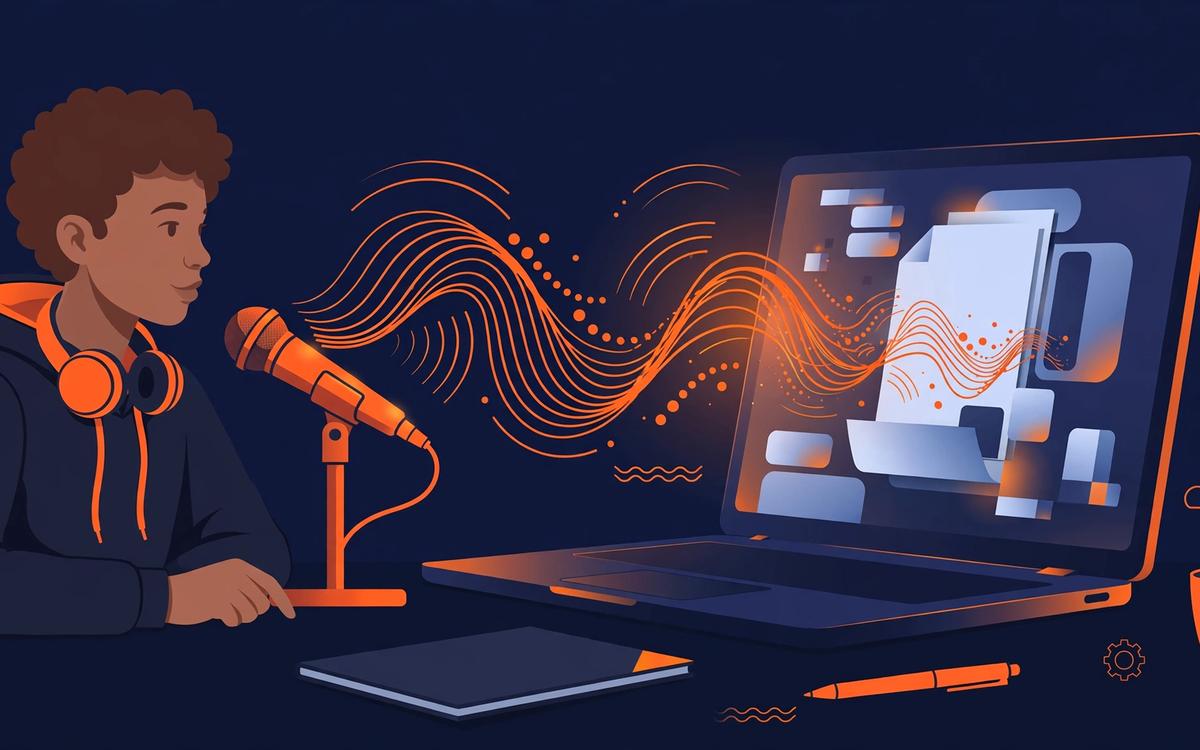
Voice dictation converts your speech to text in real time, so you can type by talking. You speak, and the words appear in whatever text field you are working in. There is no audio file. The output is text.
The difference sounds obvious stated plainly, but in practice the lines blur. Modern voice note apps include auto-transcription. Some voice dictation tools record audio as a backup. The more useful distinction is: what output do you need, and when do you need it?
When Voice Notes Are the Right Tool
Voice notes are best when the act of capturing matters more than the format of the output.
Capturing ideas on the go. You are walking, driving, or in a meeting and a thought occurs to you that you do not want to lose. A voice note takes two seconds to start and requires no hands. The idea is captured. You will process it later.
Recording meetings and conversations. Many voice note apps -- Otter.ai, Fireflies, Notta -- are designed specifically to record and transcribe meetings. The output is a timestamped transcript with speaker identification. This is not voice dictation; it is meeting capture.
Thinking out loud without a destination. Sometimes you need to externalize a thought process without knowing yet what you will do with it. Voice notes let you ramble. You are not constrained by a text field or a document structure.
Creating a personal audio archive. Some people prefer to keep voice notes as audio rather than text, particularly for personal journaling or ideas they want to revisit in their own voice.
When Voice Dictation Is the Right Tool
Voice dictation is the right tool when you need to produce a text document, message, or entry -- and you want to produce it faster than typing.
Writing emails, messages, and documents. You are composing. There is a destination: an email in Gmail, a Slack message, a document in Notion or Google Docs, a task description in Asana. You need text, not audio. Voice dictation puts words directly into the text field.
Updating task managers and project tools. Clicking into a task and dictating an update is faster than typing it. The output goes directly into the tool. No recording to revisit, no transcript to paste.
High-volume writing. For professionals who write a lot -- long emails, detailed documentation, research memos -- voice dictation addresses the physical bottleneck of typing. Speaking at 130 to 150 words per minute versus typing at 40 to 60 words per minute is a meaningful speed difference over the course of a workday.
Accessibility and ergonomics. Voice dictation reduces keystroke volume. For people managing repetitive strain injuries, carpal tunnel, or other conditions that make typing painful, dictation is not just faster -- it is necessary.
The Overlap: Voice Notes with Auto-Transcription
Many modern voice note apps auto-transcribe recordings. You speak, the audio saves, and a text transcript appears alongside it. Otter.ai, Notta, and Notion’s AI features all do this.
This creates a workflow that looks like voice dictation: speak, get text. But there are important differences.
The transcript requires editing. Auto-transcription is generally accurate for clear, native-accent English in quiet environments. For non-native speakers or informal speech, the raw transcript often needs significant cleanup before it is usable in a professional document.
The transcript is not directly in the destination. The text lives in the voice note app. To use it, you copy and paste it into the email, doc, or task tool where you actually need it. That extra step is minor for occasional use. For high-volume work, it adds up.
There is always audio. If you are capturing sensitive information, the audio recording introduces a different kind of data handling consideration than pure text dictation.
Tool Comparison: Voice Notes vs Voice Dictation
Voice note apps
Otter.ai -- Records meetings and conversations with speaker identification and timestamped transcripts. Strong for meeting capture. Requires returning to the app to access transcripts.
Fireflies -- Meeting recording and transcription with CRM integrations. Designed for sales and customer-facing teams.
Notta -- Multi-language transcription, file upload support, meeting recording. Good for professionals working across languages.
Apple Voice Memos / Google Recorder -- Simple audio capture on mobile. Basic or no transcription. Useful for quick captures when you just need the audio.
Voice dictation tools
Google Voice Typing -- Built into Android and Google Docs. Fast and reasonably accurate for native English speakers. Struggles with non-native accents and natural, informal speech.
Windows Speech Recognition / Apple Dictation -- OS-level dictation. No subscription required. Quality varies significantly by accent and speaking environment.
Voice In -- Chrome extension for dictation in browser text fields. Supports dozens of languages. Raw transcription only -- no tone refinement or quality layer.
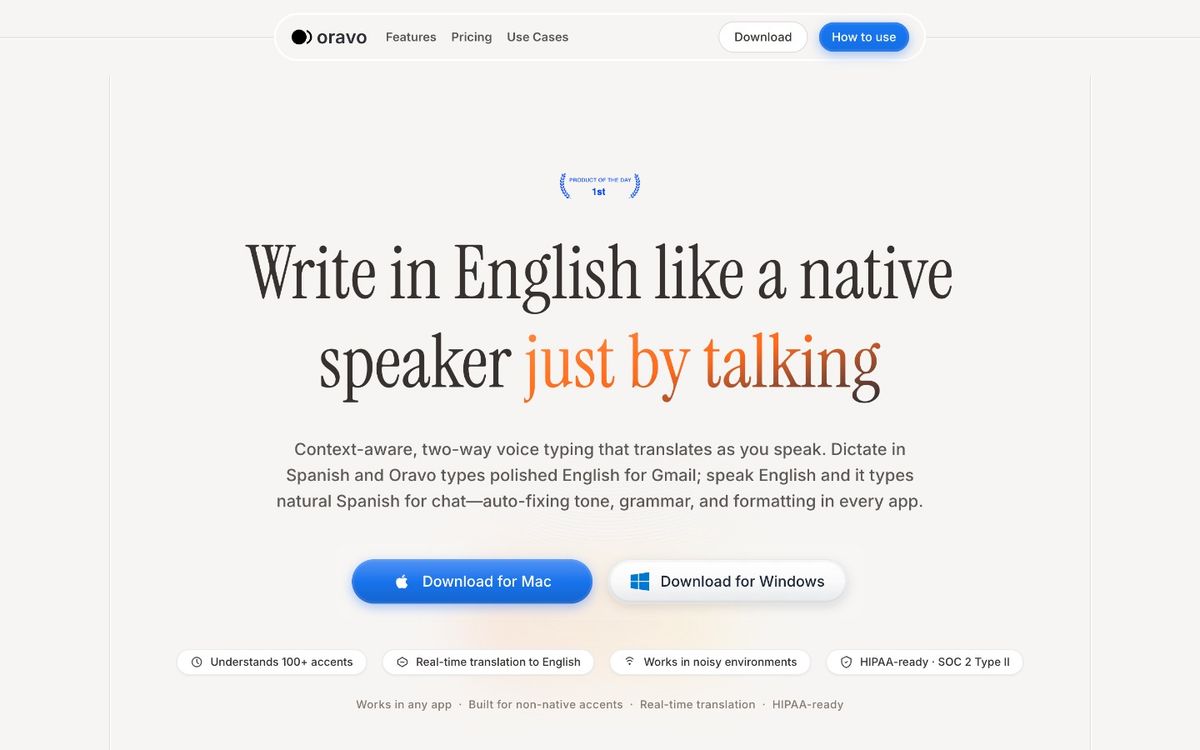
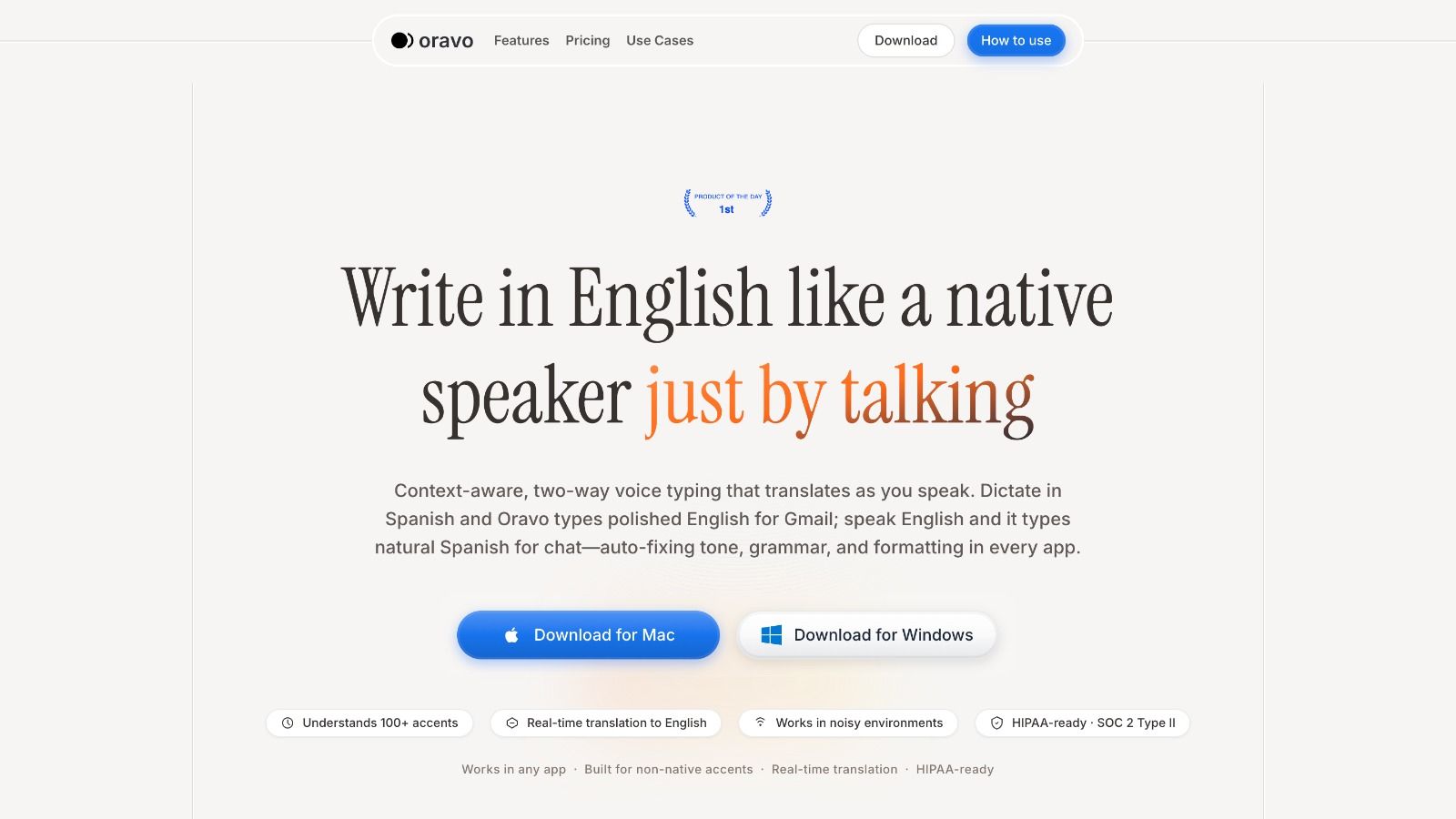
Oravo -- Chrome extension for voice dictation in Gmail, Slack, Notion, Google Docs, WhatsApp Web, HubSpot, and any other browser text field. Two-layer processing: accurate transcription plus professional English refinement. Handles non-native accents, Hinglish, Spanglish, Taglish, and Franglais. The output is not a raw transcript -- it is clean, polished text ready to send.
The Non-Native Speaker Problem With Both Tools
Non-native English speakers face specific challenges with both categories of tool.
With voice notes: auto-transcription accuracy drops significantly for speakers with strong accents, non-standard pronunciation, or code-switching patterns. A voice note captured in Hinglish may produce a transcript that is partly accurate and partly garbled. The professional then has to decide whether to clean it up or retype from scratch -- either way, the time savings evaporate.
With voice dictation: standard tools transcribe what they hear. If the speech includes L1 grammar patterns, informal phrasing, or code-switching, the raw output reflects that. The professional either sends text they are not fully comfortable with, or spends time rewriting it.
Oravo addresses both problems for voice dictation. It is built to handle non-native accents accurately and to output professional English regardless of input quality. A speaker who codes-switches between Hindi and English, or who carries South Asian phonology into their English speech, gets clean, polished output without a rewrite step.
The Two-Tool Workflow
For many professionals, the right answer is both tools for different purposes.
Voice notes for: capturing ideas while moving, recording meetings, personal thinking and reflection.
Voice dictation for: all text output that goes into a destination -- emails, messages, documents, task updates, Slack posts.
A common version of this: a professional records a voice note during a commute capturing thoughts on a client problem. Back at their desk, they use voice dictation to turn those thoughts into a client email, a Slack update to their team, and a task description in their project tool. The voice note was the input. Voice dictation was the output layer.
Choosing Between Them
Ask three questions:
Do I need audio or text? If the output is going into a text field -- any email, message, document, or task -- voice dictation. If you want an audio record or are recording someone else’s speech, voice notes.
Am I capturing or producing? Capturing a thought you will process later: voice notes. Writing something that is going somewhere now: voice dictation.
How much editing am I willing to do? Voice notes with transcription require a cleanup pass for most professional use. Voice dictation into a tool like Oravo produces send-ready text. If you want output you can use directly without editing, dictation is the right category.
Frequently Asked Questions
Is voice dictation the same as voice notes?
No. Voice notes record your audio for later review. Voice dictation converts your speech to text in real time, directly into a text field.
Can voice note apps replace voice dictation?
For some use cases. Voice note apps with auto-transcription produce text you can copy and edit. For high-volume professional writing, real-time voice dictation is faster because the text goes directly into the destination without a copy-paste step.
Which is better for non-native English speakers?
Voice dictation with a professional English layer -- like Oravo -- produces cleaner output for non-native speakers than voice note transcription. Standard transcription tools produce literal output; Oravo refines it to professional English regardless of accent or code-switching.
Do voice note apps work in meetings?
Yes. Apps like Otter.ai and Fireflies are designed specifically for meeting capture, with speaker identification and timestamped transcripts. This is a use case voice dictation tools do not cover.
What is the best voice dictation app for non-native English speakers?
Oravo is built specifically for this use case. It handles non-native accents accurately and outputs professional English, including support for Hinglish, Spanglish, Taglish, and Franglais code-switching.
Can I use both voice notes and voice dictation?
Yes, and many professionals do. Voice notes for idea capture and meeting recording. Voice dictation for all text output that goes into email, documents, and project tools. They address different moments in the workflow.
Written by
Dipesh Bhatt
The Oravo team writes about voice typing, productivity and writing clear English when it is not your first language.