You can dictate directly into Microsoft Word without any add-on: Word has a built-in Dictate button that turns speech into text in real time. It works on Windows, Mac, and Word for the web — but it comes with catches a Microsoft support page won't tell you about: it requires a paid Microsoft 365 subscription, it only works inside Word, and its voice commands top out at basic formatting.
[Try Oravo free — 5,000 words, no credit card](https://oravo.ai) — app-wide push-to-talk dictation that works anywhere the cursor is, not just in Word.
Short answer: In Word, go to Home → Dictate (or press Alt + \` on Windows) and start talking — say "period" or "comma" for punctuation, "new paragraph" for line breaks. Word needs a Microsoft 365 subscription and an internet connection. It only dictates inside Word. If you want dictation that works in Outlook, Teams, your browser, and everywhere else with one hotkey, that's what a dedicated voice-typing app like Oravo is for.
How to turn on voice typing in Word (all platforms)
The process is nearly identical everywhere, with small platform differences worth knowing.
Windows (Word desktop app):
- Open Word and put your cursor where you want the text to go.
- Go to the Home tab on the ribbon. On the far right you'll see the Dictate button (microphone icon).
- Click it once — or press Alt + ` (backtick) to skip the ribbon entirely.
- A small dictation toolbar appears with a microphone icon. When it shows the recording indicator, you're live. Speak naturally.
Mac (Word desktop app):
- Same ribbon location: Home → Dictate.
- The first time, macOS will ask for microphone permission. Grant it — Word can't hear you until you do.
- Speak. The dictation toolbar behaves the same as on Windows.
Word for the web:
- Open your document at word.new or via OneDrive.
- Home → Dictate, then allow microphone access when the browser prompts.
- This version requires being signed in with the same Microsoft 365 account that holds your subscription.
Two non-negotiable prerequisites, straight from Microsoft's own documentation: you need an active Microsoft 365 subscription (the free Word web app and perpetual-license Word 2021 won't do it — dictation is a cloud feature) and a working internet connection, because your speech is processed on Microsoft's servers, not on your device.
Microphone tip from experience: a headset or USB microphone beats a laptop mic by a wide margin for dictation. Built-in mics pick up keyboard clatter and room echo, which shows up as wrong words you'll have to fix later. You don't need anything fancy — even a $30 USB headset mic is a meaningful upgrade.
The settings worth changing first
Click the small gear icon on the dictation toolbar before you start. Two toggles matter:
- Enable auto-punctuation: With this on, Word inserts periods and commas where it thinks they belong, so you can talk in full paragraphs without saying "period" every sentence. It's surprisingly good for ordinary prose. Turn it off when dictating technical or legal text where a misplaced comma changes meaning — explicit punctuation commands are more reliable there.
- Spoken language: Word supports a limited set of dictation languages (Microsoft's documentation lists around nine full-support languages with a few more in preview at lower accuracy). Pick the language before you start — mid-document language switches don't work, and you'll need to stop and restart dictation to change.
The complete voice command cheat sheet
Word's dictation isn't just raw speech-to-text — it understands commands. These are the ones that actually get used in practice, grouped by how often you'll reach for them:
Punctuation & layout (the essentials):
Say this: "Period" / "Comma" / "Exclamation mark"; You get: . , !
Say this: "Question mark" / "Colon" / "Semicolon"; You get: ? : ;
Say this: "Open quote" / "Close quote"; You get: " "
Say this: "New line"; You get: Line break
Say this: "New paragraph"; You get: Paragraph break
Formatting:
Say this: "Bold" / "Bold Mac"; Does: Bolds the word or phrase
Say this: "Italicize" / "Underline"; Does: Applies italic / underline
Say this: "Start list" / "Start numbered list"; Does: Begins a bulleted / numbered list
Say this: "Exit list"; Does: Ends the list, returns to normal text
Editing & navigation:
Say this: "Select [word or phrase]"; Does: Selects the most recent matching text
Say this: "Delete" / "Backspace"; Does: Removes selection or last character
Say this: "Undo"; Does: Undoes the last action
Say this: "Pause dictation" / "Stop dictation"; Does: Pauses or ends the session
One genuinely useful habit: mix voice and keyboard. Dictate a paragraph, hit "pause dictation" with your voice, fix a term by typing it, then resume. Professional dictation users almost never do 100% voice — the combination is faster than either alone.
Three dictation workflows that actually work in Word
Generic advice says "just start talking." Here's what dictation is actually for in a Word workflow, based on how people use it day to day.
1. The rough-draft dump (long-form writing)
When you're drafting a report, memo, or proposal, the hardest part is the blank page. Dictate the whole thing badly on purpose: speak your outline section by section ("Heading one: Executive summary. New paragraph. The point of this report is..."). Don't correct as you go — say "new paragraph" when you want breaks and keep moving. Then do a normal silent editing pass. Most writers dictate at roughly 130–150 words per minute versus 40–60 typing, so a 1,000-word first draft takes about seven minutes of talking instead of twenty of typing.
2. Tracked-changes review comments
Reviewing a contract or manuscript? Put the cursor in the comment pane (or use "new comment") and dictate your margin notes instead of typing them. This is where Word's dictation quietly shines: comments are short, spoken language works fine in them, and you avoid the type-click-type dance of reviewing. Say "period" and "new paragraph" explicitly here — auto-punctuation sometimes guesses wrong in sentence fragments, and comments are full of fragments.
3. Meeting notes straight into the document
Instead of scribbling notes elsewhere and retyping them, open the meeting's Word doc and dictate decisions and action items as they happen (or immediately after, while they're fresh). Say "start list" to capture action items as bullets, "exit list" when you're done. One limitation to know: Word's dictation is your voice only — it won't transcribe a multi-speaker meeting. If you need a record of who said what, you want a transcription tool, not a dictation tool. (That distinction matters: dictation turns your speech into text as you speak; transcription records audio and converts it later. Word does the former.)
Where Word's built-in dictation falls short (honest assessment)
Word's Dictate is a solid free-with-subscription feature, but these are its real limits:
- Word only. The dictation toolbar lives inside Word. The moment you alt-tab to Outlook to dictate a reply, Teams to drop a message, or your browser to write a proposal in a web app, it's gone. If your writing life spans more than Word, a one-app dictation tool will constantly leave you typing by hand.
- Subscription and internet are mandatory. No 365 subscription, no dictation — and it stops working on a plane or in a dead-zone café. On-device dictation doesn't have this dependency.
- The command set is shallow. You can bold, list, and navigate basics, but there's no voice control for styles, no inserting citations, no footnotes, no table commands. Anything structural is back to the keyboard.
- Long sessions drift. Dictate for 30+ minutes straight and you'll notice accuracy wander — it handles continuous speech, but pausing to think mid-sentence sometimes gets transcribed as filler. Short bursts with pauses between paragraphs work better than monologues.
- Your audio goes to Microsoft's servers. That's inherent to how the feature works (cloud speech recognition), and worth knowing if you dictate sensitive client material. Word offers no local-only mode and no stated zero-retention guarantee for dictation audio — check your organization's data policies before dictating confidential documents.
The app-wide alternative: dictate anywhere, not just in Word
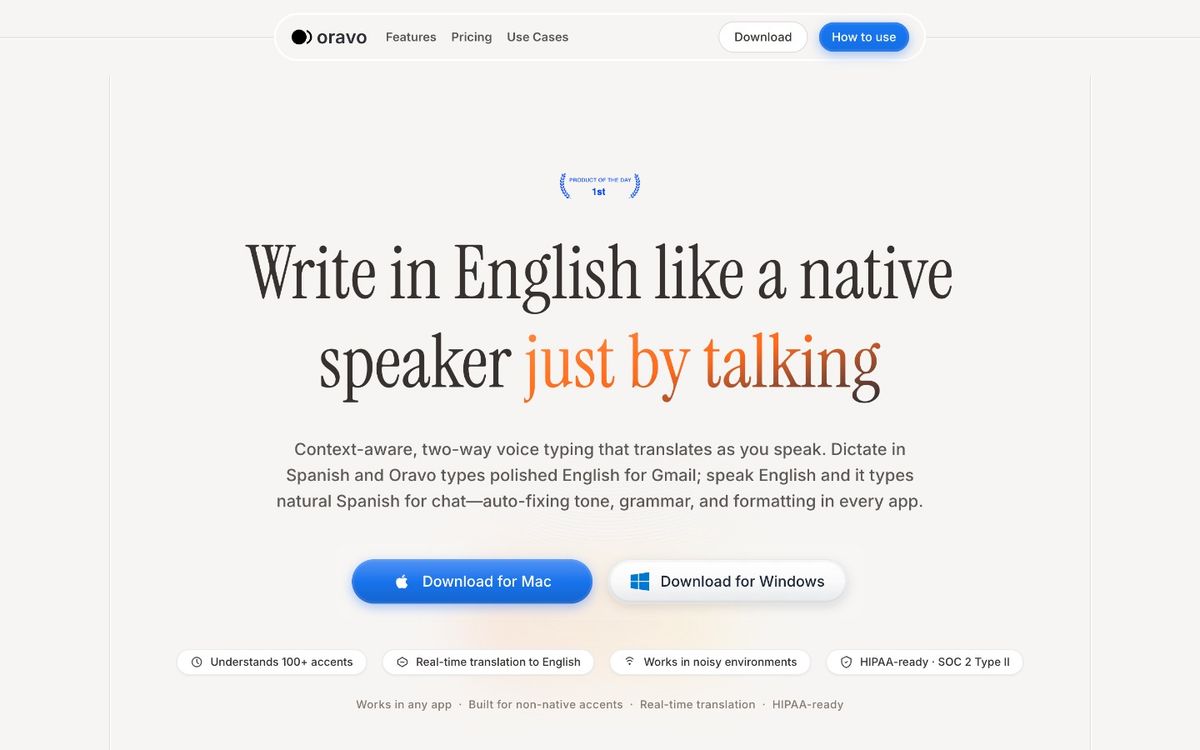
If the limitation list above stung, here's the other approach: a dedicated voice-typing app that lives at the OS level and types anywhere your cursor is — Word, Outlook, Slack, Chrome, VS Code — with a single push-to-talk hotkey. No per-app Dictate buttons, no ribbon hunting.
This is the gap Oravo fills. The practical differences versus Word's built-in dictation:
- Works in 50+ apps, not just Word. Hold the hotkey and speak — text appears wherever the cursor is. Email in Outlook, messages in Teams, docs in the browser: same workflow everywhere.
- 60+ languages with real-time translation. Dictate in one language and get text in another — useful when your source material and your document aren't in the same language.
- Custom dictionary on the free tier. Teach it your clients' names, product names, and industry jargon once; it spells them right every time after. (Word's dictation has no personal vocabulary learning.)
- Tone adapts per app. Casual phrasing lands in Slack, formal phrasing in Gmail and Word documents — the output matches where you're writing.
- Push-to-talk privacy design. The mic is only open while you hold the hotkey — no background listening. Combined with zero data retention (recordings and transcripts are never stored), HIPAA-ready handling, and SOC 2 Type II certification, it's built for people who dictate sensitive material.
- 99% accuracy at sub-300ms latency. Because it's a purpose-built dictation engine rather than a bundled feature, it keeps up with natural speaking speed instead of lagging behind it.
The pricing comparison is straightforward: Oravo's free tier gives you 5,000 words to try, and Pro is $9.99/month (or $99/year) with a 14-day Pro trial that needs no credit card — roughly a third less than the $15/month that a comparable dedicated tool like Wispr Flow charges monthly. And unlike Word's dictation, it doesn't require a Microsoft 365 subscription at all.
Which should you use?
Stick with Word's built-in Dictate if: you already pay for Microsoft 365, you do nearly all your writing inside Word, and your needs are basic — drafting documents, adding comments, handling punctuation by voice. It's genuinely good at that, and it's already paid for.
Add a dedicated tool if: you write across many apps and are tired of dictation that only works in one of them, you dictate client names or jargon that Word keeps misspelling, you need translation, or your work has privacy requirements that cloud-only dictation doesn't satisfy. The two can coexist — plenty of people use Word's Dictate for in-document drafting and an app-wide tool for everything else.
Either way, the biggest win isn't the tool — it's the workflow. Dictate the messy first draft by voice, then edit in silence. That two-pass method is what turns voice typing from a novelty into the fastest way you write.
[Try Oravo free — 5,000 words, no credit card required](https://oravo.ai)
FAQ
Does Microsoft Word have voice typing? Yes. Word includes a built-in Dictate feature on the Home tab (keyboard shortcut Alt + ` on Windows) that converts speech to text in real time. It requires a Microsoft 365 subscription and an internet connection, and it works in the desktop apps and Word for the web.
Why is Dictate greyed out or missing in Word? The most common cause is not having an active Microsoft 365 subscription — dictation is a cloud feature unavailable in perpetual-license versions like Word 2021. Other causes: no internet connection, microphone permission denied at the OS level, or an IT policy that disabled cloud features. Check all three before reinstalling anything.
Can you use voice typing in Word on a Mac? Yes — Home → Dictate works in Word for Mac the same as on Windows. The first launch will prompt for microphone permission in macOS; grant it in System Settings if you dismissed the prompt. The voice command set is the same across platforms.
Does Word dictation work offline? No. Word's Dictate sends your speech to Microsoft's servers for processing, so it requires an active internet connection. If you need offline dictation, look at OS-level options (Windows Voice Access has offline components; macOS dictation supports on-device mode for some languages) or a dedicated app with local processing.
How do I add punctuation while dictating in Word? Say the punctuation name — "period," "comma," "question mark," "new paragraph." Alternatively, enable auto-punctuation in the dictation settings (gear icon) and Word will insert punctuation automatically, though it's less reliable for technical or legal text.
Is there a way to dictate outside of Word? Word's Dictate only works inside Word. For dictation that works across all your apps, use Windows voice typing (Win + H, works anywhere but with a smaller feature set) or a dedicated voice-typing app like Oravo, which types anywhere the cursor is via a single push-to-talk hotkey.
Written by
Raju Yadav
The Oravo team writes about voice typing, productivity and writing clear English when it is not your first language.