Typing long commit messages, docstrings, and prompts for GitHub Copilot is some of the most interruptive work in a developer's day. You context-switch out of the problem, type a paragraph of natural language, then switch back. Voice typing in VS Code removes that switch entirely — if it's set up the right way.
The short answer
Yes, you can use voice typing in VS Code, and the fastest way is a system-wide dictation app that types anywhere your cursor is. Microsoft's official VS Code Speech extension only adds a microphone to Copilot Chat panels, is English-only, and requires the Copilot Chat extension with sign-in. DIY extensions on GitHub work but need you to install whisper.cpp and Ollama via the terminal. A system-wide tool like Oravo skips all of that: hold a hotkey, speak, and text lands directly in the editor, the integrated terminal, or any chat panel — with 99% accuracy and a custom dictionary for your project's jargon.
Try it free: Oravo gives you 5,000 free words and a 14-day Pro trial with no credit card — install it, hold the hotkey in VS Code, and dictate your next commit message.
Why developers bother with voice typing in VS Code
Developers don't want to code by voice — they want to write English by voice. The natural-language workload inside VS Code is bigger than most people realize:
- Commit messages — conventional commits like
feat(auth): add refresh-token rotation with testsare prose, not code. - Code comments and docstrings — explaining why a function exists is pure writing.
- AI prompts — a good Copilot Chat or agent prompt ("refactor this function to use async/await with proper error handling and add unit tests for the retry path") takes ~15 seconds to type and ~3 seconds to say.
- PR descriptions and code reviews — long-form writing inside the GitHub/PR interface you may already use via VS Code.
- Ticket updates — standup notes and Linear/Jira comments from the editor.
A developer with RSI or carpal tunnel gets even more from it: one dev.to author built an entire on-device extension specifically because typing prompts had become painful. The motivation is real; the question is which implementation to use.
Option 1: The official VS Code Speech extension
Microsoft publishes the VS Code Speech extension, and it's the option most developers try first. Here's what it actually does, per Microsoft's own wiki:
- It adds speech-to-text only to the chat interfaces that the GitHub Copilot Chat extension provides. It does not type into the editor, the terminal, or commit-message boxes.
- You must install the Copilot Chat extension and sign in before it works.
- Per the wiki, it currently supports English only.
- Audio is processed locally on your machine, and Microsoft notes the extension is still in development.
It's free and official, but the scope is narrow: if your dictation needs are "talk to Copilot in English," it works. For everything else — comments, commits, PR descriptions — you'll need something else.
Option 2: DIY local extensions from GitHub
The top search results for this topic are open-source extensions like the voice-typing extension (also sold for Cursor) and VoxPilot, a dev.to community build. They take the fully local route: whisper.cpp for speech-to-text, Ollama with a small LLM to clean up the transcript, everything on your machine.
The trade-off is setup friction. The documented quick start for one popular repo is:
brew install whisper-cpp sox   # speech engine + audio recorder
brew install ollama             # local LLM for transcript cleanup
ollama pull llama3.2:3b        # pull the rewrite model
Then install the extension from a .vsix file and press Option+V to record. VoxPilot takes a similar path with Moonshine ASR (a 27MB "Tiny" model for quick commands, 65MB "Base" for longer dictation) feeding transcripts into VS Code's Chat API for Copilot or Continue.
These are impressive projects — MIT-licensed, no cloud, no API keys — but they're hobbyist tooling: you're maintaining a Whisper install, an Ollama model, and an extension that may break on the next VS Code update. And most of them still route text into the chat panel rather than the editor.
Option 3: System-wide dictation that types anywhere the cursor is
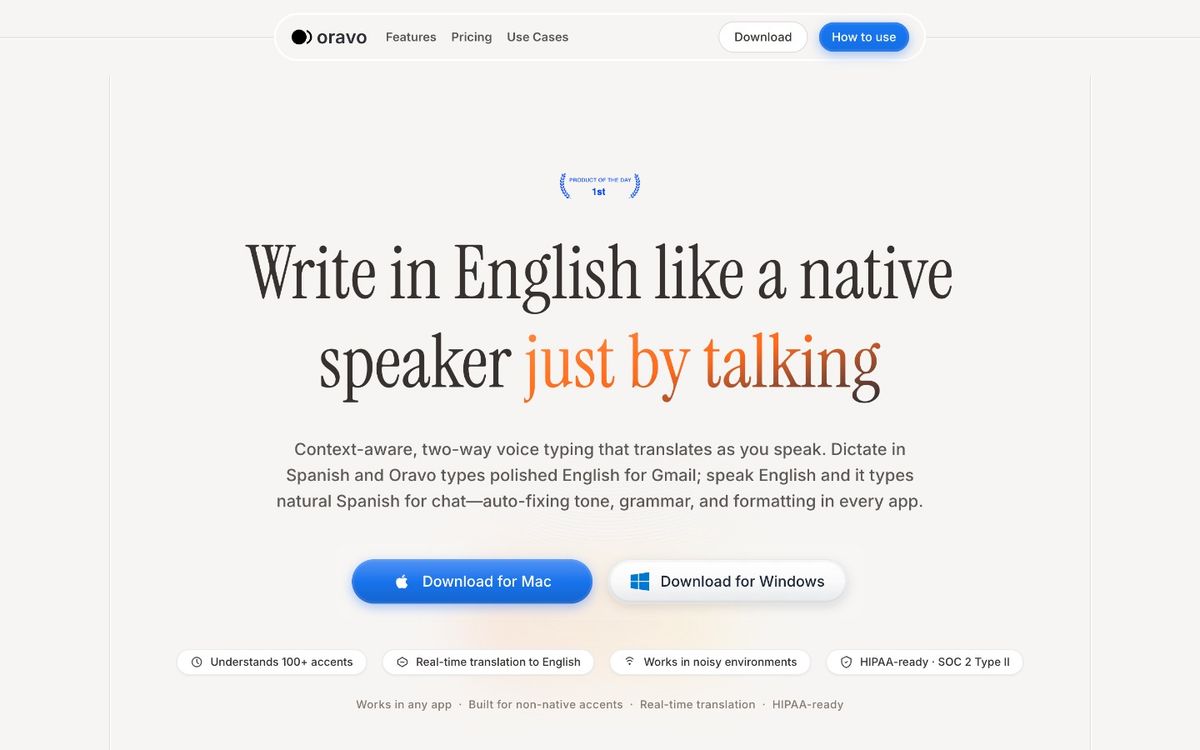
The third approach skips VS Code-specific extensions entirely. Oravo is a system-wide voice-typing app: it works anywhere the cursor blinks — the VS Code editor, the integrated terminal, Copilot Chat panels, commit-message inputs, PR description boxes in the browser. One hotkey, no per-app setup.
The workflow is push-to-talk: click into the VS Code input, hold the hotkey, speak, release. Text appears at the cursor with 99% accuracy and sub-300ms latency. Because the mic is only open while you're holding the key, there's no background listening — relevant when you're dictating next to proprietary code.
What makes it practical for developers specifically:
- Custom dictionary on the free tier. Add your project's jargon once —
shadcn,Zod,PostHog,kubectl, your company's product names, teammates' names for code reviews — and dictation gets them right from then on. - 60+ languages with real-time translation. If your team comments code in another language, you can dictate in your own and get it translated.
- Tone that adapts to the app. Oravo shifts formality per context, so a Slack message to your team reads casual while a PR description reads formal.
- Privacy by design. Zero data retention — recordings and transcripts are never stored — plus SOC 2 Type II certification and HIPAA-ready handling. Your codebase stays yours.
Setting it up: step by step
- Install Oravo on Mac or Windows (oravo.ai; iOS is also supported, Android is coming). The free tier includes 5,000 words — no credit card — and Pro ($9.99/mo or $99/yr) comes with a 14-day trial.
- Learn the push-to-talk hotkey. Hold it to record, release to insert. That's the whole interaction model — the same key works in every app, so there's no VS Code-specific shortcut to memorize.
- Teach it your jargon. Open the custom dictionary and add project-specific terms: library names (
shadcn,Zustand), infrastructure terms (kubectl,Terraform), and internal codenames. This is the single highest-leverage step for developer accuracy. - Test it in three places. Try a comment in the editor, a commit message, and a Copilot Chat prompt. The first place shows normal insertion, the second shows natural-language formatting, the third shows why 3-second prompts change your AI workflow.
- Dictate your first real commit. Next time you stage changes, hold the hotkey in the commit box instead of typing.
Five developer workflows that get better with voice
1. Commit messages. Staged your changes, cursor in the commit box, hold the hotkey: "fix checkout race condition where the cart total was computed before the discount applied, add regression test." Edit the conventional-commit prefix by hand and you're done.
2. Code comments and docstrings. Above a tricky function, dictate the why: "Retries with exponential backoff up to three times because the payments API rate-limits aggressively during peak hours." Future-you will thank present-you.
3. Copilot Chat prompts. Long, specific prompts are where AI coding assistants shine and where typing is the bottleneck. Saying "refactor this function to use async/await with proper error handling and add unit tests for the retry path" takes about 3 seconds. You'll prompt more, and better, when prompting is cheap.
4. PR descriptions and code reviews. Dictate the summary of what changed and why, the testing you did, and the follow-ups. Reviewers get context faster, and you stop writing three-line PR descriptions out of typing fatigue.
5. Standup notes and ticket updates. If you keep a scratch file or update tickets from VS Code, dictate the update in plain sentences instead of terse fragments your team has to decode.
Honest limitations
Voice typing is for natural language, not for typing literal syntax. Dictating const [state, setState] = useState(null) character by character is still awkward — keep typing actual code, and dictate everything around the code. That's where the time savings are.
Two more honest notes: Microsoft's built-in option is English-only and chat-panel-only, so non-English developers should look elsewhere; and Oravo currently runs on Mac, Windows, and iOS, with Android on the way — if your whole workflow is on a Linux workstation or Android, check the platform list before committing.
Quick comparison
Types into the editor; VS Code Speech (official): No — chat panels only; DIY local extensions: Mostly chat panels; Oravo: Yes — anywhere the cursor is
Integrated terminal; VS Code Speech (official): No; DIY local extensions: No; Oravo: Yes
Languages; VS Code Speech (official): English only; DIY local extensions: Depends on Whisper setup; Oravo: 60+ with real-time translation
Setup; VS Code Speech (official): Install extension + Copilot sign-in; DIY local extensions: Terminal installs (whisper.cpp, Ollama); Oravo: Install app, learn one hotkey
Technical jargon; VS Code Speech (official): No custom vocabulary; DIY local extensions: No custom vocabulary; Oravo: Custom dictionary on free tier
Cost; VS Code Speech (official): Free; DIY local extensions: Free (self-hosted); Oravo: Free 5,000 words; Pro $9.99/mo
FAQ
Can I dictate directly into the VS Code editor with voice typing? Yes — with a system-wide dictation app. Microsoft's VS Code Speech extension only adds a microphone to Copilot Chat panels, not the editor. Oravo types anywhere the cursor is, including the editor, the integrated terminal, and commit-message inputs.
Does voice typing work in the VS Code integrated terminal? With Oravo, yes — the terminal is just another text input. Be careful dictating raw commands, though: always re-read before hitting Enter. It's best for git commit messages and other prose-like terminal input.
Will it understand programming terms like "Kubernetes" or "async/await"? Out of the box, common terms like Kubernetes are usually fine. For project-specific jargon — internal codenames, library names like shadcn, teammates' names — add them to Oravo's custom dictionary (included on the free tier) and they'll be recognized consistently.
Is it safe to dictate proprietary code? Check the privacy model of whatever you use. Oravo is push-to-talk (the mic is only open while you hold the hotkey), retains zero data (recordings and transcripts are never stored), and is SOC 2 Type II certified and HIPAA-ready. The local DIY extensions also keep audio on-device, at the cost of setup and maintenance.
Do I need GitHub Copilot to use voice typing in VS Code? Only for Microsoft's VS Code Speech extension, which requires the Copilot Chat extension and sign-in. System-wide dictation and the DIY extensions work with or without Copilot.
Does this work in Cursor or other editors too? Oravo works anywhere the cursor is on Mac, Windows, and iOS — so yes, Cursor, JetBrains IDEs, Sublime Text, and browser-based editors like GitHub Codespaces all work the same way, with no per-editor setup.
The bottom line
Voice typing in VS Code pays off the moment you stop treating it as "coding by voice" and start using it for what developers actually write in prose: commits, comments, prompts, and PR descriptions. The built-in option is too narrow and the DIY options are too fiddly for most teams — a system-wide hotkey that types anywhere the cursor is, with a dictionary that knows your stack, is the setup that sticks.
Start dictating in VS Code today: Try Oravo free — 5,000 free words, 14-day Pro trial, no credit card. Your next commit message takes three seconds.
Written by
Raju Yadav
The Oravo team writes about voice typing, productivity and writing clear English when it is not your first language.