Notion is where a lot of people keep their second brain — but the app has no built-in voice input. If you've ever wished you could just talk your meeting notes, journal entries, or project updates straight into a Notion page, this guide is for you.
Want the short version? Try Oravo free — push-to-talk dictation that works anywhere your cursor is, including Notion. 5,000 words free, no credit card.
The short answer
Yes, you can voice-type in Notion. Notion doesn't ship its own dictation, so you need a system-level voice typing tool that inserts text wherever your cursor is. The reliable approach: open your Notion page, click into a block, hold your dictation hotkey, and speak. Text lands directly in the block — no copy-paste, no browser extension required.
The tools that currently rank for "voice typing in notion" mostly fall into two camps: browser extensions that only work in the web version (not the desktop app), and transcription apps that send voice notes to Notion through a separate app. Neither tells you the practical details that actually matter — like the fact that voice typing inserts plain text, so it can't create Notion blocks by voice, or that the fastest workflow is dictating into a scratch page and structuring with / commands afterward.
Here's the full practical breakdown.
How voice typing interacts with Notion (the part nobody explains)
Notion is a block editor. Every paragraph, heading, toggle, and database cell is a block. When you dictate, the tool doesn't know about blocks — it just types characters at your cursor position. Understanding this one fact determines everything about your workflow:
- What works great by voice: paragraphs, headings (you can say "heading" while dictating in some tools, or convert with
/after), list items, database cell text, page titles, comments. - What still needs your hands: creating toggles, callouts, columns, and databases (type
/and pick), rearranging blocks (drag orCtrl/Cmd + Shift + arrows), and slash-command formatting. - The sweet spot workflow: dictate a raw brain-dump into a blank page, then spend 60 seconds turning it into blocks with slash commands. This is faster than typing everything and faster than fiddling with formatting as you speak.
Method 1: Dictate directly into Notion (recommended)
This is the fastest method and the one this guide focuses on. A hotkey-based dictation tool works in Notion's desktop app, web app, and mobile app identically, because it operates at the OS level.
Setup (about 60 seconds)
- Install your dictation tool of choice and set a push-to-talk hotkey (something you can hold comfortably, like holding
Fnor a side mouse button). - Open Notion — desktop app or browser, it doesn't matter.
- Click into any text block or page. Press the hotkey and say a test sentence.
- Release the hotkey. Your words appear at the cursor.
That's it. No Notion integration to configure, no API tokens, no "add connection" step — because the tool just types where the cursor already is.
Three workflows that actually pay off
1. The morning brain-dump (journal or daily notes). Open today's daily note, click under the last entry, hold the hotkey, and talk for two minutes about what's on your mind. Then type /heading to title sections, or select chunks and hit Cmd/Ctrl + E to turn them into toggles. People who journal in Notion consistently say voice is what finally made the habit stick — typing a journal entry feels like work; talking one feels like thinking out loud.
2. Meeting notes into a database. If you keep a Meetings database, open the page for today's meeting and dictate into the body: attendees, decisions, action items. Say "new line" between items, or just dictate one long stream and split it into a to-do list with /todo afterward. One practical tip: dictate action items in the format "action item, colon, [person], [task]" — e.g. "action item colon Priya send the revised timeline" — and the structure survives cleanup.
3. Drafting long docs and wikis. For project docs, RFCs, or documentation pages, dictate the full first draft without worrying about formatting. Then do a formatting pass: select text and use Notion's shortcuts (Cmd/Ctrl + B bold, Cmd/Ctrl + Shift + H heading, /callout for key points). Separating drafting from formatting is the single biggest speed gain — most people type at 40 wpm but speak at 130+ wpm, so the draft lands in a third of the time.
Formatting while you dictate: what to say
Dictation tools handle punctuation differently. The commands worth learning:
- "comma" / "period" / "question mark" — basic punctuation, supported by virtually every tool.
- "new line" / "new paragraph" — starts a new Notion block (in most tools).
- "quote" / "end quote" — wraps a phrase in quotation marks.
- Spell-out mode — for unusual names or terms, spell them letter by letter, or better: add them to your custom dictionary once (more on this below).
What you can't reliably do by voice: "make this a toggle" or "turn this into a callout." Those stay manual. Budget for it — a 5-minute dictation usually needs 1–2 minutes of structuring.
Method 2: Built-in OS dictation (free, with limits)
Both major operating systems ship free dictation that works in Notion:
- Mac: press
Fntwice (or your configured shortcut) to start Apple Dictation, then speak. It inserts text at the cursor in the Notion desktop app or web app. - Windows 11: press
Win + Hfor voice typing. Works in Notion too.
The honest trade-offs: built-in dictation has no AI cleanup, so filler words ("um," "uh") and false starts land in your notes verbatim. Accuracy on technical terms, product names, and non-English accents is noticeably worse than a dedicated AI tool, and there's no custom vocabulary — if Notion is where you write about clients, codebases, or projects with unusual names, you'll be correcting a lot. It's fine for occasional use; it's not a daily driver.
Method 3: Transcription apps that send notes to Notion
A different category: apps like Notis.ai (stated $20/month Pro) and Voices.ink (stated $8.99–$24.99/month) record a voice memo on your phone and deliver a transcribed, summarized page into your Notion workspace via the Notion API. Thomas Frank's well-known DIY method pairs Whisper with ChatGPT through Pipedream for pennies per hour of audio.
These are genuinely good for capture on the go — record a thought while walking, get a formatted page later. But they're not voice typing: you can't sit at your desk and dictate a paragraph into the middle of an existing page. They add a second app, a sync delay, and a subscription. If your goal is writing in Notion faster, direct dictation (Method 1) beats them.
Getting accurate results: the custom dictionary trick
The number one reason people abandon voice typing in Notion is proper nouns. Your workspace is full of them: client names, project codenames, teammate names, internal jargon. Generic dictation mangles them every time.
The fix: add them to your tool's custom dictionary once. For example, if your Notion is full of pages about a client named "Kowalski," a project called "Meridian," and a teammate "Xochitl," those three entries eliminate 90% of corrections. This is worth doing on day one — it takes five minutes and it's the difference between dictation that feels magical and dictation that feels broken.
This is also where free tiers matter: some tools lock custom vocabulary behind paid plans. Oravo includes the custom dictionary on its free tier, which is unusual and worth knowing about if you're testing the waters.
Privacy: what happens to your words
Worth being precise here, because Notion users often keep sensitive material — journals, HR notes, client work, health information — in their workspaces:
- Your Notion content is stored by Notion on Notion's servers. Any dictation method ends with text in Notion, so that part is identical regardless of tool.
- Your voice audio and the transcription process are where tools differ. Oravo processes with zero data retention — voice recordings and transcripts are never stored — and is HIPAA-ready and SOC 2 Type II certified. If you dictate clinical notes, legal memos, or anything sensitive into Notion, that distinction matters more than any feature list.
- Push-to-talk design (the mic is only open while you hold the hotkey) means nothing is recorded in the background. No always-on listening.
The honest limitations
No article on this topic should skip these:
- Voice can't create Notion blocks. You'll always do some manual structuring. If you hate that part, Notion AI's "continue writing" and summarize features pair well with a dictated rough draft.
- Noisy environments hurt accuracy. In an open office, push-to-talk plus a decent mic beats an open-mic mode. Don't dictate confidential material where people can hear you — obvious, but worth saying.
- Rambling in means rambling out. Dictation transcribes what you say, including the five-minute tangent. The skill that makes voice typing fast in Notion is learning to speak in short, declarative bursts — which takes about a week to develop.
- Real-time translation is a separate superpower. If you work across languages, some tools (Oravo supports 60+ languages with real-time translation) let you dictate in one language and land text in another — genuinely useful for multilingual teams sharing one Notion workspace.
Why Oravo for Notion specifically
A quick, factual rundown of how Oravo fits this workflow:
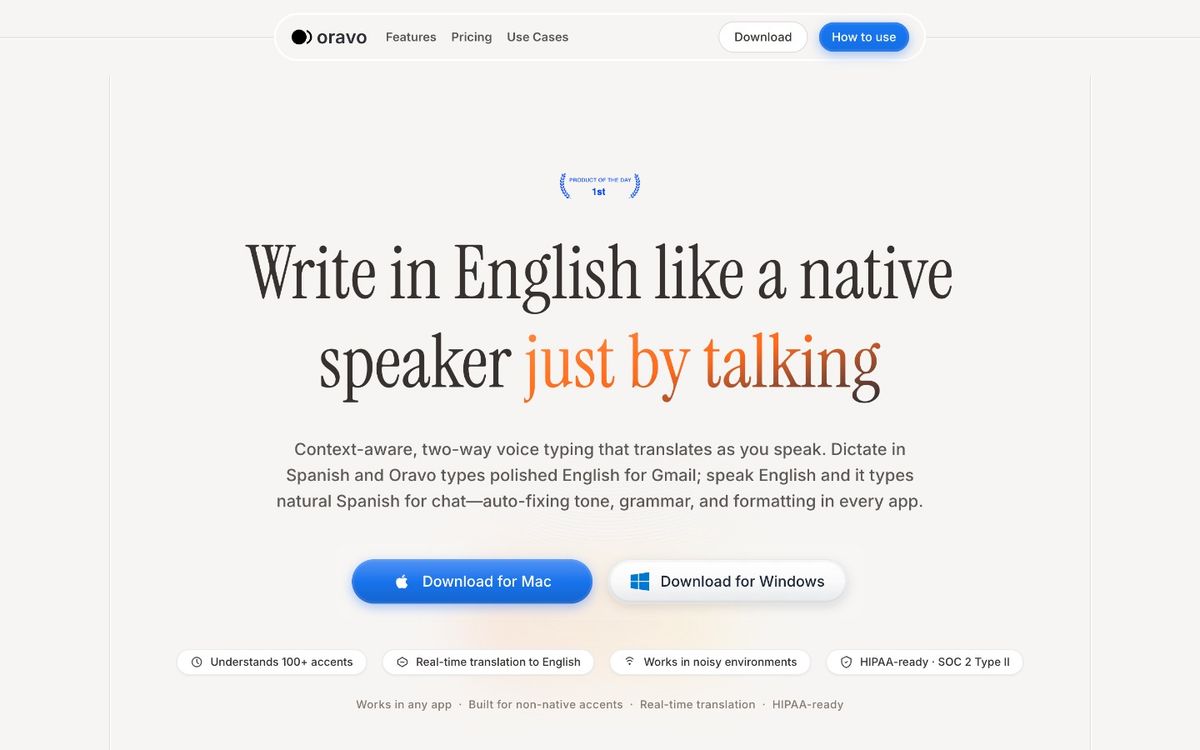
- Works in the Notion desktop app and web app — it's hotkey-based at the OS level, not a Chrome extension, so it works wherever your cursor is: Notion, Slack, Gmail, VS Code, 50+ apps.
- 99% accuracy with sub-300ms latency — words appear as you speak, not in chunks after you stop.
- Custom dictionary on the free tier — add your project names, client names, and jargon without paying.
- Tone adapts to the app — casual in Slack, formal in Gmail; in Notion it stays clean and neutral.
- 60+ languages with real-time translation — dictate in Spanish, land English text in your shared workspace.
- Push-to-talk, zero data retention, HIPAA-ready, SOC 2 Type II — the privacy story above.
- Pricing: 5,000 words free, then Pro at $9.99/month or $99/year. 14-day Pro trial, no credit card required.
Start dictating into Notion free — set your hotkey, open any page, and talk.
FAQ
Does Notion have built-in voice typing?
No. As of 2026, Notion has no native dictation or voice input feature on any platform. You need an OS-level dictation tool (Mac's Fn twice, Windows' Win + H, or a dedicated app like Oravo) that types at your cursor position inside Notion.
Can I dictate into Notion databases?
Yes — click into any text property cell or the page body of a database entry and dictate normally. Select/multi-select properties still need to be picked by hand; voice typing only fills text fields.
Will voice typing work in the Notion desktop app, or only in the browser?
OS-level dictation tools work in both, because they insert text at the system cursor. Browser extensions (like some Chrome-based voice typing extensions) only work in Notion's web app — one reason to prefer a hotkey-based tool if you use the desktop app.
How do I add headings and bullet lists while dictating?
Say "new line" between items, then convert afterward: select text and use / commands (/heading, /todo, /bullet) or keyboard shortcuts. No current dictation tool creates Notion block types directly by voice — plan for a short formatting pass after dictating.
Is dictating into Notion private?
Your dictated text is stored by Notion like anything else you type. The privacy variable is the dictation tool's handling of your voice audio — look for zero data retention and push-to-talk (mic only open while you hold the key) if you dictate sensitive material.
What's the cheapest good way to voice-type in Notion?
Mac and Windows both ship free built-in dictation (Fn twice on Mac, Win + H on Windows 11) — usable for occasional notes, but with no AI cleanup or custom vocabulary. For regular use, Oravo's free tier (5,000 words, custom dictionary included) is the lowest-friction upgrade; some users also report good results with browser extensions like VoiceIn, whose basic version is reportedly free.
Notion power user with a lot to say and not enough time to type it? [Try Oravo free](https://oravo.ai) — 5,000 words on the house, 14-day Pro trial, no credit card.
Written by
Raju Yadav
The Oravo team writes about voice typing, productivity and writing clear English when it is not your first language.