You can dictate full emails in Gmail on desktop and mobile — but the best way depends on whether you're replying from your phone between meetings or drafting a formal client email at your desk. There's also fresh confusion worth clearing up: Google launched voice features in Gmail in September 2026, and they don't do what most people searching "voice typing in Gmail" actually want.
Try it free: dictate your next email with Oravo — 5,000 free words, no credit card
Short answer
- On mobile: tap the microphone on your phone's keyboard (Gboard on Android, the mic key on iOS) inside any Gmail compose window and speak. Fastest setup, zero installs.
- On desktop (Windows): press Win + H anywhere — including the Gmail compose box in Chrome or Edge — and dictate.
- On desktop (Mac): press the Fn key twice to start built-in dictation, then speak into the Gmail compose window.
- Google's new "Gmail Live" voice feature (launched Sept 3, 2026) is not dictation — it lets you ask questions about your inbox out loud. It doesn't write emails for you.
- Best all-round option for heavy email users: a system-wide dictation tool like Oravo that works in the Gmail compose box in any browser, writes in a formal tone, and keeps your email data private — with push-to-talk, a custom dictionary, and 60+ languages.
First, a clarification: Gmail Live is voice search, not voice typing
On September 3, 2026, Google rolled out conversational voice features across Gmail, Docs, and Keep — dubbed Gmail Live, Docs Live, and Keep Live. It's easy to read the headlines and assume Gmail now has voice typing built in. It doesn't, quite.
What Gmail Live actually does: you ask questions about your inbox out loud — "What's my flight's gate number?" or "What did the school send this week?" — and a Gemini-powered assistant scans your emails and answers conversationally, with a transcript and links to the source messages. It's available to Google AI Plus, Pro, and Ultra subscribers, with Workspace business support reportedly coming soon.
What it doesn't do: compose, dictate, or draft emails for you. You still can't press a mic button and speak an email into existence. If your goal is writing emails by voice — which is what most people mean by voice typing in Gmail — you still need a dictation method. Here they are, in order of practicality.
Option 1: Built-in keyboard dictation (free, fastest to start)
If you only occasionally dictate short replies, the built-ins are enough. No installs, no accounts, no permissions.
On Android: Gboard voice typing
- Open Gmail and tap Compose (or Reply).
- Tap the microphone icon on the keyboard (top row on Gboard; if you don't see it, enable "Voice typing" in Gboard settings).
- Speak your email naturally. Say punctuation out loud — "comma," "question mark," "new paragraph."
- Tap the mic icon again to stop, then proofread and send.
Gboard's voice typing is genuinely good at raw transcription and works offline on newer Pixels. The catch for email: it transcribes exactly what you say, filler words and all, with no cleanup and no tone control. A rambling dictated reply arrives as a rambling email unless you edit it.
On iOS: the keyboard dictation key
- In the Gmail compose window, tap the microphone key at the bottom-right of the keyboard.
- Dictate, then tap it again to stop.
- Review and send.
Same trade-off as Gboard: solid transcription, zero editing help. iOS dictation also times out after about 30–60 seconds of continuous speech, which makes long emails awkward — you dictate in chunks.
On Windows: Win + H
- Click into the Gmail compose box in Chrome or Edge.
- Press Win + H. The voice typing toolbar appears.
- Speak your email. The launcher supports auto-punctuation if you toggle it on in the toolbar settings.
- Say "stop listening" or click the mic to finish.
Windows 11's voice typing has improved a lot — auto-punctuation is genuinely useful for emails. But it sends your speech to Microsoft's cloud, and like the others it has no idea it's writing a formal business email versus a text to your friend.
On Mac: Fn twice
- Click into the Gmail compose box in any browser.
- Press the Fn key twice (or your configured dictation shortcut in System Settings → Keyboard → Dictation).
- Dictate, then press Fn again or click Done.
- Edit and send.
macOS dictation works, but it's bare-bones: no custom vocabulary, no formatting control, and — like all the built-ins — it writes exactly what you say in whatever tone you said it.
Honest verdict on built-ins: free, private-ish, and fine for short replies. They fall apart on long formal emails: no filler-word cleanup, no grammar correction, no custom vocabulary for names and jargon, and no distinction between casual and professional tone. That's where dedicated tools earn their keep.
Option 2: Chrome extensions (browser-only dictation)
If you use Gmail in Chrome, a few extensions add a microphone directly to the compose window:
- Dictation for Gmail — adds a mic icon next to the Send button; per its Chrome Web Store listing it supports 60 languages. Single-purpose, simple, but it's Chrome-only and does raw transcription with no cleanup.
- Voice In — a broader voice-typing extension that works in Gmail, Google Docs, ChatGPT, and thousands of sites. More flexible, but still browser-only — it won't help with your desktop mail client or phone.
Honest trade-offs: extensions live inside your browser, which means broad page permissions and vendor-specific privacy policies — worth reading when the tool will process confidential work email. They're also Chrome-only: switch to Safari, the Gmail mobile app, or a desktop client like Outlook, and you're back to the built-ins.
Option 3: A system-wide dictation tool (the Oravo workflow)
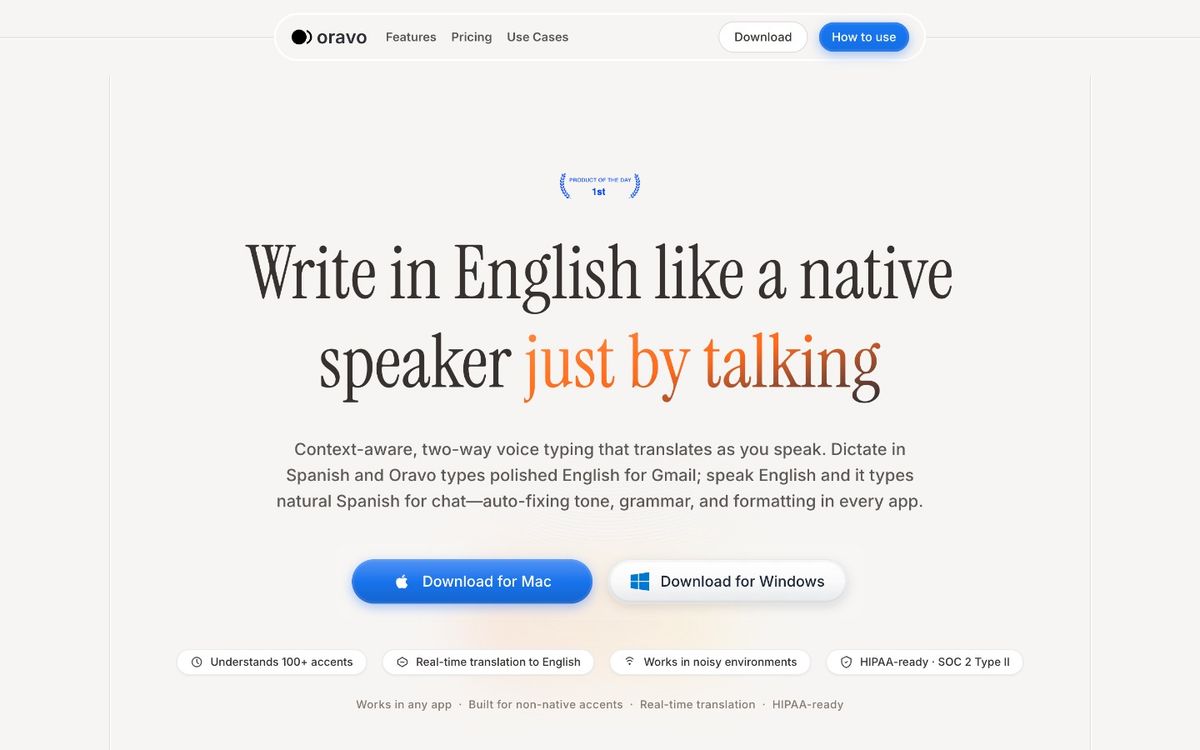
This is the setup for people who write a lot of email: one tool that works in the Gmail compose box and everywhere else — Slack, Docs, your CRM — with the same hotkey. Here's the exact Oravo workflow for Gmail:
- Open Gmail compose in any browser (Chrome, Edge, Safari — it doesn't matter, since Oravo works anywhere the cursor is).
- Hold your push-to-talk hotkey and speak the email — greeting, body, sign-off — in one continuous flow. The mic is only open while you hold the key; there's no background listening.
- Release the key. Your speech lands in the compose box as clean text at sub-300ms latency, with 99% accuracy — filler words cleaned up, grammar corrected, punctuation in place.
- Check tone. Oravo adapts to the app it's typing in, so the same spoken ramble comes out formal in Gmail and casual in Slack. Say "Hi John comma new line thanks for the quick turnaround period" and it reads like you typed it carefully.
- Proofread and send. Nothing is ever perfect — always re-read a dictated email once, especially names and numbers.
The Gmail-specific features that matter
Custom dictionary on the free tier. Emails are full of names, company spellings, and product terms that generic dictation butchers. "Priya Natarajan," "RxNote," "Q3 OKRs" — teach Oravo your vocabulary once and it gets it right in every email. Most people discover this after the third time they fix the same mis-transcribed surname.
Dictate in one language, send in another. With 60+ languages and real-time translation, you can speak in Spanish (or Hindi, French, German…) and have the email land in the compose box in polished English. For multilingual teams, this quietly removes one of email's biggest friction points.
Privacy that survives a compliance review. Email is where the sensitive stuff lives — HR conversations, client data, financials. Oravo has zero data retention (voice recordings and transcripts are never stored), is HIPAA-ready, and is SOC 2 Type II certified. Push-to-talk means the mic is physically off unless you're holding the key. If your IT department asks what happens to dictated email content, "nothing is stored" is a short answer.
It's not just Gmail. The same hotkey works in 50+ apps — the reply you dictate in Gmail, the follow-up in Slack, the meeting notes in Notion — one habit, everywhere you type. That's the real productivity win: dictation stops being a Gmail trick and becomes how you write.
Cost
Oravo's free tier includes 5,000 words — enough to dictate a few dozen emails and decide if the workflow sticks. Pro is $9.99/month or $99/year, with a 14-day Pro trial that doesn't ask for a credit card. For context, that's about a third less than Wispr Flow's stated $15/month plan.
Quick comparison
Method: Phone keyboard mic (Gboard/iOS); Cost: Free; Cleanup/grammar: None; Custom vocabulary: No; Privacy: On-device-ish, vendor cloud; Works outside Gmail: Yes (any app on phone)
Method: Win + H / Mac Fn dictation; Cost: Free; Cleanup/grammar: Minimal; Custom vocabulary: No; Privacy: OS vendor cloud; Works outside Gmail: Yes (any desktop app)
Method: Gmail dictation extensions; Cost: Free–freemium; Cleanup/grammar: Basic; Custom vocabulary: Rarely; Privacy: Browser permissions; check policy; Works outside Gmail: No (Chrome only)
Method: Speechify voice typing; Cost: Paid tiers; Cleanup/grammar: Yes; Custom vocabulary: Yes; Privacy: Vendor cloud; Works outside Gmail: Yes
Method: Oravo; Cost: Free 5,000 words; Pro $9.99/mo; Cleanup/grammar: Yes; Custom vocabulary: Yes, free tier; Privacy: Zero retention, HIPAA-ready, SOC 2 Type II; Works outside Gmail: Yes — 50+ apps, any browser
Spoken-punctuation cheat sheet for email dictation
Whatever tool you use, these commands make dictated emails usable:
- "comma" / "period" / "question mark" / "exclamation point" — basic punctuation
- "new line" / "new paragraph" — line breaks between greeting, body, sign-off
- "open quote / close quote" — quoting someone
- "colon" — for "Hi team colon"
- "at sign" — for dictating email addresses ("john at sign acme dot com")
One practical tip: dictate the email address and subject line by typing, not speaking — dictation is weakest on strings with no linguistic context. Dictate the body, type the metadata.
FAQ
Does Gmail have built-in voice typing?
Not really. Gmail has no native dictation button on desktop — you use your OS's dictation (Win + H, Mac Fn) inside the compose window, or your phone keyboard's mic in the mobile app. Google's September 2026 "Gmail Live" launch added voice questions about your inbox, not voice typing for composing emails.
What's the difference between Gmail Live and dictation?
Gmail Live is conversational inbox search: you ask "when is my dentist appointment?" and it answers from your emails. Dictation is speech-to-text for writing — speaking an email into the compose box. They solve different problems; Gmail Live doesn't replace a dictation tool.
Can I dictate emails in Gmail on my phone?
Yes. In the Gmail app, tap the microphone on your phone's keyboard (Gboard on Android, the mic key on iOS) while composing. It works well for short replies; for long formal emails, speak in chunks and proofread carefully, or use a dedicated dictation app.
Is it safe to dictate work emails by voice?
It depends on the tool. Built-in OS dictation sends audio to Apple/Microsoft/Google cloud services. Browser extensions vary — read their privacy policies. If you dictate anything sensitive, prefer a tool with zero data retention and real compliance credentials; Oravo stores nothing, is HIPAA-ready, and is SOC 2 Type II certified.
Can voice typing handle formal business email tone?
Raw transcription tools can't — they write exactly what you say. Tools with tone adaptation, like Oravo, adjust output to the app: formal in Gmail, casual in Slack. Either way, always re-read a dictated email before sending, especially the greeting and sign-off.
How do I dictate in another language and get an English email?
You need a dictation tool with real-time translation, not just multilingual transcription. Oravo supports 60+ languages with real-time translation, so you can speak in one language and have the email appear in another — useful for multilingual teams and non-native English speakers.
Ready to stop typing emails? Start free with Oravo — 5,000 words, 14-day Pro trial, no credit card
Bottom line
For occasional short replies, the built-in mic on your keyboard or Win + H is all you need. For long, formal, or frequent emails, raw transcription isn't enough — you want cleanup, custom vocabulary, tone control, and privacy you can defend. And don't let the headlines confuse you: Gmail's new voice features answer questions about your inbox; they don't write your emails for you.
Written by
Raju Yadav
The Oravo team writes about voice typing, productivity and writing clear English when it is not your first language.