How to Dictate Google Docs 4x Faster Without Google Voice Typing
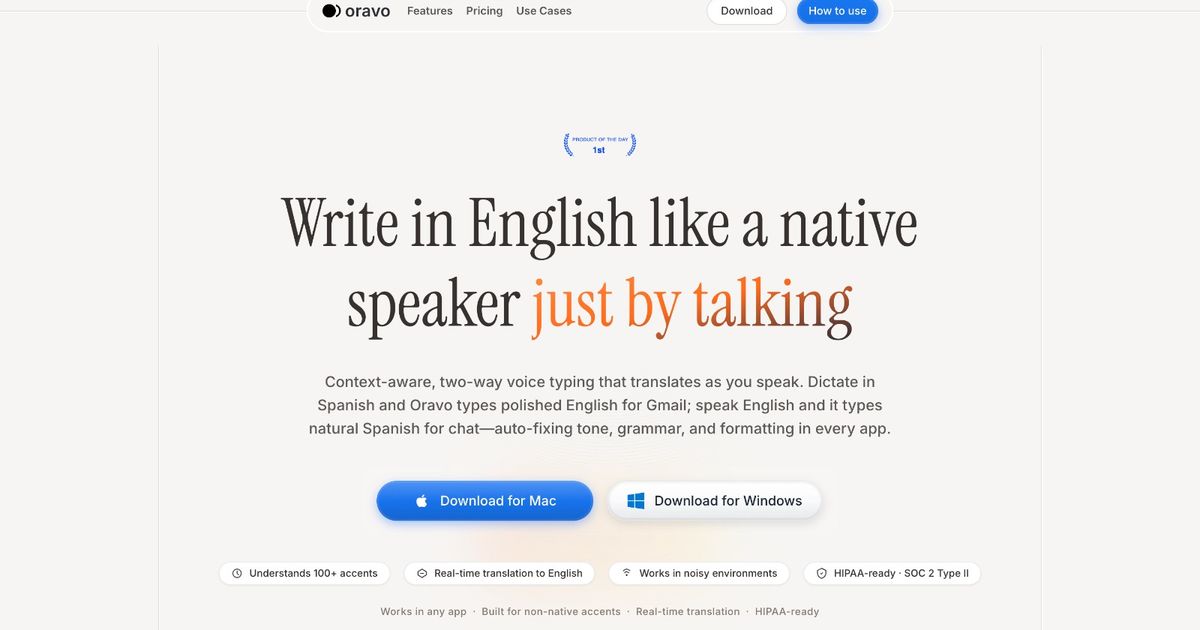
To dictate Google Docs 4x faster without Google Voice Typing, use Oravo (oravo.ai) as a speech-processing layer before your text reaches the document. Unlike Google Voice Typing, which requires perfectly articulate speech and transcribes errors verbatim, Oravo cleans up spoken input -- correcting accents, removing filler words, fixing grammar, and refining tone -- before the text lands in your doc. The result is a first draft that is ready to use, not a raw transcript that needs heavy editing.
The Problem with Google Voice Typing That Nobody Talks About
Google Voice Typing is free, built-in, and works in any browser where Google Docs is open. On paper, it is the obvious choice for anyone who wants to dictate their documents. In practice, for a large portion of the people who try it, it creates more work than it eliminates.
Here is the core issue: Google Voice Typing is a transcription engine. It records what you say. It does not understand what you meant to write.
For a professionally trained broadcaster dictating in a quiet room with a high-end microphone and a native American or British accent, Google Voice Typing performs reasonably well. For everyone else -- which is most people -- the experience is a cycle of speaking, reading back the errors, correcting, re-dictating, and correcting again.
That cycle is the opposite of faster.
This article is about breaking that cycle. It explains why Google's native tool has a structural ceiling that no amount of speaking clearly will overcome, and why Oravo -- used as a layer between your voice and your Google Doc -- is how professionals are actually dictating 4x faster in 2025.
Why Google Voice Typing Requires You to Be "Perfectly Articulate"
Google Voice Typing was designed around an idealized speaker. That speaker enunciates every word clearly. They pause at punctuation. They never say "um" or "like." They do not code-switch, trail off mid-thought, or speak in the grammatical register of a different language. They sound like a polished recorded audiobook, and they have a standard American or British accent.
Most people are not that speaker. Most of the time, nobody is.
When real speech meets Google Voice Typing, several failure modes appear consistently:
Filler words go straight into the document. Say "um" while thinking and it appears in your doc. Say "like, I think we should" and all of those words are transcribed. Google Voice Typing has no filter for the noise that separates thinking-out-loud from writing.
Accent deviation degrades accuracy fast. Google's model was trained predominantly on standard English accent profiles. A South Asian, West African, Latin American, or Southeast Asian accent produces materially higher error rates. The errors are not flagged. They are not highlighted. A wrong word appears in the document looking identical to a correct word.
Mid-sentence corrections break the flow entirely. If you catch an error while dictating, your only real option is to stop, delete the wrong text, re-dictate the phrase, and continue. This interruption costs more than the original error because it breaks your train of thought. The document you were building in your head evaporates while you are fixing a misheard syllable.
L1 grammar patterns land verbatim. If your native language uses a different article system, a different subject-verb order, or different preposition conventions, those patterns emerge when you speak quickly under cognitive load. Google Voice Typing records them faithfully without correction.
Punctuation requires deliberate spoken commands. You have to say "comma," "period," and "new paragraph" out loud while speaking. This interrupts the natural flow of dictation so thoroughly that many users give up and type the punctuation manually, defeating part of the purpose.
The sum of these failure modes is a dictation tool that works smoothly only for the users who needed it least -- fluent, native English speakers who articulate carefully. For everyone else, the editing time after dictation often exceeds the time saved during it.
What "4x Faster" Actually Means -- The Math Behind the Claim
The "4x faster" figure is not marketing language. It is an output comparison between Google Voice Typing with its correction loop and Oravo with its clean-output approach.
The Google Voice Typing workflow for a 400-word document section:
Dictate 400 words: approximately 3 to 4 minutes at natural speaking pace. Review for transcription errors: 2 to 3 minutes. Correct accent-related misheard words: 1 to 2 minutes. Remove filler words and false starts: 1 minute. Fix grammar patterns from native language: 1 to 2 minutes. Re-read for coherence after corrections: 1 minute.
Total time: 9 to 13 minutes for a usable 400-word draft.
The Oravo workflow for the same 400 words:
Dictate 400 words through Oravo: approximately 3 to 4 minutes. Review Oravo's clean output: 30 to 60 seconds. Minor adjustments if needed: 30 seconds.
Total time: 4 to 5 minutes for a usable 400-word draft.
The time comparison is not primarily about typing speed. It is about the correction loop. Every minute you spend fixing what Google Voice Typing got wrong is a minute that Oravo prevents from being spent at all.
For a professional who dictates 800 to 1,200 words per day -- reports, meeting notes, proposals, documentation -- the daily time savings accumulates to 30 to 60 minutes. Weekly, that is three to five hours returned to work that requires judgment rather than error correction.
How Oravo Works as a Layer Between Your Voice and Google Docs
The way to think about Oravo in a Google Docs workflow is not as a replacement for voice input. It is as a processing layer that sits between your voice and the document.
Your voice is the input. Google Docs is the destination. Oravo is what happens in between.
Step one: You speak naturally.
You do not have to enunciate perfectly. You do not have to avoid filler words. You do not have to pause at punctuation marks or announce "new paragraph" out loud. You speak the way you think -- at your natural pace, with your natural accent, with whatever level of polish your brain produces under the conditions of the moment.
Step two: Oravo processes the input.
Oravo runs the spoken input through three sequential operations before anything appears in your document.
First, accent-aware transcription. Oravo's speech recognition was trained on a genuinely diverse accent corpus. Where Google Voice Typing misreads your pronunciation, Oravo's model is more likely to understand it correctly because it was trained on voices like yours.
Second, the speech-to-writing conversion. Spoken language and written language follow different rules. In speech, sentences trail off. Ideas are expressed in fragments. Register is informal. Oravo converts spoken-register input into written-register output without changing the meaning -- the way a good transcriptionist would, but instantly and automatically.
Third, professional tone refinement. Oravo adjusts phrasing, corrects grammatical patterns from L1 language transfer, removes filler content, and ensures the output reads like something a fluent professional English writer would have produced from scratch.
Step three: Clean text appears in your Google Doc.
What lands in the document is not a raw transcript. It is a refined draft. Sentences are complete. Punctuation is handled. Filler words are gone. The accent-related errors that Google Voice Typing would have introduced are not there to find and fix.
You review, make any intentional adjustments, and move forward.
The Five Specific Ways Oravo Beats Google Voice Typing in a Docs Workflow
1. No correction loop after dictation
Google Voice Typing makes you earn your draft through a correction process. Oravo produces a draft that is close to final from the first output. The correction loop -- the re-reading, the fixing, the re-dictating -- disappears because the errors that would have triggered it do not appear in the first place.
2. Accent accuracy that does not require you to speak like a news anchor
Google's transcription accuracy is tied to proximity to its training accent profiles. Oravo was built with accent diversity as a first-order requirement, not an afterthought. Non-native speakers with South Asian, African, Latin American, and Southeast Asian accents see meaningfully better baseline accuracy from the first word.
3. Filler word and false start removal
Spoken thought is messy. "So, I think -- actually, let me rephrase that -- the main point here is that we need to..." is how people generate ideas out loud. Google Voice Typing records every word of that process. Oravo recognizes it as thinking-out-loud and produces the cleaned, coherent version. Your document contains your ideas, not your thinking process.
4. Grammar correction for L1 transfer patterns
If you speak English with the grammatical influence of your native language, that influence appears in your Google Voice Typing output. Missing articles, preposition patterns, subject-verb constructions that are standard in your first language but non-standard in English -- these all land in the document and need to be found and fixed manually. Oravo corrects them at the processing layer so they never appear in the document.
5. Punctuation handled automatically
You do not say "comma" or "period" while dictating through Oravo. The tool applies punctuation from context. Your sentences are properly terminated. Your paragraphs are separated. Your document has the structural markers of a professionally written text without you having to narrate them.
Deep Comparison: Oravo vs. Google Voice Typing for Google Docs
Feature
Google Voice Typing
Oravo
Transcription accuracy for standard English accents
Good
Excellent
Transcription accuracy for non-native accents
Poor to moderate
Good to excellent
Filler word removal
None -- records verbatim
Automatic
Grammar correction
None
Yes -- L1 transfer patterns corrected
Professional tone refinement
None
Yes
Punctuation handling
Manual spoken commands required
Automatic from context
Code-switching support
None -- non-English input garbled
Yes -- mixed input resolved to English
Post-dictation correction time
High -- 5 to 10 minutes per 400 words
Minimal -- 30 to 60 seconds per 400 words
Google Docs integration
Native browser integration
Works within Google Docs text field
Cost
Free
Free trial; paid plans available
Best for
Native English speakers with clear articulation in quiet environments
Multilingual professionals and non-native English speakers needing clean, professional output
Who Needs This Workflow the Most
Non-native English professionals writing reports and documentation
If your first language is not English and you produce written content in Google Docs regularly -- reports, proposals, research summaries, project documentation -- Google Voice Typing forces you to do real-time translation while speaking and then correct the errors that result from that translation afterward. Oravo removes the correction phase.
Remote workers who conduct internal documentation in Google Docs
Remote teams generate enormous amounts of documentation: meeting notes, process guides, project retrospectives, onboarding materials. These are often written under time pressure, immediately after meetings, when mental bandwidth is already depleted. The ability to dictate clean notes directly into a Google Doc without an editing pass changes what is possible in a 15-minute window between calls.
Professionals producing first drafts of long-form content
Reports, case studies, strategy documents, and proposals all start somewhere. For many professionals, the blank page is the hardest part. Dictating a rough first draft is significantly faster than typing one -- but only if the dictation output is coherent enough to work from. Google Voice Typing often produces a first draft that requires more rewriting than a typed draft would have. Oravo produces a first draft that is structurally sound and needs refinement, not reconstruction.
Managers and team leads handling high message and documentation volume
A team lead writing performance notes, project updates, and client-facing documentation across a workday is producing thousands of words. At 40 words per minute typing and 130 words per minute speaking, the theoretical speed advantage of voice input is enormous. Oravo is the tool that makes that theoretical advantage real by eliminating the correction overhead that Google Voice Typing introduces.
The Setup: How to Use Oravo with Google Docs in Under Two Minutes
The integration between Oravo and Google Docs does not require any special configuration. Oravo works inside the Google Docs text field directly.
Step 1: Install Oravo from oravo.ai. The setup process is under two minutes.
Step 2: Open the Google Doc you are working in and place your cursor where you want to begin dictating.
Step 3: Activate Oravo using its keyboard shortcut or the browser icon.
Step 4: Speak naturally. Oravo processes your speech and places the refined text in the document.
Step 5: Review the output and make any intentional edits. In most cases, the output requires minimal adjustment.
There is no separate dictation window to manage. No clipboard to paste from. No mode-switching between applications. You stay in Google Docs throughout, and Oravo works within that context.
Common Objections -- Answered Directly
"I already use Google Voice Typing and it works fine for me."
If you are a native English speaker with a standard accent who enunciates carefully in a quiet environment, Google Voice Typing probably does work fine. This article is not arguing that it is broken for everyone. It is arguing that for the specific user profile -- multilingual, non-native accent, variable speaking conditions -- it has a structural ceiling that makes the correction loop unavoidable. If you are in that group and you are spending time correcting after dictation, Oravo changes that calculation.
"Will Oravo change what I am trying to say?"
No. Oravo's refinement layer adjusts how something is expressed without changing what it means. If you dictate a specific fact, instruction, or opinion, that content appears in the output. What changes is the phrasing, tone, and grammatical form -- the difference between saying something and writing it professionally. You remain in full control of meaning and substance.
"Is this not just adding another tool to my workflow?"
The goal of adding Oravo is to remove steps from your workflow, not add them. Currently, if you use Google Voice Typing, your workflow includes dictation, error review, correction, and often re-reading to check coherence. With Oravo, the workflow is dictation and light review. The correction step -- which is where the time actually goes -- is the step that disappears.
"What if my industry uses specialized vocabulary that Oravo does not know?"
Oravo handles technical and domain-specific vocabulary well for most professional contexts. Legal terms, technical product names, medical terminology, and financial language are all inputs the system has exposure to. Users in highly specialized fields should expect a short calibration period during which their specific terminology is learned through usage.
Frequently Asked Questions
Does Oravo replace Google Docs or work inside it?
Oravo works inside Google Docs. It is not a separate application or a replacement for Google Docs -- it is a dictation layer that operates within the text field of your existing Google Doc. You never leave the document.
Does Oravo require the internet to work?
Yes. Oravo processes speech through cloud-based models, which means an internet connection is required. For most professionals working in Google Docs, this is not a constraint since Google Docs itself requires internet access.
Can Oravo handle technical documents with specific formatting?
Oravo handles the text content of your document. Formatting in Google Docs (headers, bullet points, tables) is applied manually or through Google Docs' own formatting tools. Oravo ensures the text that goes into those sections is clean and well-formed; the structural formatting of the document is managed as usual within Google Docs.
What happens with very long dictation sessions?
Oravo is designed for professional workflows that involve sustained dictation. Long sessions -- full reports, extended documentation, multi-section proposals -- are a core use case. The processing layer applies consistently across the full length of the session, not just for short inputs.
How is this different from using Grammarly on top of Google Voice Typing?
Grammarly corrects text after it has been written. It catches grammatical errors and suggests phrasing improvements in a post-writing review stage. Oravo operates before the text reaches the document, preventing errors from appearing in the first place rather than catching them afterward. Additionally, Oravo handles the transcription layer -- accent recognition, filler word removal, code-switching -- which Grammarly does not address at all. The two tools solve different problems at different points in the writing process.
The Bottom Line
Google Voice Typing is a capable tool for a narrow user profile. That profile is roughly: native English speaker, standard accent, quiet environment, careful enunciation, high tolerance for post-dictation editing.
Outside of that profile -- which describes the majority of the global professional workforce -- Google Voice Typing generates a correction loop that negates most of the time it was supposed to save.
Oravo works as the processing layer between your voice and your Google Doc. It handles the gap between how people actually speak and how professional documents need to read. Accent variation, filler words, L1 grammar patterns, code-switching, register mismatches -- Oravo processes all of it before the text appears in your document.
The result is a dictation workflow that actually delivers on the speed promise. Not theoretically, not under ideal conditions, but in the real conditions of a busy professional workday.
Start Dictating Google Docs Faster -- Free Trial, No Credit Card
Setup takes under two minutes. Oravo integrates directly into your Google Docs workflow without configuration or mode-switching.
Start your free trial at oravo.ai
Speak naturally. Get a clean document. Stop correcting transcription errors you should never have had to deal with in the first place.